User Manual
Every screen in Kyanite Pro, what each number means, and how to work a sheet from start to finish. Written for the hand using it on tour, not for a developer.
Covers version 2.0 (build 47) · Second edition · Updated 15 October 2026
About this manual
Kyanite Pro is a field toolkit for drilling personnel: 131 calculators across six disciplines, the sheets a crew actually fills in — kill sheets, cement jobs, LCM pills, chemical inventory, location tank volumes — plus notes, reference charts, a scientific calculator and a hitch calendar.
The whole thing runs on the phone. No signal is required to open a calculator, work a kill sheet or gauge a tank, and no account is needed to use any of it. Sharing records with a crew is the one feature that goes online, and it is entirely optional.
Read this before you use a result
Kyanite Pro is a calculation and reference aid. It is not a well control program, a hydraulics model or a substitute for engineering judgement. Every result must be independently verified by qualified personnel before it supports an operational decision, and every well control decision follows your company’s well control program and the person in charge on location. The full wording is in Appendix C and in the app under Settings › Calculation Disclaimer.
Screenshots in this manual are taken from an iPhone. The app also runs on iPad, where the five tabs are replaced by a sidebar; the screens themselves are the same.
Getting around
On iPhone there are five tabs along the bottom. There is no “More” list — everything else is reached from the Home dashboard.
- Home
- The dashboard: modules, field tools and your favorites.
- Calcs
- The whole calculator library, searchable, with the field sheets and reference charts listed underneath.
- Calculator
- The scientific calculator — a full keypad with a live result.
- Notes
- Field notes and mud checks.
- Volumes
- The tubular capacity chart: bbl/ft, ft/bbl and annular volumes. Not to be confused with Location Volumes, which tracks tanks.
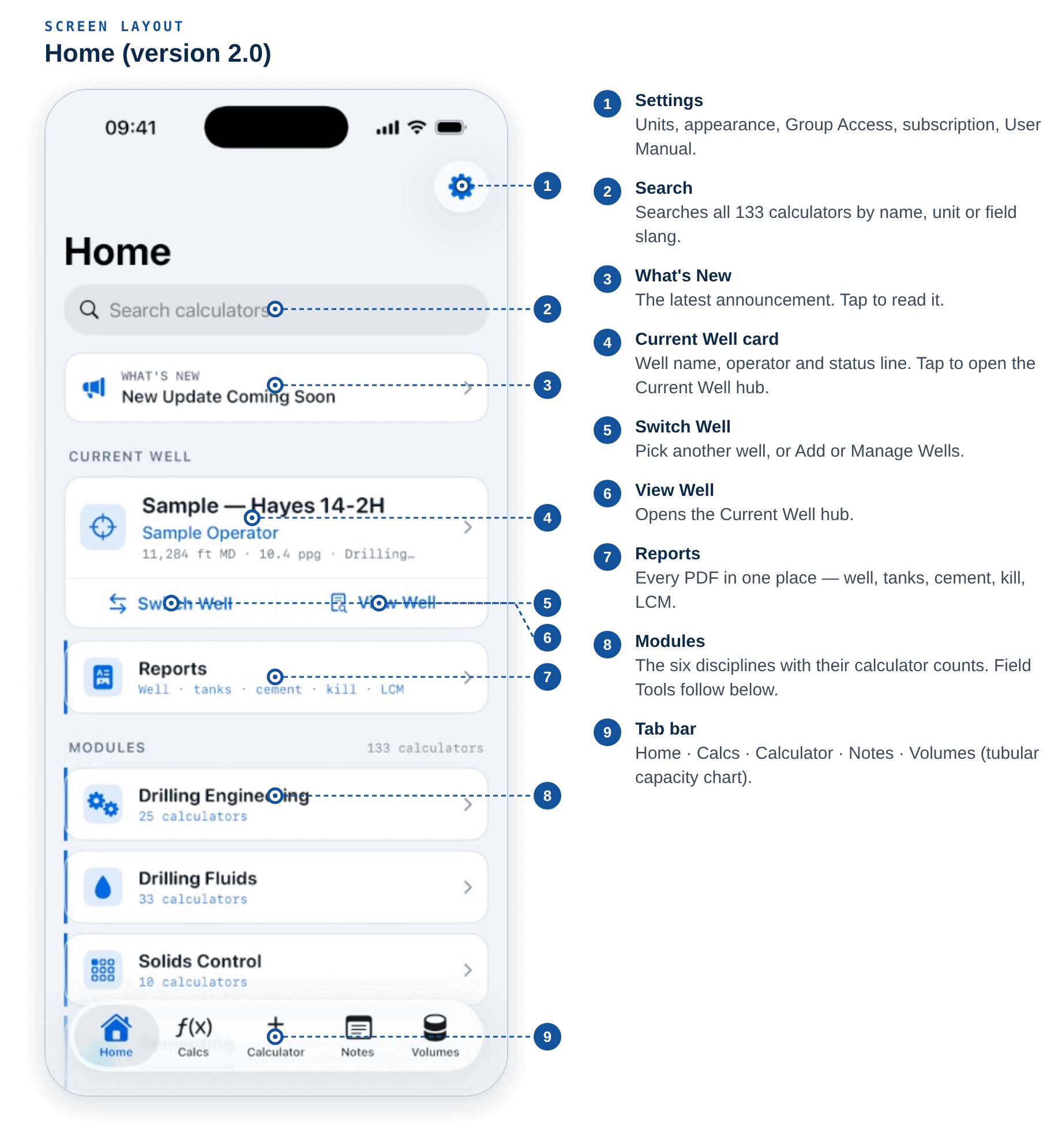
The Home screen has three sections. Modules lists the six disciplines with a live count of the calculators in each. Field Tools holds the Hitch Calendar, LCM Build Sheet, Cement Job Sheet, Kill Sheet, Chemical Inventory, Scientific Calculator and Notes. Favorites appears once you have starred something, and puts it one tap away.
Settings is the gear icon at the top right of Home — it is not a tab.
On iPad
A sidebar replaces the tab bar, with sections for Modules, Field Sheets, Reference Charts and Tools. Three reference screens — the Fluid Dilution Chart, PV Ranges and the Bulk Tank Chart — are currently only reachable from that sidebar, so on iPhone they are not yet listed anywhere. See Reference charts and volumes.
First launch
The first time you open the app you get three pages. You cannot swipe them away, and there is no skip button, but it takes under a minute.
- Welcome — what is in the app.
- Engineering Calculation Disclaimer — the five paragraphs reproduced in Appendix C. Continuing acknowledges it.
- Set up your hitch — optional. The toggle is on by default, with a start date, days on, days off, and one-tap presets for 14/14, 7/7, 14/7, 20/10, 28/14 and 21/21. Turn it off if you would rather do it later.
Tap Start Using Kyanite Pro and you are in. You are never asked to create an account, and you are never asked for notification permission at launch.
Using a calculator
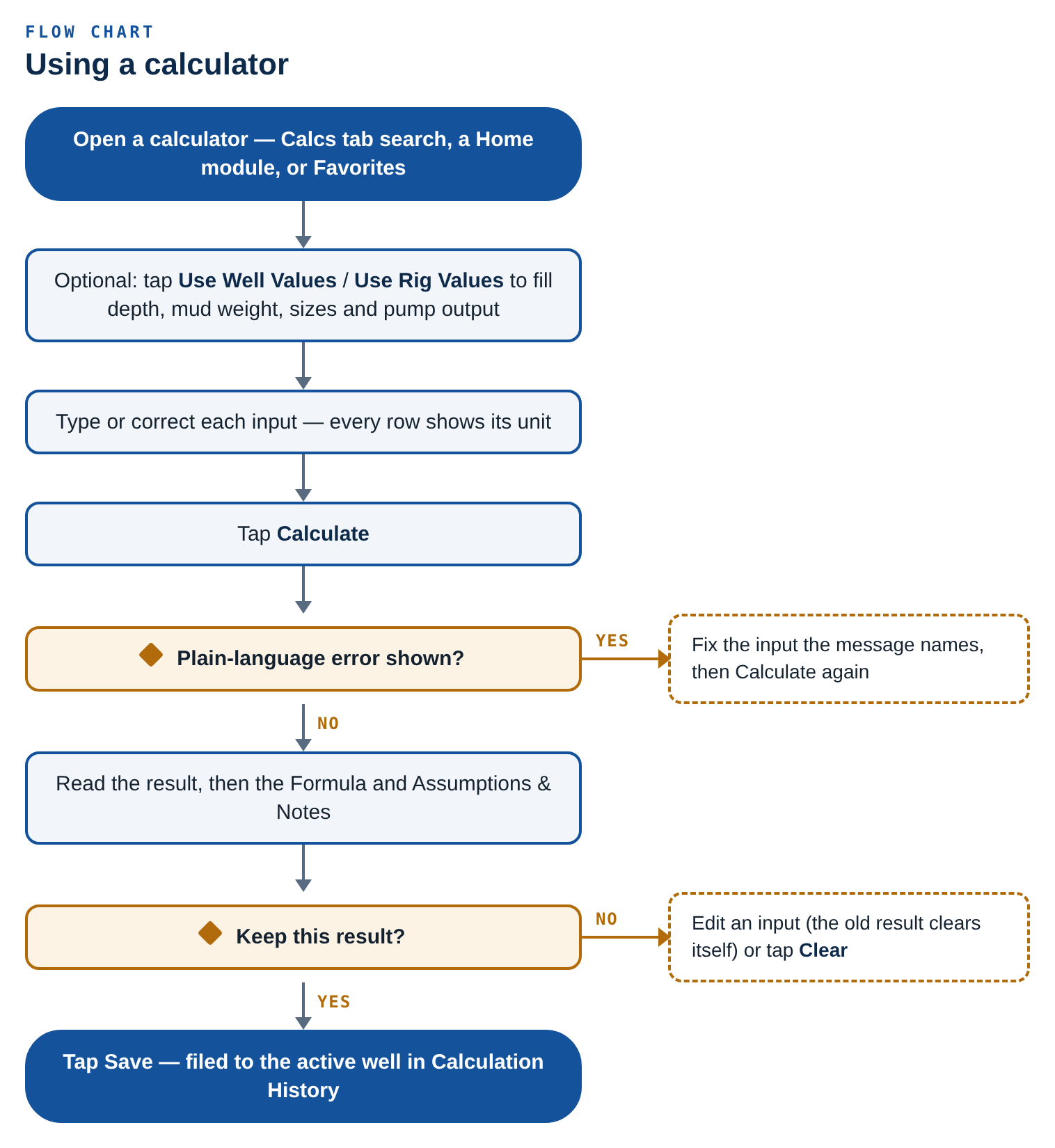
Every one of the 131 calculators uses the same screen, so once you have worked one you have worked all of them.
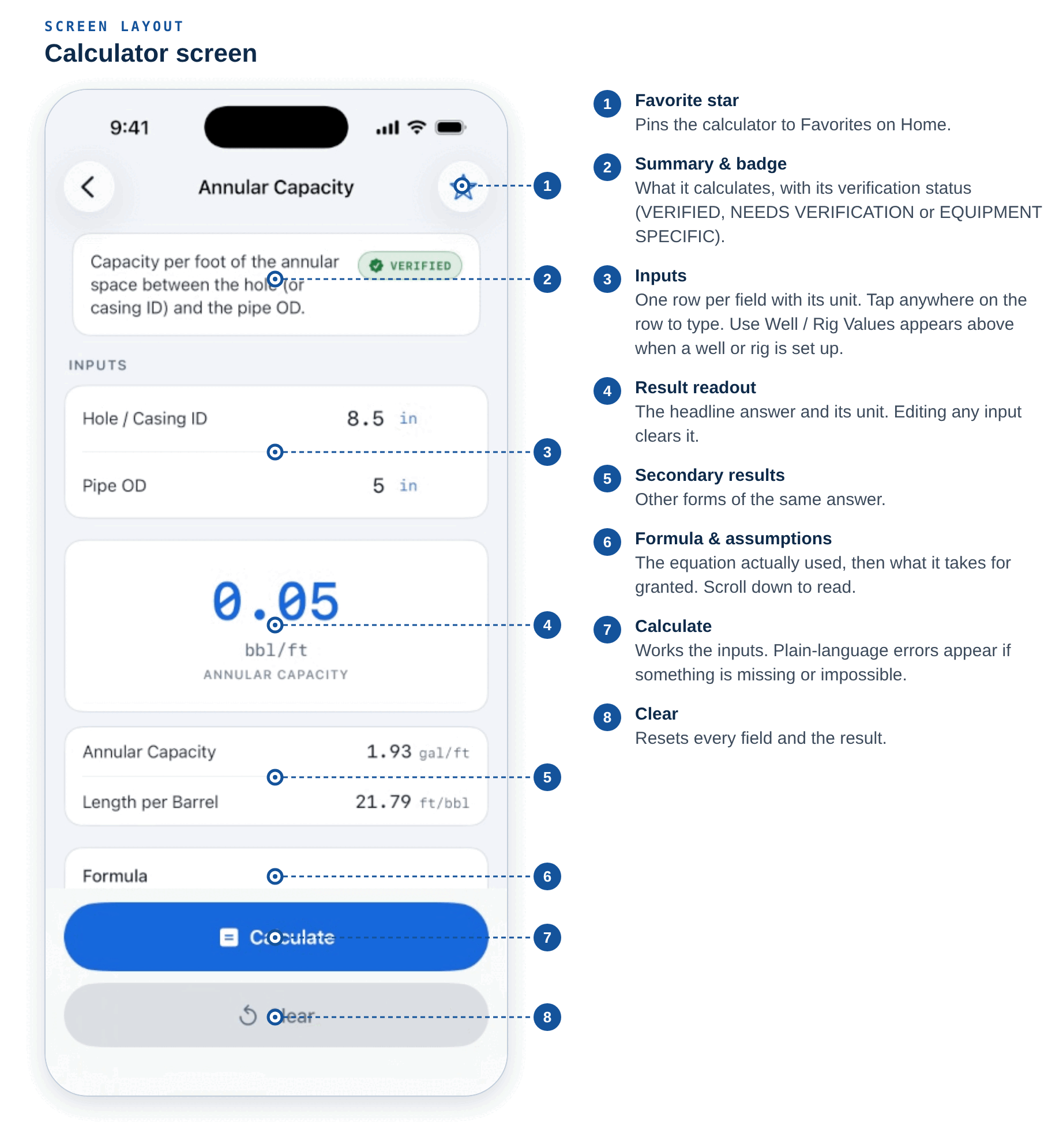
- Summary card
- One line describing what the calculator does, with its verification badge on the right.
- Inputs
- One row per field, with the unit on the right. Tap anywhere on the row to start typing. Fields marked Optional can be left blank; some arrive pre-filled with a sensible default, such as a 2.6 specific gravity for low gravity solids.
- Result readout
- The headline answer in large blue figures, with the unit beneath. Secondary results follow in their own card.
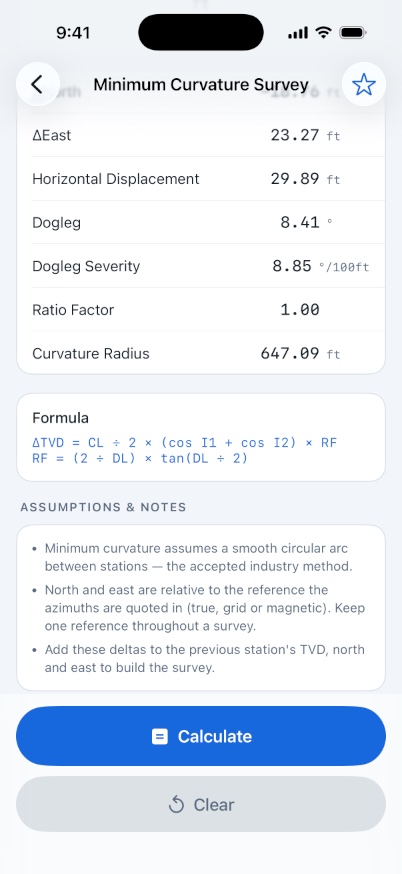
- Formula
- The equation actually used, in plain text. Long-press to select and copy it.
- Assumptions & Notes
- What the equation takes for granted. Worth reading once per calculator, particularly on anything not marked VERIFIED.
- Calculate / Clear
- Pinned to the bottom. Clear resets every field to its default and wipes the result.
Stale answers are impossible. The moment you edit any input the previous result disappears, so a number on screen always belongs to the inputs above it.
Favorites. The star in the top right pins a calculator to the Favorites section on Home. You can also tap the star on any row in a list.
Search. The Calcs tab searches all 131 by name, module, category, unit and field slang — searching “lgs”, “drilled solids” or “dump” will find the right screen.
Errors are in plain language. If something cannot be worked out you get a specific reason, such as “Oil plus water cannot exceed 100%.” or “Target LGS must be lower than the current LGS.” rather than a blank result.
Metric mode does not change the inputs
Setting Default Units to Metric (SI) keeps every input in oilfield units and adds a converted line underneath each result. It does not let you type in metric.
Verification statuses
Every calculator carries a badge saying how far its equation has been checked. This is deliberate: an app that presents a guess and a standard with equal confidence is worse than no app. The counts are listed under Settings › Equation Verification.
An established industry equation, or a direct volumetric or mass balance derivation. The large majority of the library.
The screen is finished, but the equation still needs review against your company’s verified reference before operational use. Twelve calculators carry this today, mostly around solids balance, dilution, alkalinity and toolface.
The answer depends on manufacturer data that you supply — centrifuges, hydrocyclones, motors, MWD batteries. Enter the values from your equipment documentation.
In a list, a verified calculator shows nothing; the other two show their icon beside the unit. Every calculator’s status is marked in Appendix A.
If you have a verified company formula for anything marked NEEDS VERIFICATION, send it in — see Support and feedback.
The six modules
Calculators are grouped into six disciplines, each broken into categories. Tapping a module on Home lists its categories; every module has its own search.
- Drilling Engineering
- Capacities, volumes, displacement, circulation and pressure calculations.
- Drilling Fluids
- Mud properties, weighting, treatment, chemistry and slug calculations.
- Solids Control
- Solids balance, dilution, discard, screens and equipment performance.
- Cementing
- Slurry design, annular volumes, balanced plugs, displacement and differential pressure.
- Directional & MWD
- Survey calculation, well plan geometry, steering and MWD sensor equations.
- Well Control
- Kill weight, circulating pressures, shoe limits, kick analysis and the vertical kill sheet.
The full contents of every module, with units and verification status, is in Appendix A.
Kill sheet
Home › Field Tools › Kill Sheet, or from the Well Control module. A standard vertical kill sheet worked in field units.
What this sheet is
A calculation aid that checks your arithmetic and keeps your pre-recorded data current. It is not a well control program and it does not make decisions. Every well control decision follows your company’s program and the person in charge on location.
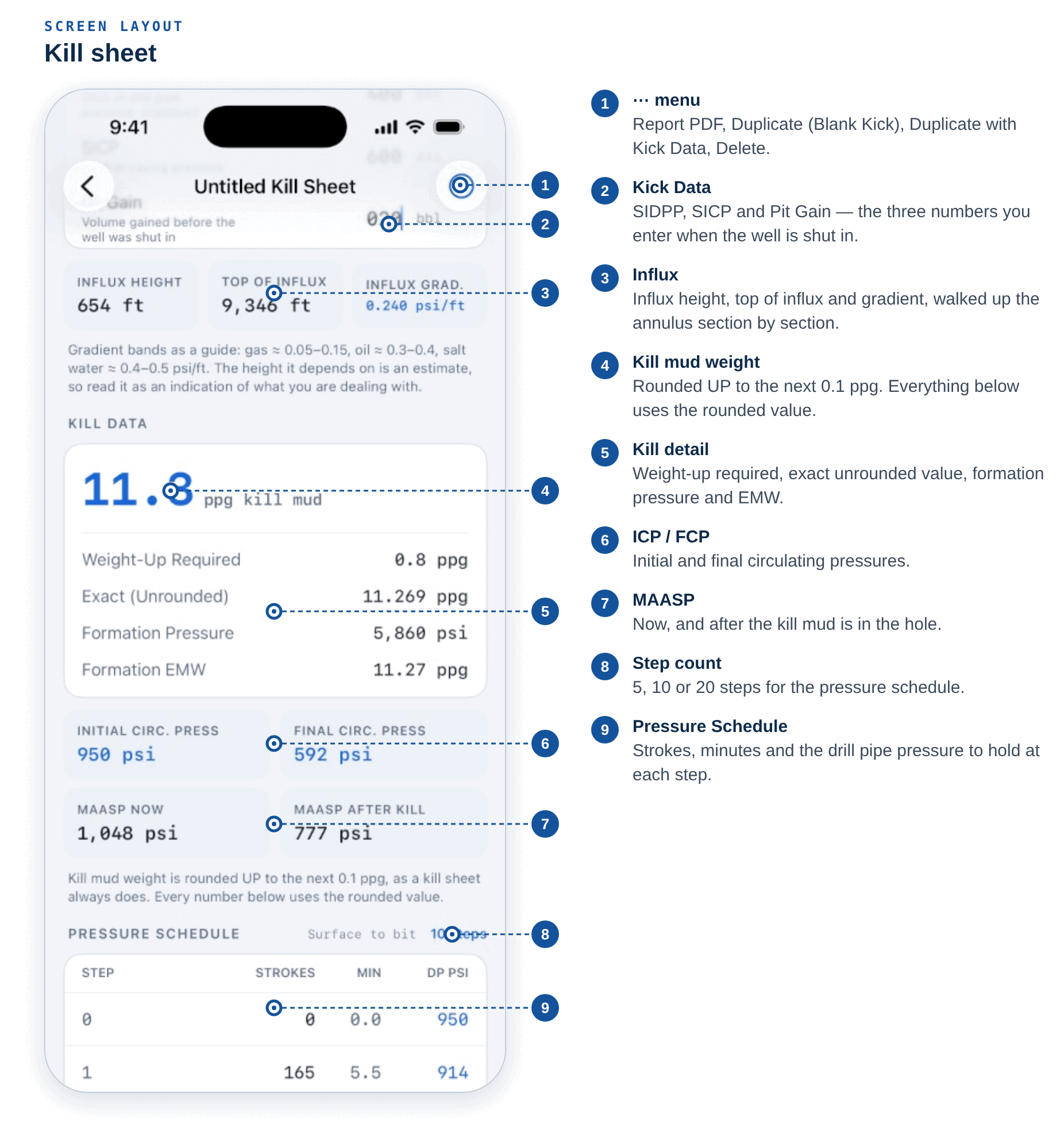
The screen is ordered the way it gets used, not the way it gets filled in. Kick data, the kill numbers and the pressure schedule are at the top. Depths, pump, leak-off, drill string and annulus — the half you keep current on a quiet tour — are below.
Filling one in before you need it
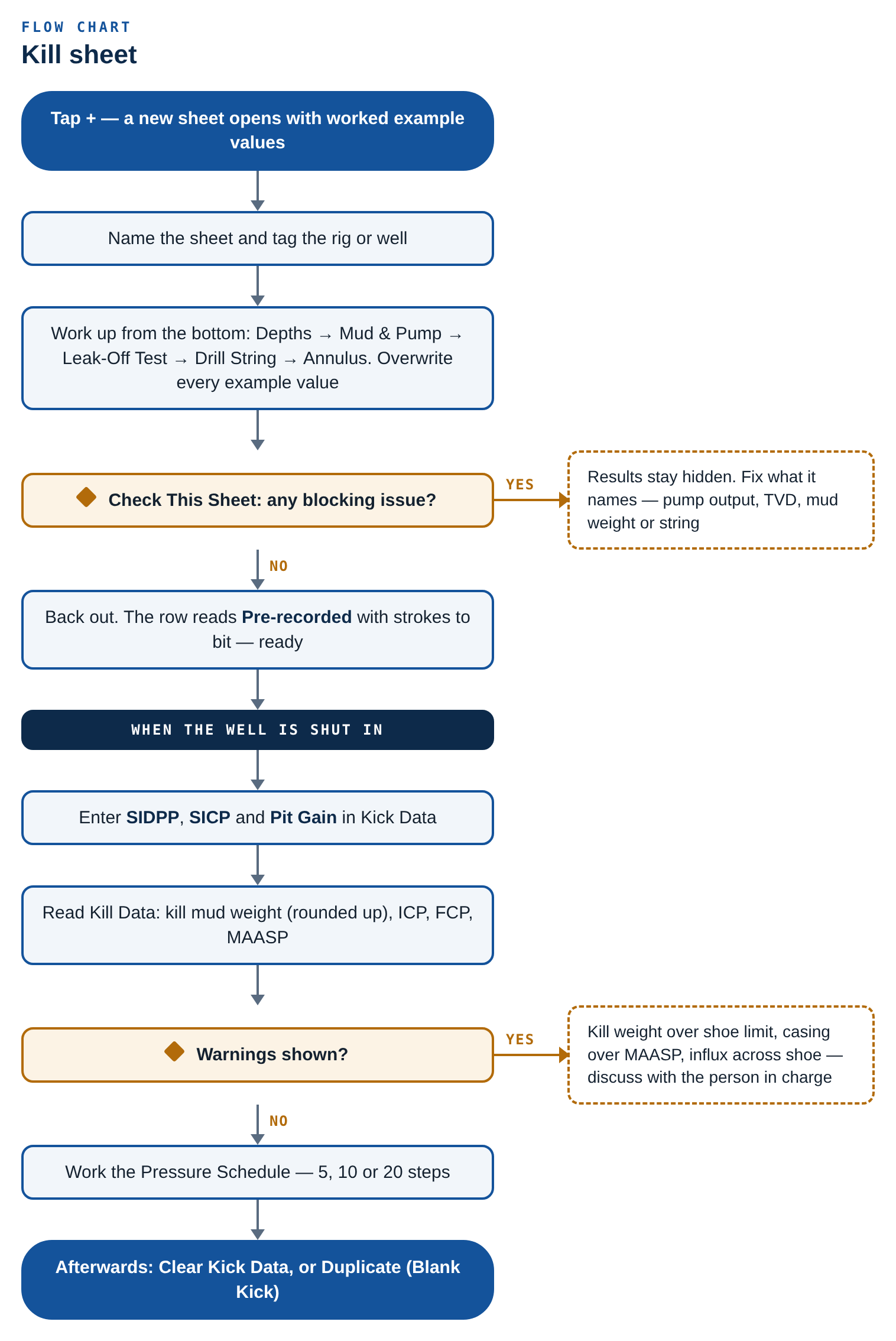
- Tap +. A new sheet opens already carrying worked example values. Overwrite them.
- Name the sheet and tag the rig or well.
- Work up from the bottom: Depths (hole MD and TVD, shoe MD and TVD), Mud & Pump (mud weight, pump output, kill rate, slow circulating rate pressure), Leak-Off Test, Drill String and Annulus.
- Back out. The row now reads Pre-recorded with the strokes to bit — that is the ready state.
If the well is shut in
- Open the sheet and enter SIDPP, SICP and Pit Gain in the Kick Data card at the top.
- Read the Kill Data card: kill mud weight in large type, weight-up required, the exact unrounded value, formation pressure and EMW, then initial and final circulating pressure and MAASP now and after the kill.
- Work the Pressure Schedule — strokes, minutes and the drill pipe pressure to hold at each step. Choose 5, 10 or 20 steps.
- Afterwards, tap Clear in Kick Data, or use Duplicate (Blank Kick), to return it to the pre-recorded state.
The rounding is deliberate
Kill mud weight is always rounded up to the next 0.1 ppg, because rounding down kills the well underbalanced. Leak-off and maximum allowable mud weight round down, because rounding up claims strength the shoe has not shown. Schedule pressures round down. Everything downstream uses the rounded kill weight, exactly as the paper sheet does.
The influx is walked up the annulus section by section, so the tight annulus around the collars fills before the influx spills into the wider one above. A 20 bbl gain therefore stands taller than a single average capacity would suggest, and when the top of the influx climbs past the shoe the sheet says so.
Check This Sheet
Problems are graded. Blocking issues hide the results entirely rather than print nonsense — no pump output, no TVD, no mud weight, no drill string. Warnings are worth a conversation: kill weight above the shoe limit, casing pressure over MAASP, influx across the shoe, casing reading below drill pipe, TVD deeper than MD. Notes are cross-checks, such as string sections not adding up to the hole depth.
Managing sheets. The … menu offers Duplicate (Blank Kick), Duplicate with Kick Data and Delete. Rename by editing the Name field. Sheets save as you type.
Cement job sheet
Home › Field Tools › Cement Job Sheet. A whole primary cement job on one screen: hole and casing, lead and tail, spacer and displacement.
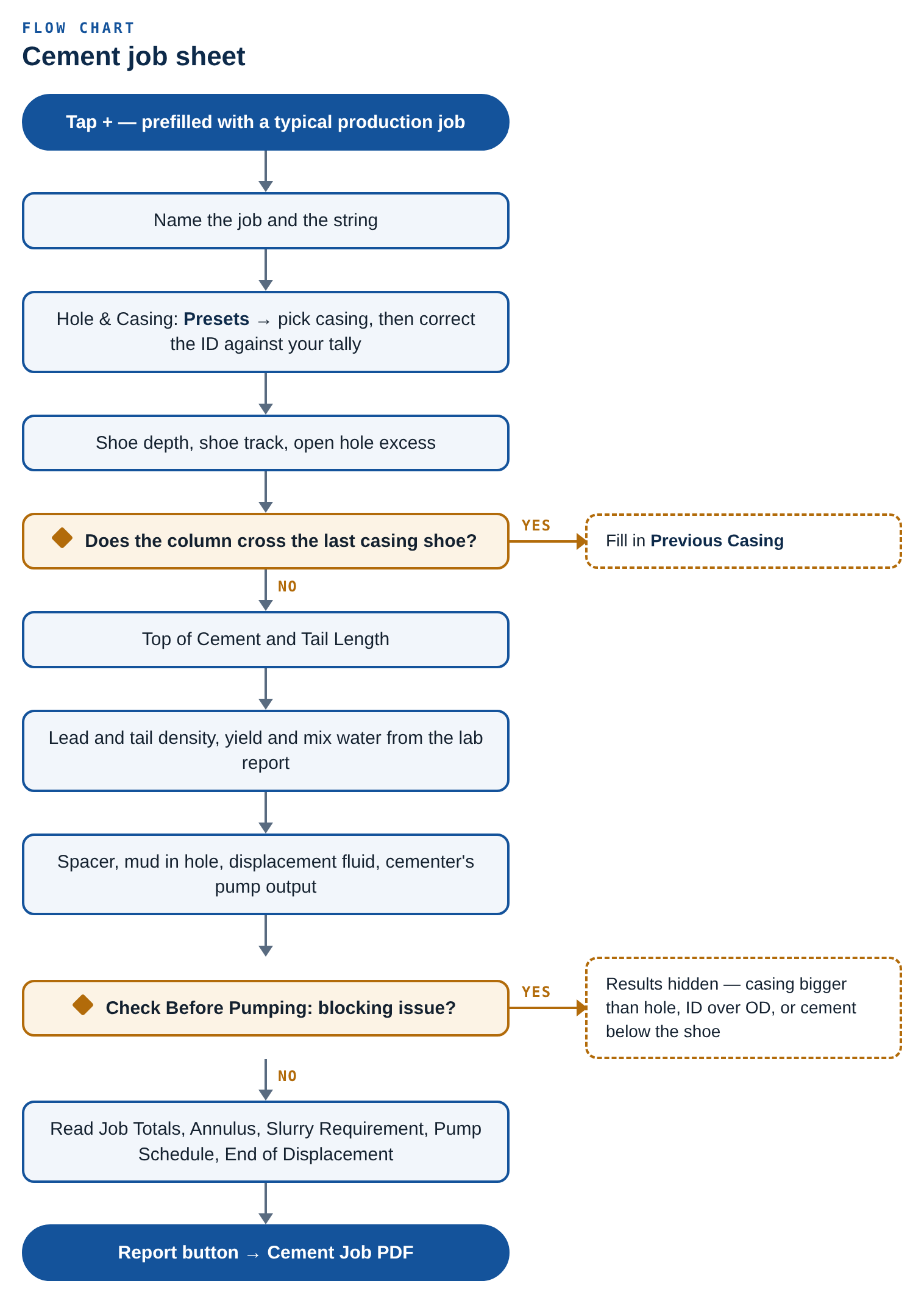
- Tap +. The sheet arrives prefilled with a typical production job.
- Name the job and the string.
- In Hole & Casing, tap Presets and pick your casing — 20″, 13-3/8″, 9-5/8″, 7″, 5-1/2″ or 4-1/2″. Presets fill nominal sizes only, so correct the casing ID against your tally.
- Set shoe depth, shoe track and open hole excess.
- If the column crosses the last casing shoe, fill in Previous Casing. Leave it at zero for open hole to surface.
- Set Top of Cement and Tail Length.
- Enter lead and tail density, yield and mix water from the lab report.
- Enter spacer, mud in hole, displacement fluid and the cementer’s pump output.
- Clear anything in Check Before Pumping, then read the results.
What it gives you back
- Job Totals
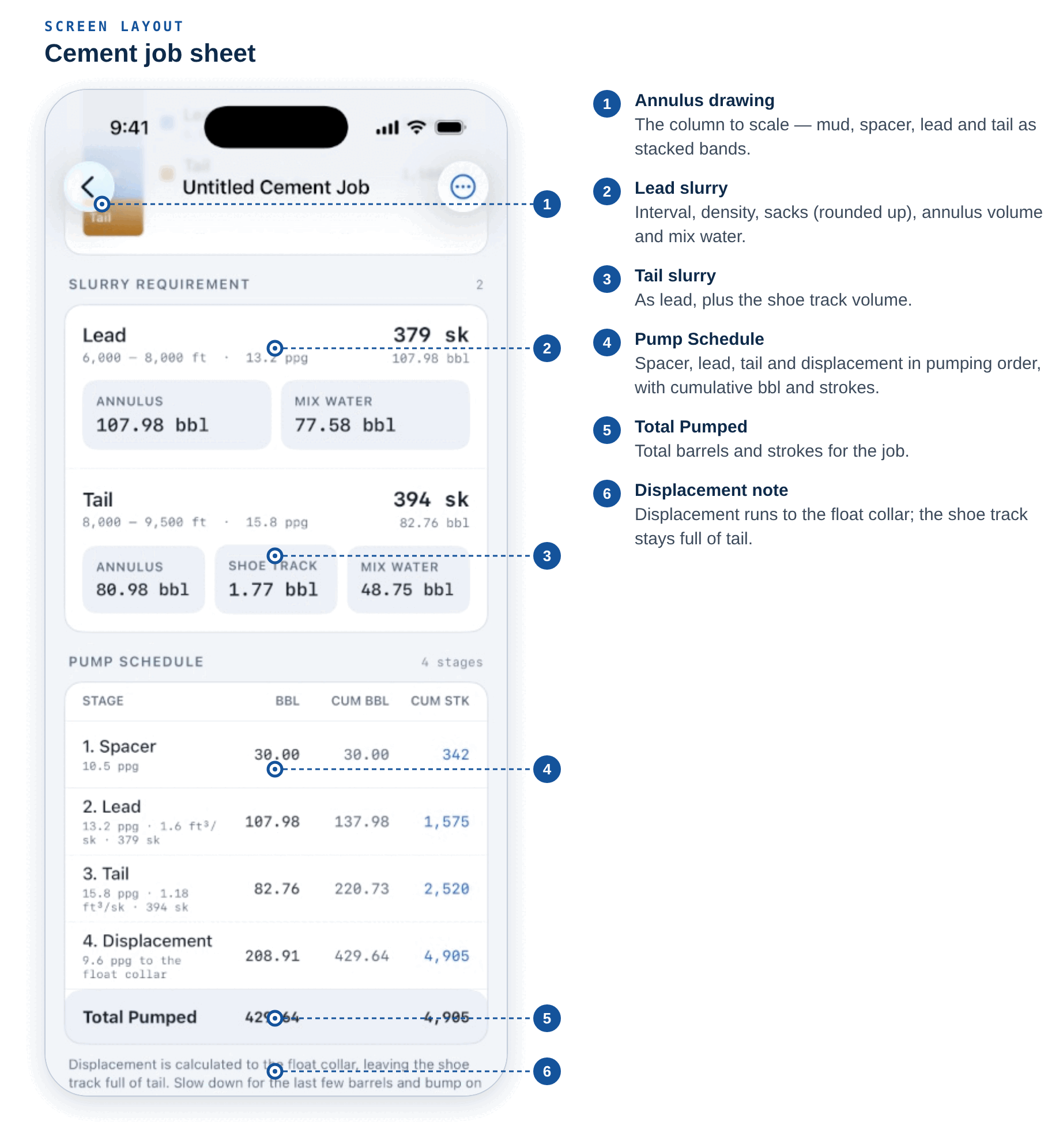
- Total sacks in large type, rounded up, plus total slurry, cement column, mix water and displacement.
- Annulus at End of Job
- The column drawn to scale — mud, spacer, lead and tail as stacked bands with their intervals beside them.
- Slurry Requirement
- Per slurry: interval, density, sacks, annulus volume, shoe track, mix water and cost.
- Pump Schedule
- Spacer, lead, tail, displacement in the order they go down the hole, each with volume, cumulative barrels and cumulative strokes.
- End of Displacement
- Annulus at shoe, inside casing, differential and EMW at the shoe. A negative differential means the plug will want to fall, and the sheet says so.
Excess is applied to open hole only
Never to the cased annulus, never to the shoe track and never to displacement. Displacement is calculated to the float collar, not the shoe, because the shoe track stays full of tail after the plug bumps.
Check Before Pumping uses the same three severities as the kill sheet. Blocking issues — casing bigger than the hole, ID bigger than OD, cement below the shoe — hide the results. Warnings clamp the input and explain it, such as a tail longer than the planned column swallowing the lead.
The … menu offers Duplicate Job and Delete Job.
LCM build sheet
Home › Field Tools › LCM Build Sheet. A lost circulation pill is a recipe rather than a single answer, so it gets its own screen.
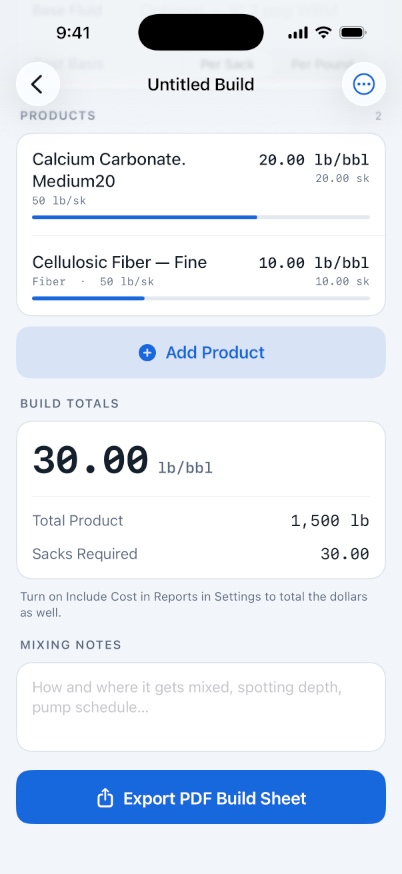
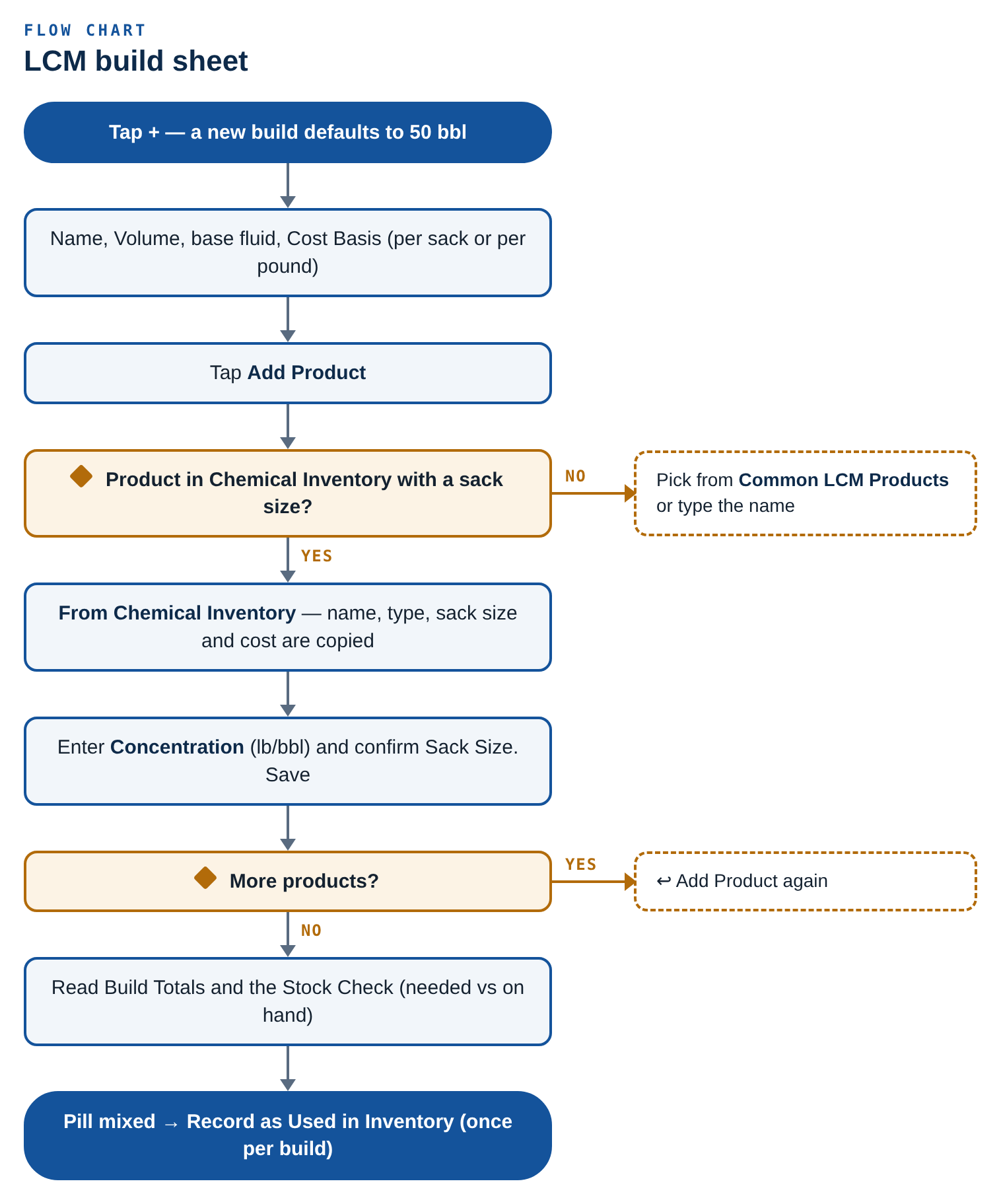
- Tap +. A new build defaults to 50 bbl.
- Name it, set the Volume, optionally the base fluid, and confirm the Cost Basis — per sack or per pound.
- Tap Add Product. Pick From Chemical Inventory, pick from Common LCM Products (calcium carbonate, cellulosic fibre, ground nut hull, mica, cottonseed hulls, sized salt, graphite, cedar fibre), or type the name in.
- Enter the Concentration in lb/bbl and confirm the Sack Size from your product data sheet. Save.
- Repeat for each product, then read Build Totals.
The sheet derives total pounds, sacks required, total cost and cost per barrel, and shows the build’s total concentration as a large readout with each product’s share as a bar. Nothing derivable is stored, so correcting one concentration updates every total at once.
Pulling products from inventory
A product in your chemical inventory that has a Sack Size recorded can be dropped straight into a build. Choosing one copies the name, the category as the product type, the sack size and the cost, converted onto the build’s basis. The concentration is never filled in for you — that is always your call.
Linked lines show a Linked to inventory banner with today’s stock on hand, and drive the Stock Check card: what the build needs, what is on hand, and either what is left after mixing or how much you are short.
Recording a pill as used can only be done once
Record as Used in Inventory writes the required quantities into today’s Used column for every linked product and stamps a Mixed: <build name> note on the entry. A build can never be posted twice; afterwards the card shows the date instead of the button. Note that a duplicated build does not carry that flag, so a copy can be posted again.
Chemical inventory
Home › Field Tools › Chemical Inventory. A daily ledger of chemical stock that rolls over on its own.
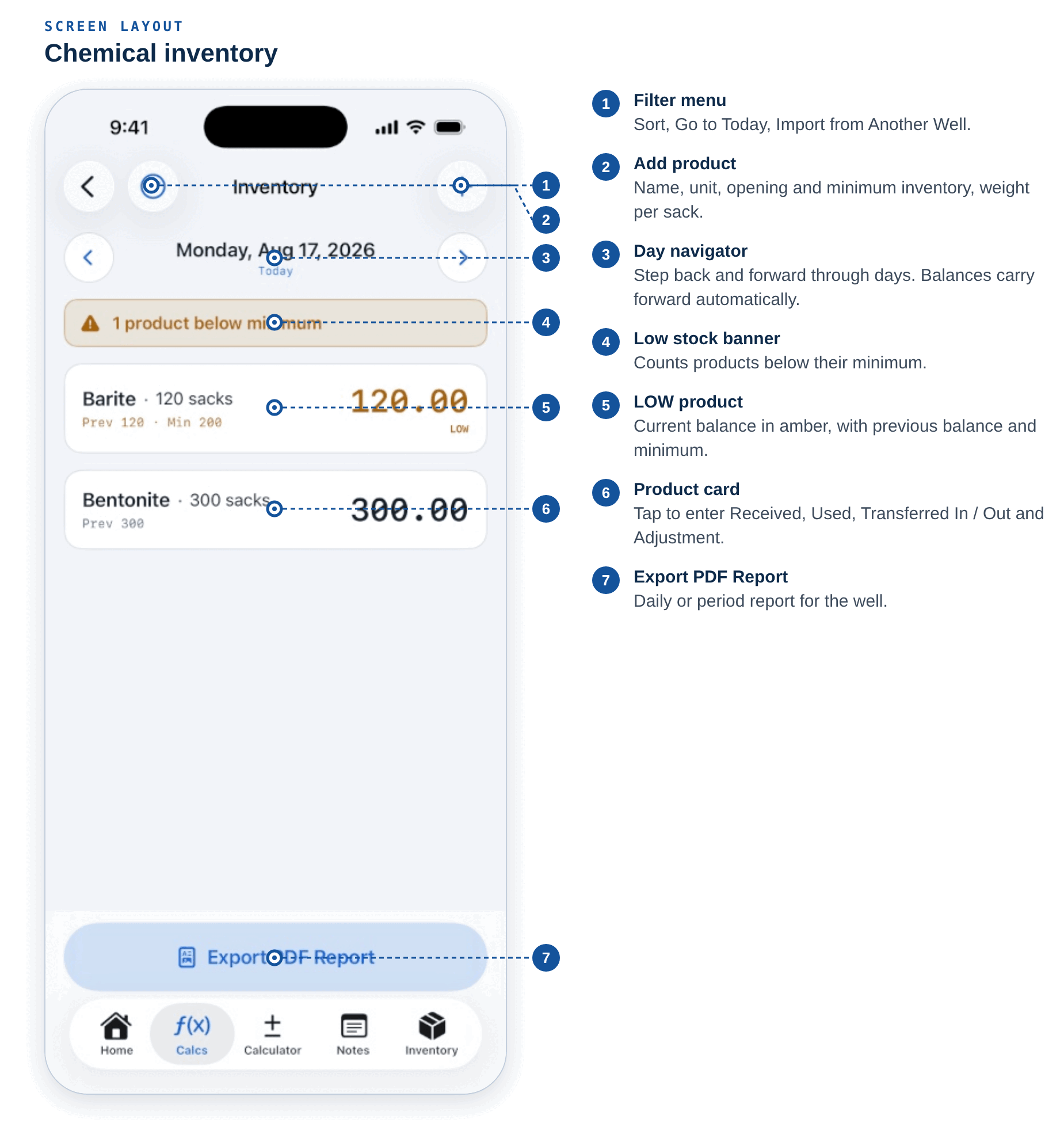
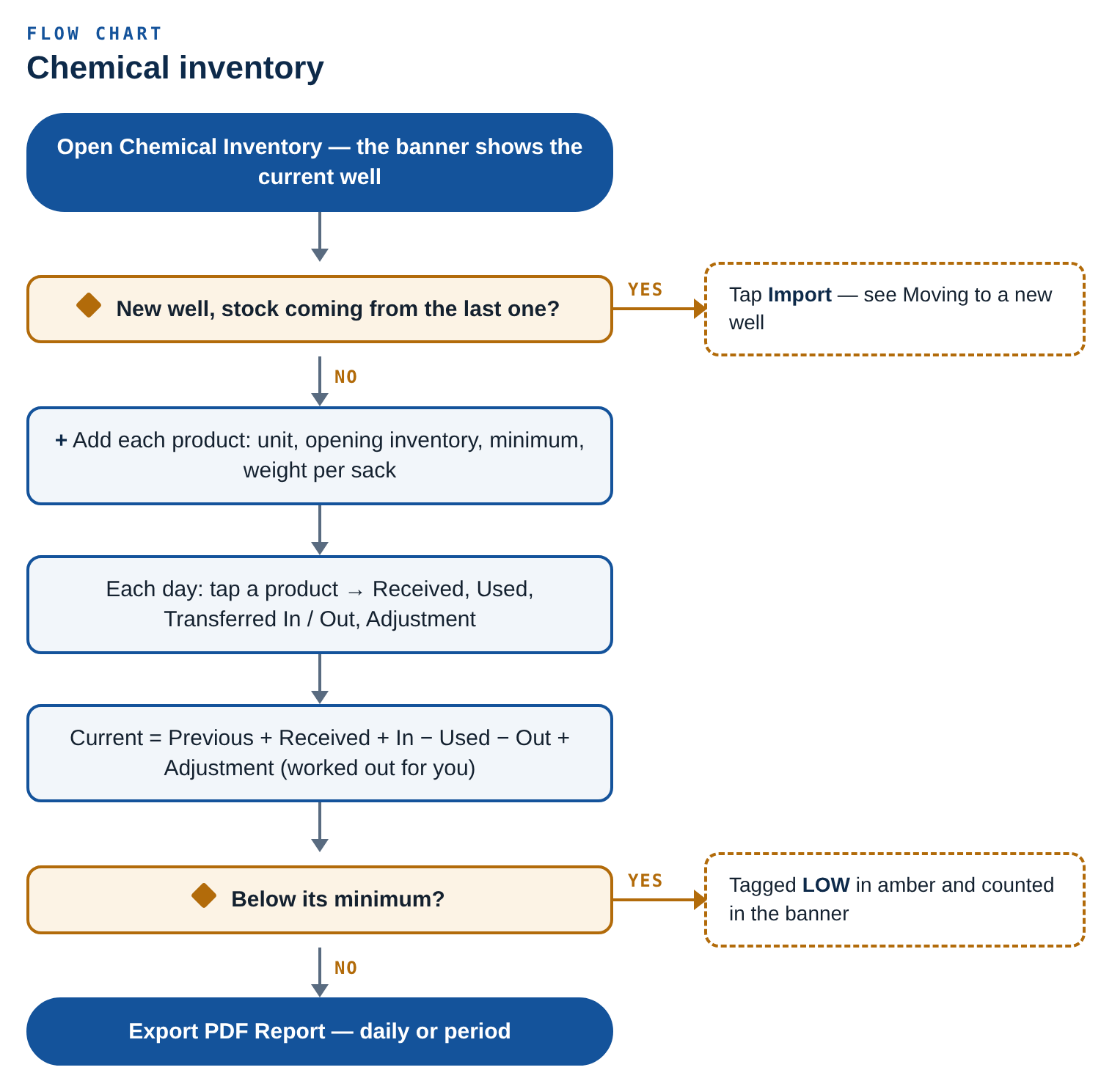
Adding a product
- Tap + and enter the product name, manufacturer and category.
- Pick the Unit — sacks, drums, buckets, totes, pallets, gallons, barrels, pounds, units or a custom label.
- Set Opening Inventory to what is in the shack right now, and a Minimum Inventory to arm the low stock warning.
- Fill in Weight per sack if you want the product usable on an LCM build sheet.
Each day
Tap a product and fill in Received, Used, Transferred In, Transferred Out and Adjustment. Adjustment is the only field that accepts a negative. Add a day note if it needs explaining. The ledger is stated on the screen:
Current = Previous + Received + Transferred In − Used − Transferred Out + Adjustment
Balances are derived, never stored
Today’s previous balance is yesterday’s closing balance, even if days were skipped. Correcting an older day automatically shifts every later balance, which is exactly what should happen. Changing the opening inventory shifts the entire history.
A product below its minimum is tagged LOW in amber, and a banner counts them at the top of the day. Setting a minimum of zero disables the warning for that product. History inside a product lists every recorded day with its movements and closing balance.
Sort by name, category, low stock first or quantity from the filter icon, and use Go to Today to jump back after browsing history.
Inventory is kept per well (version 2.0)
The banner at the top shows which well’s stock you are looking at. Switching the current well switches the inventory. Stock entered before 2.0 is given to your current well the first time you open Inventory, so nothing goes missing. Moving rigs? Tap Import on the banner — see Moving to a new well. Crew inventory is not split by well.
Location volumes
Every tank on location — volume, mud weight and grouped totals. Reach it from Home › Drilling Fluids › Location Volumes on iPhone, or the Field Sheets section of the iPad sidebar.
Location Volumes is not the Volumes tab
The Volumes tab at the bottom of the screen is the tubular capacity chart. Location Volumes tracks the tanks on your location and lives under Drilling Fluids.
Setting up
- Tap + and choose Add Tank.
- Name it and pick a type: OBM, WBM, Fresh Water, Cement, Brine, Bulk, Trash or Other.
- Enter what is in it now, the mud weight, and the rated capacity.
- Repeat for every tank on location.
- Optionally tap + › Add Group to combine tanks — an active system, for instance — and see a collective volume. A tank can be in more than one group.
Gauging each tour
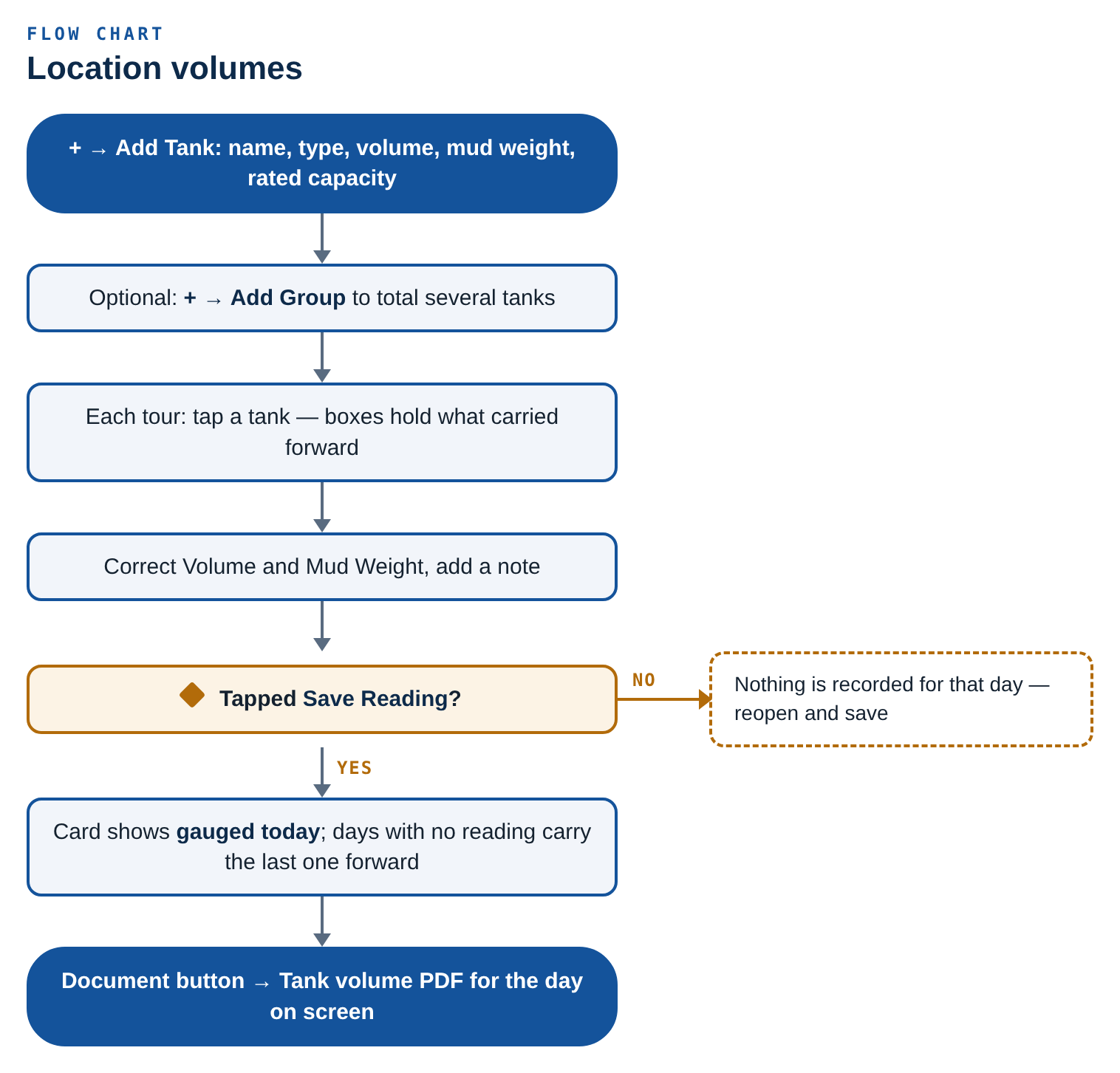
- Tap the tank. The boxes are pre-filled with whatever carried forward.
- Correct the Volume and Mud Weight, and add a note if it needs one.
- Tap Save Reading.
Tank readings need an explicit save
Unlike every other screen, the tank day editor does not save as you type. If you back out without tapping Save Reading, nothing is recorded against that day.
A tank card shows gauged today or carried over. Tank readings are absolute gauge readings, not movements: the state on any day is the most recent reading on or before it. A day with no reading of its own simply carries the last one forward. Clear This Day’s Reading deletes just that day and falls back to the reading before it.
The top of the screen totals everything on location, with a breakdown by category and any group totals. A tank gauged above its rated capacity is flagged in amber; a tank with no rated capacity never warns and shows no fill bar.
Tanks are kept per well
From version 2.0 your tanks and groups belong to the current well, shown on the banner. Tanks set up before 2.0 are given to the current well the first time you open the screen. Import brings tanks, groups, volumes and mud weights from the last well.
Tank volume PDF
The document button at the top right creates a PDF of every tank for the day on screen: totals by category, each tank’s capacity, volume, mud weight, % full and whether it was gauged that day or carried from an earlier reading, group totals, and a notice for any tank above its rated capacity.
Gain / loss data sheet
Home → Field Tools → Gain / Loss Sheet, or from the Drilling Fluids module. The hourly pit balance, worked for a full 24 hours. Requires Kyanite Pro.
The idea is the one every mud hand already works on paper. Each hour you know what the pits should have done — the new hole takes mud away, anything mixed or transferred in puts mud back — and you know what they actually did from the PVT. The difference is the net. A net that will not settle around zero is usually the earliest sign of a kick or of losses, well before anything else shows up.
Starting a sheet
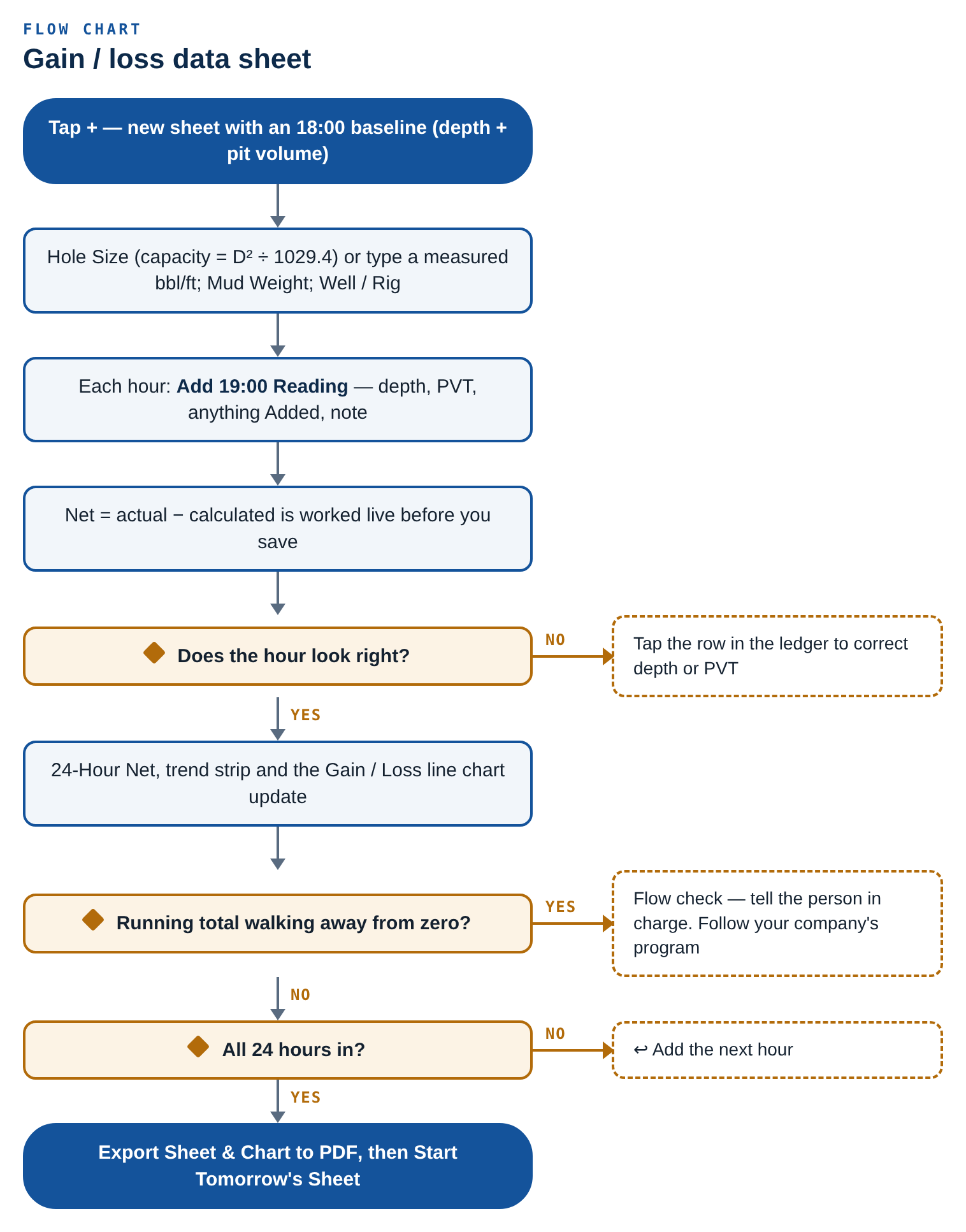
Tap +. A new sheet opens with a single baseline line at 18:00 — the depth and pit volume you are handed at tour change. Nothing is worked against the baseline; it is what the first hour is measured from. Fill in:
- Hole Size. Sets the hole capacity in bbl/ft from
D² ÷ 1029.4. - Hole Capacity. Editable. Type over it to carry a measured figure instead — a washed-out hole rarely takes the textbook number, and the sheets this was built from run 0.088 and 0.083 bbl/ft on the same 8-3/4" hole. Once edited it is marked measured and the hole size will not overwrite it. A one-tap button puts it back on the calculated value.
- Mud Weight and Well / Rig are recorded on the header.
Each hour
Tap Add 19:00 Reading and the fields open with the previous hour's depth and pit volume already in them, because you are reading a gauge that has moved a little, not entering a number from nothing. Type what changed, plus anything Added that hour, any Losses — known losses out of the active system: dumped, transferred out, solids-control discard — and a note if something happened — dust up, centrifuge off, SC transfer 24 bbls.
Known losses are taken out before the net is worked, so a planned dump does not read as the hole taking mud. They show on the ledger row as loss −x and are totalled as Known losses on the sheet, in the PDF and in the CSV.
Sharing a sheet with the crew
On a crew, gain / loss sheets have the same Mine / crew switch as the other shared screens. Crew sheets are shared live with your crew · graph & PDF on the web too: members as well as admins can log readings, the same way members gauge tanks, and every phone and the web console sees the new hour within seconds.
The net for that hour is worked live above the fields, with the footage, the calculated change and the actual change broken out, so a fat-fingered depth is obvious before you save it.
Reading the sheet
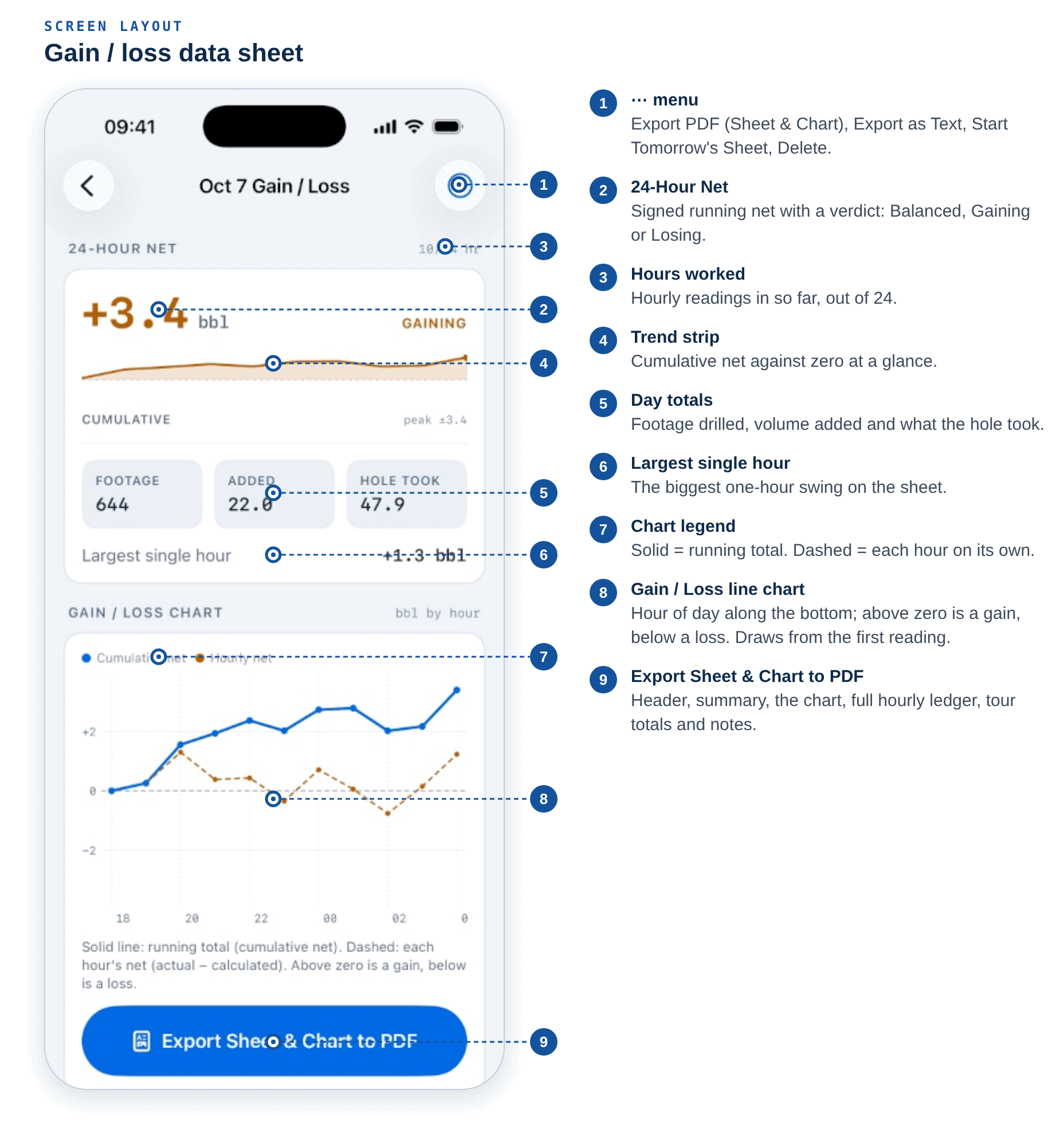
- 24-Hour Net at the top, signed, with a plain-language verdict: Balanced, Gaining or Losing. Gains read warm, losses read cool — deliberately not red/green, because a gain is not "bad" and a loss is not "good", they are different problems.
- Gain / Loss Chart — right under the net card; see The chart below.
- Cumulative trend strip. One line against the zero axis. A single hour is noisy; what matters is whether the running total keeps walking away from zero.
- Hourly ledger. Time, depth, PVT, added and net across the top, with footage, hole loss, calculated and actual underneath each row. Tap any row to correct it. The tour change is drawn as a visible break.
- By Tour. Nights, days and the 24-hour figure. Every hour counts once and the two tours always add back up to the day — worth saying because a hand-built spreadsheet almost always sums one row short at the tour boundary and quietly drops an hour out of the day.
Finishing and carrying on
At 24 hours the sheet is complete. Start Tomorrow's Sheet in the ⋯ menu opens the next day with the hole size, capacity and tour setup copied and this sheet's last depth and pit volume already in as the baseline — the way the next day's paper sheet is started from the bottom line of today's.
The chart
Directly under the 24-Hour Net, the Gain / Loss Chart card draws the whole day hour by hour. It starts from the baseline at 0 bbl, so the line appears as soon as the first hourly reading is in:
- Solid line — the running total (cumulative net).
- Dashed line — each hour's own net (actual − calculated).
- The dashed zero line across the middle. Above zero is a gain, below is a loss.
The hour of the day runs along the bottom; barrels up the side, signed.
Exporting
- Export Sheet & Chart to PDF (button under the chart, or Export PDF in the ⋯ menu) builds a PDF with the header (hole size, capacity, mud weight, start hour), the 24-hour summary, the Gain / Loss line chart (drawn as sharp vector lines, with its legend and hour axis), the full hourly ledger — time, depth, footage, hole, added, calculated, actual, net and cumulative — any hour notes, tour totals and sheet notes. Hours of ±2 bbl or more are highlighted. It opens full screen; share from there.
- Export as Text hands the sheet over as a fixed-width text block that pastes into a morning report looking like the sheet it came from.
A trend that will not settle is a reason to shut in and check, not a number to explain away. Flow checks and well control decisions follow your company's program and the person in charge on location.
Notes and mud checks
The Notes tab is quick capture with no ceremony — no save button, no folders. It is free, with no subscription required.
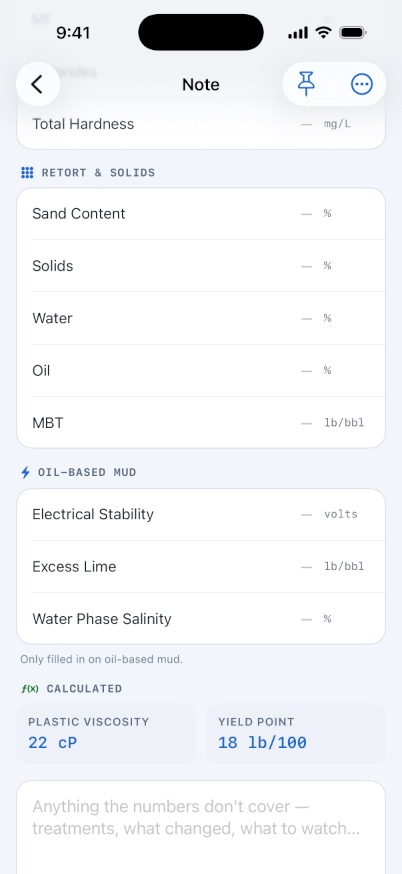
Notes carry a title, body, category, an optional rig or well tag, and a pinned flag. Seven categories tag and tint a note: General, Mud Check, Handover, Safety, Equipment, Supplies and Follow Up.
The list has search, category filter chips for the categories actually in use, and a Pinned section. Long-press a row to pin or delete. A note opened and left completely blank deletes itself on the way out, so a mis-tap never leaves an empty row.
The mud check editor
Tag a note Mud Check and a full check sheet appears, grouped into cards: mud properties, viscometer dial readings, filtration, chemistry, retort and solids, and an oil-based mud card. Enter the 600 and 300 rpm readings and a green Calculated card gives you plastic viscosity, yield point and the oil to water ratio. Those are never stored — correct a dial reading and they move with it.
Blank is not zero
Every box may be left empty. A check where the HTHP was skipped shows nothing for it rather than a zero, because a recorded zero and a reading nobody took are very different things to whoever reads it later. Clearing a box sets it back to nothing, not to zero.
Searching notes matches the title, body, location tag, category and every recorded mud check reading, so searching a mud weight finds the check it was recorded on. The … menu offers Share Note and Copy Note, which produce a tidy plain-text version with only the groups you actually filled in.
Reference charts and volumes
The charts a crew would otherwise have taped to the mud shack wall. None of them requires a subscription.
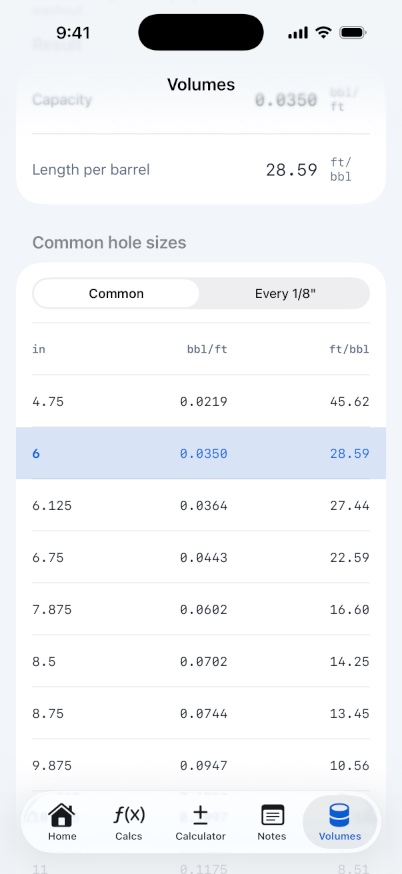
- Volumes
- The Volumes tab. Enter a hole or casing ID and a length for capacity in bbl/ft, length per barrel in ft/bbl and total volume. Add a string OD to get the annulus as well. The table runs every 1/8 in from 4-3/4 in to 36 in, and switches off the common-sizes filter automatically if your size is not a common one.
- Shaker Screens
- Record your rig's screens — name, manufacturer, API designation, cut point and conductance from the API RP 13C label — so the crew has one reference on tour. Includes a link to the screen mesh / micron calculator.
- Fluid Dilution Chart
- Flow rate by stopwatch: time how long a known container takes to fill and read the rate off the chart. Carries barrels over a 12 and 24 hour tour. Vis cup / quart and 5 gallon columns.
- PV Ranges
- Recommended plastic viscosity and total solids windows for mud weights 8.6 to 19.0 ppg. Enter a mud weight to see its window; add your PV or retort solids and each is graded below, in range or above. Guideline ranges for a water-base mud.
- Bulk Tank Chart
- Sacks by ladder rung for a bulk tank, with an animated silo diagram. Edit the measurements so the ladder matches the one you are climbing — every tank straps differently.
Three charts are iPad-only at the moment
The Fluid Dilution Chart, PV Ranges and the Bulk Tank Chart are currently reachable only from the iPad sidebar. On iPhone there is no route to them yet. Volumes and Shaker Screens are available on both.
Scientific calculator
The Calculator tab is a real expression calculator, not a chain calculator, and it is free.
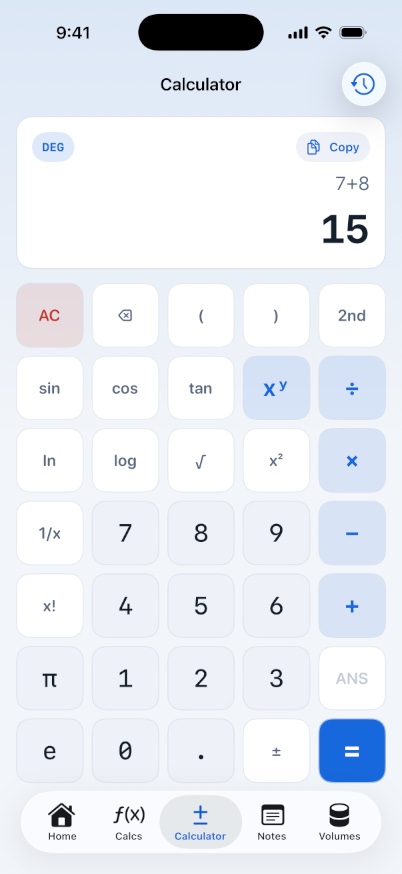
Type 2+3×4 and you get 14, not 20. 3(4+5) is 27, 2π works, and an unclosed bracket is closed for you. The result is evaluated live underneath the expression; = commits it to the session history and leaves the answer ready for the next calculation.
- Functions
- sin, cos, tan and their inverses, ln, log, e^x, 10^x, square root, cube root, x², x³, 1/x, |x|, factorial and percent.
- DEG / RAD
- The chip in the display toggles angle mode, and it is shared with Settings, so the two always agree.
- 2nd
- Swaps the function column in place rather than pushing you to another screen, and disarms after one key.
- ANS
- Inserts the last committed answer. Greyed out until there is one.
- Copy
- Puts the raw unformatted result on the clipboard, ready to paste into a calculator field.
- History
- The clock icon lists everything worked out this session; tap an entry to load it back. Session only, capped at 30 entries, and not kept between launches.
Domain errors are explained rather than fudged: ln needs a value greater than zero, and tan(90°) is refused instead of returning an absurd number.
Hitch calendar
Home › Field Tools › Hitch Calendar, or Settings › Hitch Settings. Free, and entirely on the device.
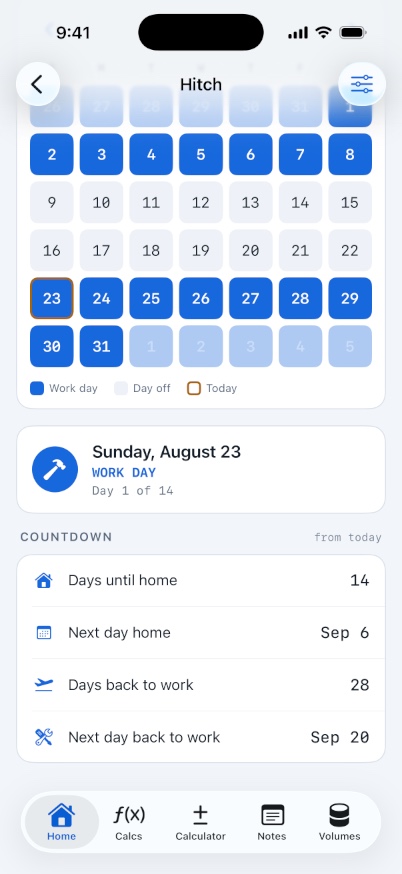
Set a rotation start date and your days on and days off. Any combination works, including uneven ones such as 14 on / 7 off, and presets cover 14/14, 7/7, 14/7, 20/10, 28/14 and 21/21.
The calendar then projects indefinitely forwards and backwards from the start date, and is correct across month, year and leap-year boundaries. Tap any day to select it; the status card tells you whether it is a work day or a day off and where it falls in the rotation, and the countdown card gives days until home, next day home, days back to work and next day back.
Countdowns follow the selected day
Tap a different day and the countdowns recalculate from it. The card header tells you which — from today or from selected day.
Settings
The gear icon at the top right of Home.
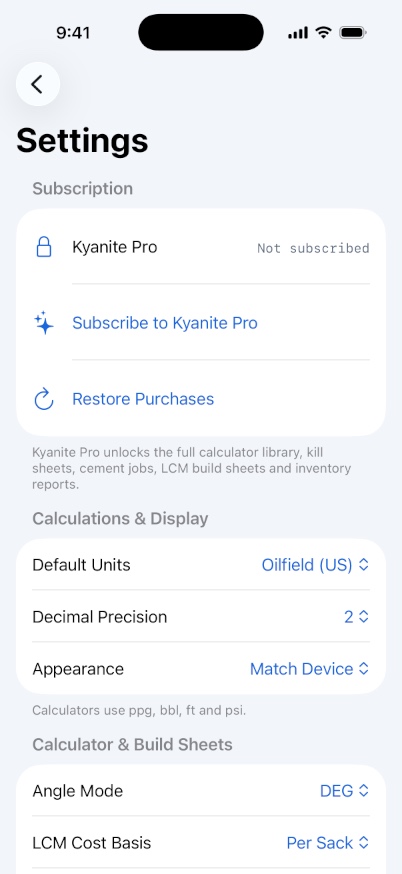
- Default Units
- Oilfield (US) or Metric (SI). Metric keeps oilfield inputs and adds a converted line under each result.
- Decimal Precision
- 0 to 4 places, default 2. Applies to results across the app.
- Appearance
- Match Device, Light or Dark.
- Angle Mode
- DEG or RAD, shared with the scientific calculator.
- LCM Cost Basis
- Per Sack or Per Pound — how product prices are entered on new build sheets.
- Group Access
- Crew sharing. Shows the crew name and your role, or Not set up.
- Hitch Settings
- Your rotation, or Not set.
- Low Inventory Warnings
- On by default. Controls the banner counting products below minimum.
- Include Cost in Reports
- Off by default. Turns on every cost field and column on the cement job and LCM build sheets.
- Default Inventory Unit
- The unit new products start with. Sacks by default.
- Equation Verification
- How many calculators carry each verification status, with what each status means.
The Support section holds Send a Suggestion and a direct email link. About covers the calculation disclaimer, the in-app privacy summary, what is included, and the app version.
Kyanite Pro
The app is free to install and a useful amount of it is free forever. Kyanite Pro unlocks the rest.
Free, with no account and no signal
- 20 calculators, chosen to cover all six disciplines
- The full scientific calculator
- Notes and mud checks
- Every reference chart and volume table
- The hitch calendar
- Browsing the whole calculator catalogue
Kyanite Pro adds
- The remaining calculators — 131 in total
- Kill sheets, cement job sheets, LCM build sheets and gain / loss data sheets
- Chemical inventory and location volumes, kept per well, with import from another well
- The well workspace: wells, rig profiles, calculation history, well records, Bits & Records, schematic sheets, hydraulics, kick tolerance, mud trends
- PDF reports for every record
- Group Access, so a crew can share records
Pro is $9.99 per month or $50 per year, with a 7-day free trial for new subscribers. Ultra, which adds DrillIQ and MudIQ, is $20 per month or $119.99 per year. Existing subscribers keep the price they signed up at. Prices in other territories are Apple’s equivalent price points and may differ. The paywall shows whatever the store returns, in your own currency.
Restore Purchases is on the paywall and in Settings › Subscription. Manage or cancel in Settings › Apple Account › Subscriptions.
It keeps working offline for 30 days
Your subscription is never gated on a live network call. Once it has been checked, Pro stays unlocked for 30 days with no connection at all, so a long hitch cannot lock you out on the rig floor. Settings tells you how many days are left.
Locked calculators still appear in every list, with a padlock beside them, so you can always see what is in the library. Tapping one explains what Pro unlocks.
Group Access: sharing with a crew
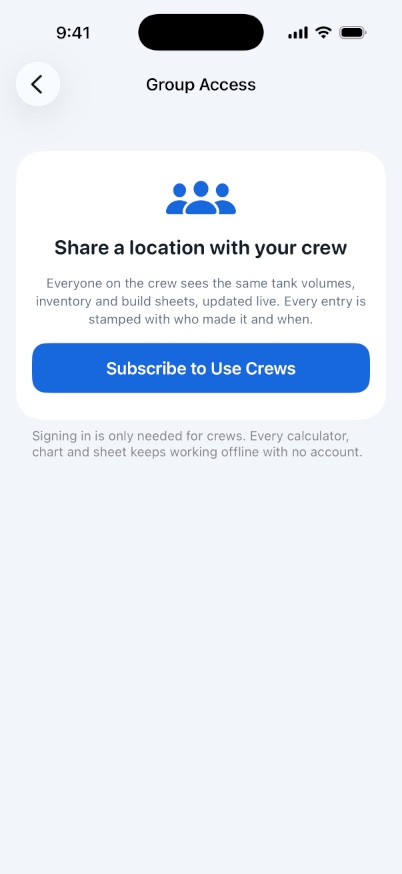
Settings › Group Access. Crews let the hands on one location keep the same figures in front of them. It is opt-in, it needs an account, and it needs Pro.
Starting a crew
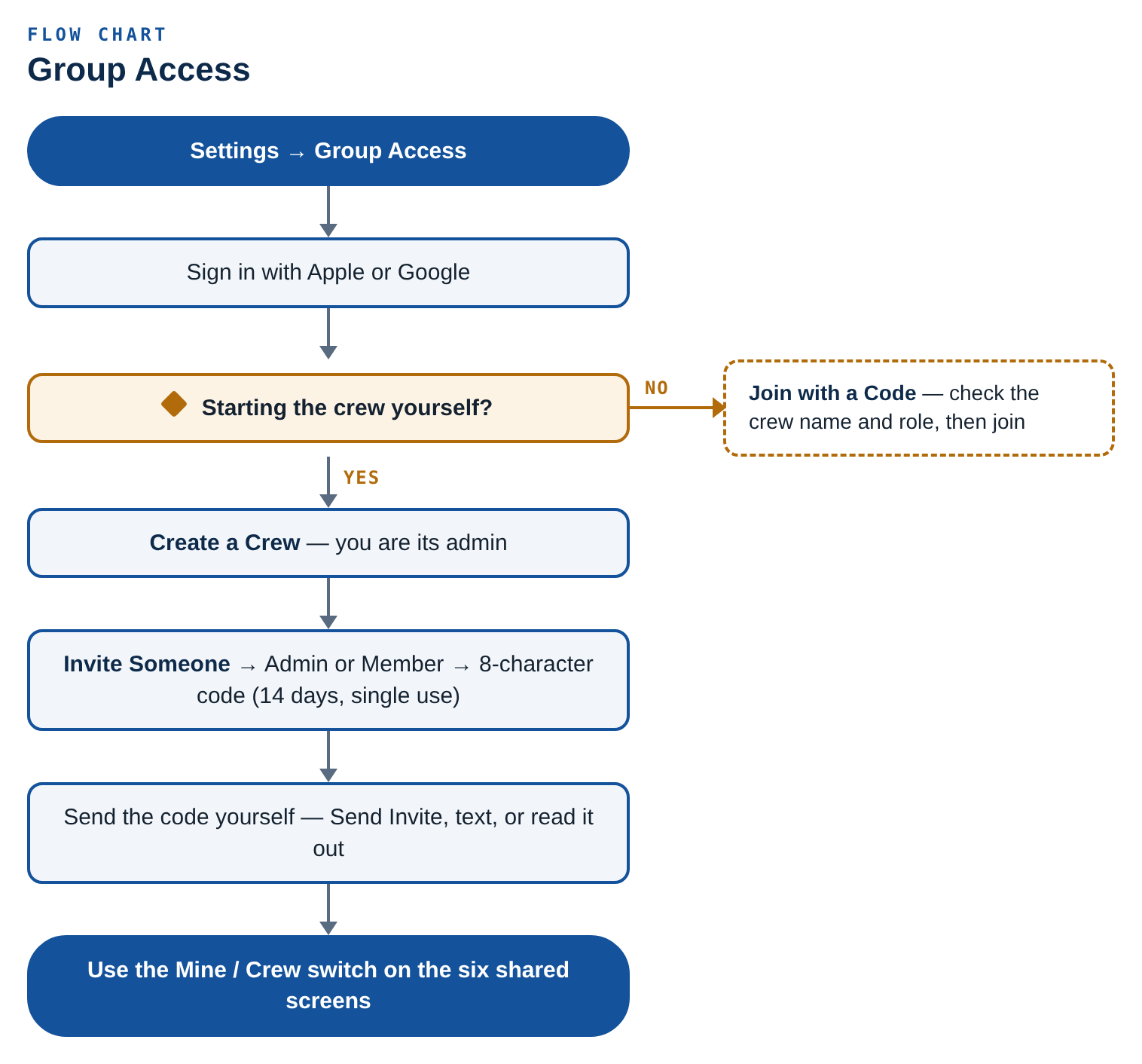
- Open Settings › Group Access and sign in with Apple or Google.
- Tap Create a Crew and name it after the rig, the location or the operator. You are its admin.
- Tap Invite Someone, enter their email to label the invite, and choose Admin or Member.
- You get an 8-character code. Send it with Send Invite or read it out — the alphabet deliberately excludes O, 0, I, 1, S and 5 so it survives a radio. Invites expire after 14 days and work once.
The app never emails an invite
The email address only labels the invite so you can tell them apart. You deliver the code yourself. Everyone joining needs their own Kyanite Pro subscription — there is no crew or seat billing.
Joining one
Settings › Group Access › Join with a Code. Type the eight characters — lower case, spaces and dashes are all fine — and the app checks it as you finish, showing the crew name and the role you will hold before you commit.
Roles
- Admin
- Full access. Can edit everything the crew shares, invite and remove people, change roles and rename the crew.
- Member
- Can read and write Location Volumes. Reads inventory, build sheets, kill sheets, cement jobs and notes.
A crew must always keep at least one admin, so the last one cannot be demoted or leave until somebody else is promoted.
Mine and crew
Six screens gain a scope switch once you are on a crew: Location Volumes, Chemical Inventory, Notes, LCM Build Sheets, Kill Sheets and Cement Jobs. Mine is private to the phone; the other side is the crew’s shared set. If you are on several crews the switch becomes a dropdown. Calculators, charts, the hitch calendar and settings never sync — they are the same for everyone.
The bar also tells you when it last synced, how many changes crewmates have made since you last looked, and whether you are read-only on that area.
Sharing your own records is a one-way move
The offer to share the records you already hold privately moves them into the crew’s set rather than copying them. Everyone on the crew will see them and they will no longer be private to the phone. There is no un-share.
Records sync when the screen opens, when you edit something, when the app comes back to the foreground, and every 20 seconds while you are looking at the screen. Nothing syncs in the background. Edits made with no signal queue up quietly and go up next time you have coverage.
Leaving. Leave Crew stops you seeing that crew’s shared data; anything on your phone stays put. There is no delete-crew button: a crew is only destroyed if its sole admin deletes their account, under Group Access › Delete Account.
Crew notifications
If you are on a crew, the app can tell you when a crewmate changes something. This is the only feature that ever asks for a system permission.
You are only ever asked in one place
Group Access › Notifications › Turn On Crew Alerts. Never at launch, never during onboarding, and never anywhere in the offline calculator side of the app. If you never open Group Access you are never asked.
An alert names the crew and says who changed what area — for example Dale updated 6 tank readings. It never carries a calculated value, because a figure read off a lock screen is a figure nobody verified. You are never alerted about your own work.
A burst of changes arrives as one alert per area rather than one per record, and a repeat for the same area replaces the previous one rather than stacking.
Turning them down
In Group Access › Notifications each crew gets a master switch and six area switches: Location Volumes, Chemical Inventory, Notes, LCM Build Sheets, Kill Sheets and Cement Jobs. Everything is on by default. Tank readings change often through a tour, so that is usually the first one to turn off while keeping the sheets on.
If you decline
Nothing breaks. The same updates appear under Group Access › Crew Activity, newest first and grouped by day, with a count badge for anything you have not seen. Alerts need a signal; the activity list catches up the moment you have coverage. iOS only asks for permission once, so if you said no you will need to allow notifications for Kyanite in the iOS Settings app.
How your work is saved
Almost everything saves as you type. There are two exceptions worth knowing, because they are the only places you can lose a keystroke.
- Saves every keystroke
- Kill sheets, cement jobs, LCM build sheets and notes.
- Saves as you go
- Gain / loss sheets, wells, well records and bit runs.
- Saved when added
- Bit run photos and schematic PDFs.
- Saves when you leave
- The inventory day editor writes its changes as you back out of the screen.
- Needs an explicit save
- The tank day editor. You must tap Save Reading or the day records nothing.
- Cancel or Save
- Product, tank, group and LCM product editors open as sheets with both buttons.
Records are held in the app’s private storage on the device. Deleting the app deletes them, and because we never hold a copy of anything you keep private, we cannot recover it. If a record matters, share it out or keep your own copy.
Support and feedback
Settings › Send a Suggestion opens a short form: pick a topic, write the message, optionally add your name and rig. The app composes an email and hands it to Mail with everything ready — it never transmits anything itself. Your app and iOS version are appended so a reported problem can be reproduced, and there is a Copy Message fallback if no mail account is set up.
We particularly want two things: calculators to add, and verified company formulas for anything currently marked NEEDS VERIFICATION. Send the reference and it can be built in properly.
You can also write directly to admin@kyaniteinc.com, or use the support page.
The well workspace (version 2.0)
Version 2.0 turns Kyanite Pro into a well workspace. Enter the well once — depth, mud weight, hole sections, casing, string — and every tool works from it: calculators fill from it, records file under it, inventory and tanks belong to it, and reports are built from it without re-typing a number. Everything in Part II requires Kyanite Ultra, runs with no signal and is stored on the phone. Chapters 40–44 cover Kyanite Ultra, DrillIQ and MudIQ, Live Rig, cloud sync with the web console, and crew wells and profiles.
Blank means “not entered”. A zero or empty box is never treated as a real value — it shows as —, never fills a calculator, and no result that depends on it is shown.
Quick start: set up your well in five minutes
The fastest way to get value from 2.0 on a new location. Each step links to its full chapter.
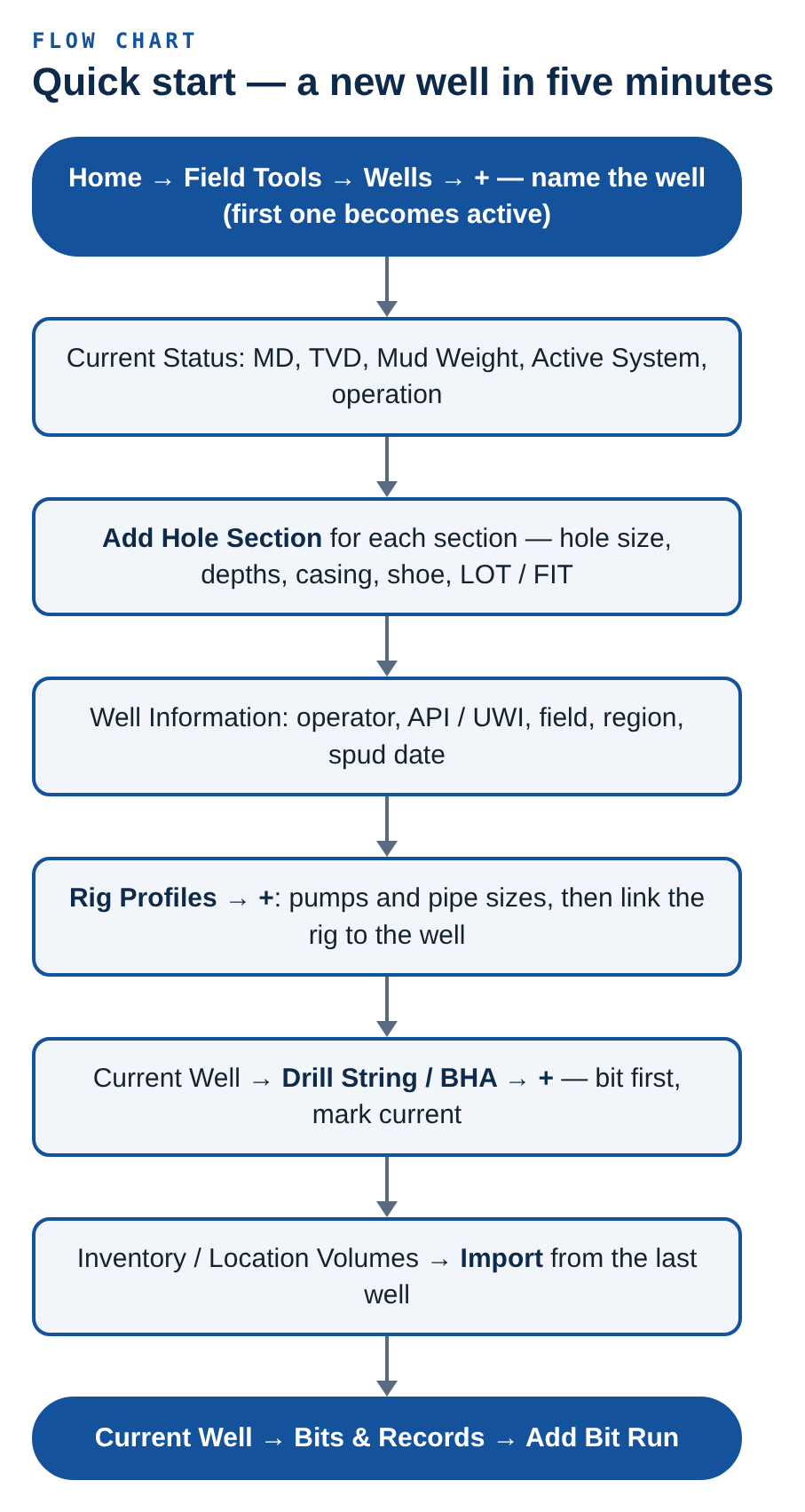
- Add the well. Home → Field Tools → Wells → +. Type the well name (e.g. Smith 14-2H). The first well you add becomes the active well automatically. → Chapter 25
- Enter the status. In Current Status, type Current MD, Current TVD, Mud Weight and Active System (active pits + hole, bbl). Type the current operation, e.g. Drilling 8-3/4" lateral.
- Add the hole sections. Tap Add Hole Section for each section: hole diameter, top and bottom depths, the casing or liner run in it (pick a Standard size to fill OD and ID), shoe MD/TVD, Run and cemented, and the LOT or FIT EMW. Mark the section you are drilling as current.
- Add the operator details. Under Well Information: Operator, API / UWI, Field, County / State / Region, spud date.
- Set up the rig. Home → Field Tools → Rig Profiles → +. Enter the mud pumps (liner, stroke, cylinders, efficiency) and the drill pipe, HWDP and collar sizes. Then link the rig to the well under Well Information → Rig. → Chapter 26
- Build the string. Current Well → Drill String / BHA → +. Add the bit first, then work up. Mark it current. → Chapter 29
- Bring your stock and tanks. If you came from another well, open Chemical Inventory or Location Volumes and tap Import. → Chapter 35
- Start the bit record. Current Well → Bits & Records → Add Bit Run. → Chapter 30
From here, any calculator that needs depth, mud weight, hole size, casing or pump output offers Use Well Values / Use Rig Values and fills itself in.
The current well
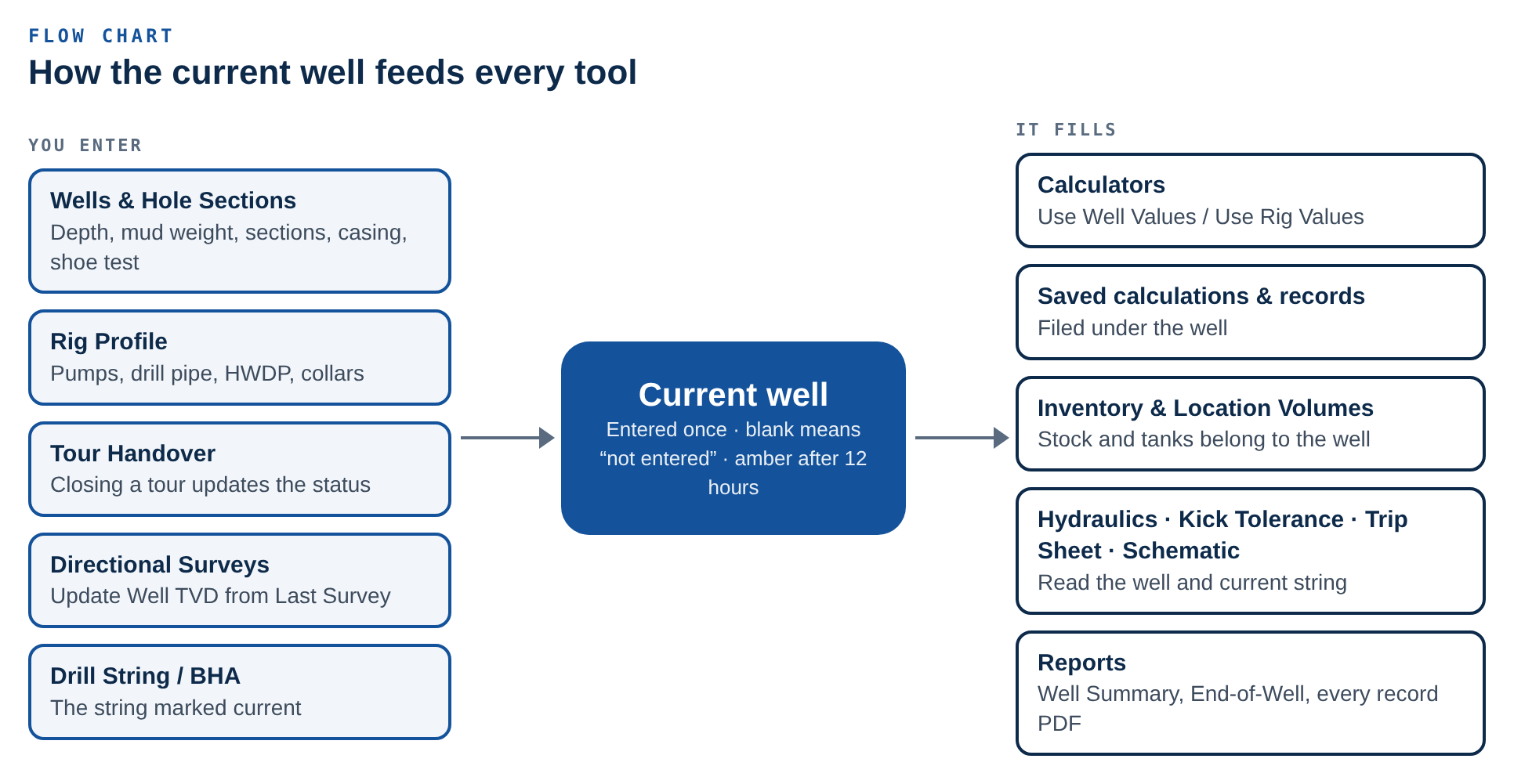
One well is always the current (active) well. It is the well that:
- calculators fill from when you tap Use Well Values;
- new saved calculations, records and bit runs are filed under;
- Chemical Inventory and Location Volumes show stock and tanks for;
- reports are built for.
The Current Well card on Home
The first section on Home. With an active well it shows:
| Line | What it shows |
|---|---|
| Well name | In large type. |
| Operator | Underneath, or Operator not entered. |
| Status line | Only the parts you have entered, e.g. 9,850 ft MD · 10.4 ppg · Drilling. |
| Switch Well | Reads Switch Well (N) when you have more than one well. Opens a list of every well as Name · Operator, the current one ticked. Add or Manage Wells at the bottom opens Wells. |
| View Well | Opens the Current Well hub. Tapping anywhere on the card does the same. |
With no well yet, the card reads Add the well you're on — tap it to open Wells. Below the card, the Reports tile (Well · tanks · cement · kill · LCM) opens every report in one place.
Only your own (not crew) wells that are not archived appear in the switcher.
The Current Well hub
Home → Current Well → View Well. Where the well stands, and every well tool in one list.
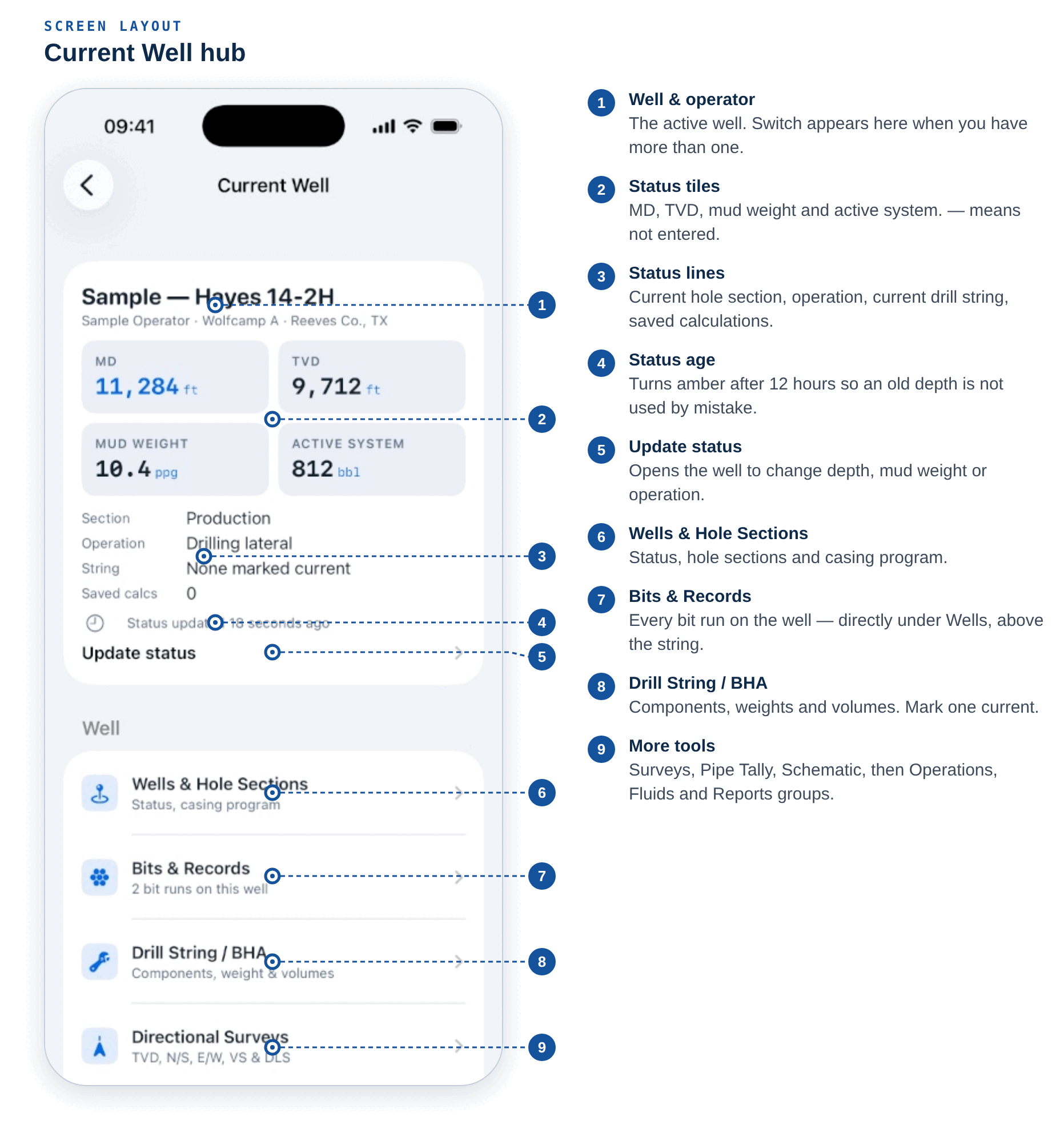
Status block
| Item | Detail |
|---|---|
| MD, TVD | ft. Shows — when not entered. |
| Mud weight | ppg. |
| Active system | bbl. |
| Section | The hole section marked current, or Not set. |
| Operation | The current operation. |
| String | The drill string marked current, or None marked current. |
| Saved calcs | How many saved calculations belong to this well. |
| Status updated … | How long ago the depth / mud weight / status was last changed. |
| Update status | Opens the well so you can change it. |
| Switch | Appears when you have more than one well. |
Status older than 12 hours is flagged. The clock turns amber with an exclamation mark, and calculators that fill from the well show the same warning, so an old depth or mud weight is not used by mistake. Updating any status field resets the clock.
Tool groups
| Group | Items (with the count or subtitle each shows) |
|---|---|
| Well | Wells & Hole Sections · Bits & Records — N bit runs on this well · Drill String / BHA · Directional Surveys · Pipe Tally · Well Schematic · Schematic Sheets (PDF) — N on this well |
| Operations | Tour Handover · Trip Sheet · Advanced Hydraulics · Kick Tolerance (Needs verification) · Kill Sheets · Cement Jobs |
| Fluids | Daily Mud Report · Mud Trends · Chemical Inventory · Location Volumes · LCM Build Sheets |
| Reports | Reports · End-of-Well Report · Crew Dashboard |
Record types show N on this well once any exist.
Wells and hole sections
Home → Field Tools → Wells (or Switch Well → Add or Manage Wells).
The well list
- + (top right) creates a well and opens it. If no other well is active, the new one becomes active.
- Each row shows the well name, an ACTIVE badge on the current well, the operator, and a status line: MD, mud weight, current section and N calcs — or No status entered yet.
- Swipe right → Make Active.
- Swipe left → Archive (or Restore) and Delete. Long-press offers the same.
- Archived wells collapse into an Archived (N) group at the bottom. Archiving the active well leaves no well active until you choose one.
Deleting a well asks Delete this well? — the well and its hole sections are removed; saved calculations stay in History with the well's name. Archive Instead is offered as the safer choice.
Empty state: One well, every tool with an Add a Well button.
Inside a well
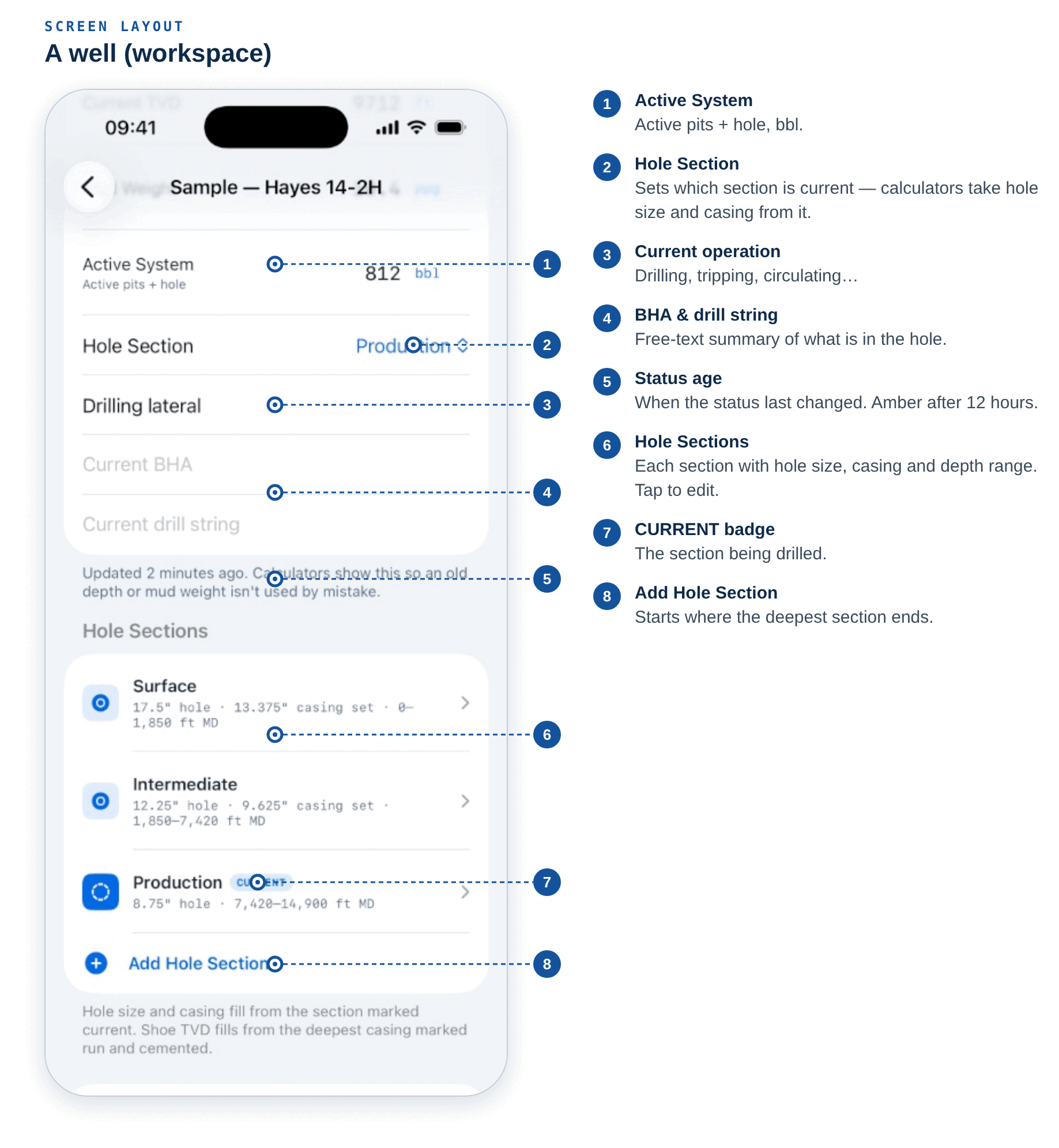
The title is the well name. Everything saves as you type; Done above the keyboard closes it.
1. Name and state
- Well name (e.g. Smith 14-2H).
- Underneath: Active well — calculators fill from this one, or a Make Active Well button, or Archived — Restore.
2. Current Status
| Field | Unit | Notes |
|---|---|---|
| Current MD | ft | |
| Current TVD | ft | Flagged if deeper than MD: TVD is deeper than MD — check the numbers. |
| Mud Weight | ppg | |
| Active System | bbl | Active pits + hole. |
| Hole Section | picker | Not set or one of the well's sections. Sets the current section. |
| Current operation | text | Drilling, tripping, circulating… |
| Current BHA | text | |
| Current drill string | text |
The footer shows Updated 2 hours ago (amber when stale). Changing any of these fields re-stamps the status time. Closing a Tour Handover also updates this block — see Tour Handover.
3. Hole Sections
Each section row shows its name, a CURRENT badge, a ⚠︎ if something looks wrong, and a summary
such as 12.25" hole · 9 5/8" set · 0–3,000 ft MD (planned instead of set when the pipe is not
yet marked run and cemented). Tap Add Hole Section for a new one; the first one added becomes
current.
Calculators take hole size and casing from the section marked current, and shoe TVD from the deepest casing marked run and cemented. Planned pipe never counts as a shoe.
4. Bits & Records — opens the well's bit runs (active well only). See chapter 30.
5. Saved Calculations (N) — the 20 most recent results filed to this well. Tap one to open it. Search Calculation History for older ones.
6. Well Information
| Field | Notes |
|---|---|
| Operator | Printed on Home and every report. |
| API / UWI | |
| Field | |
| County / State / Region | |
| Rig | None or one of your rig profiles. The linked rig's pumps and pipe fill calculators alongside the well's values. |
| Spud Date | Toggle on to set the Spudded date. |
7. Notes — anything worth keeping about the well.
The hole section editor
Opens as a sheet with Cancel and Save. Cancel discards every change made in the sheet.
| Group | Field | Unit / options |
|---|---|---|
| — | Name | e.g. Surface, Intermediate, Production |
| — | Hole Diameter | in — the bit size for the section |
| Depths | Top MD, Bottom MD, Top TVD, Bottom TVD | ft, from your depth reference (RKB). Leave blank if not known. |
| Casing / Liner | Pipe Run | None · Casing · Liner |
| Size → Standard sizes | API presets — fill OD and ID | |
| OD, ID | in. The ID caption shows the capacity in bbl/ft. | |
| Liner Top MD | ft — liners only (hanger depth) | |
| Shoe MD, Shoe TVD | ft | |
| Run and cemented | Only set pipe counts as the shoe for shoe-TVD inputs | |
| Shoe Test | LOT or FIT | |
| LOT EMW / FIT EMW | ppg. Used by kick tolerance and MAASP. Blank = not tested. | |
| Open Hole | notes | Formation, washouts, losses, caliper… |
Standard sizes are nominal API dimensions — confirm OD, ID and weight against your casing tally.
Check These. The editor flags (but never blocks) numbers that look wrong:
- Top MD is deeper than bottom MD. / Top TVD is deeper than bottom TVD.
- Bottom (or top) TVD is deeper than MD — TVD can't exceed MD.
- Casing ID must be smaller than casing OD.
- Casing OD is not smaller than the hole diameter.
- Shoe MD is below the section's bottom MD. / Shoe TVD is deeper than shoe MD.
- Liner top is not above the liner shoe.
- Shoe test EMW looks unusual — check it is in ppg (outside 7–25 ppg).
Delete Section is at the bottom of an existing section.
Rig profiles
Home → Field Tools → Rig Profiles. Enter a rig once and any calculator that needs pump output, pipe or hole sizes can fill them with one tap — Use Rig Values. Filled inputs stay editable and are labelled with where they came from.
The rig list
- + adds a rig; the empty state reads Set up your rig once with an Add a Rig button.
- The active rig carries an ACTIVE badge. Swipe right → Make Active; swipe left or long-press for Duplicate and Delete.
- Each row summarises the pumps (Pump 1, Pump 2) and pipe, or Nothing entered yet.
The rig editor
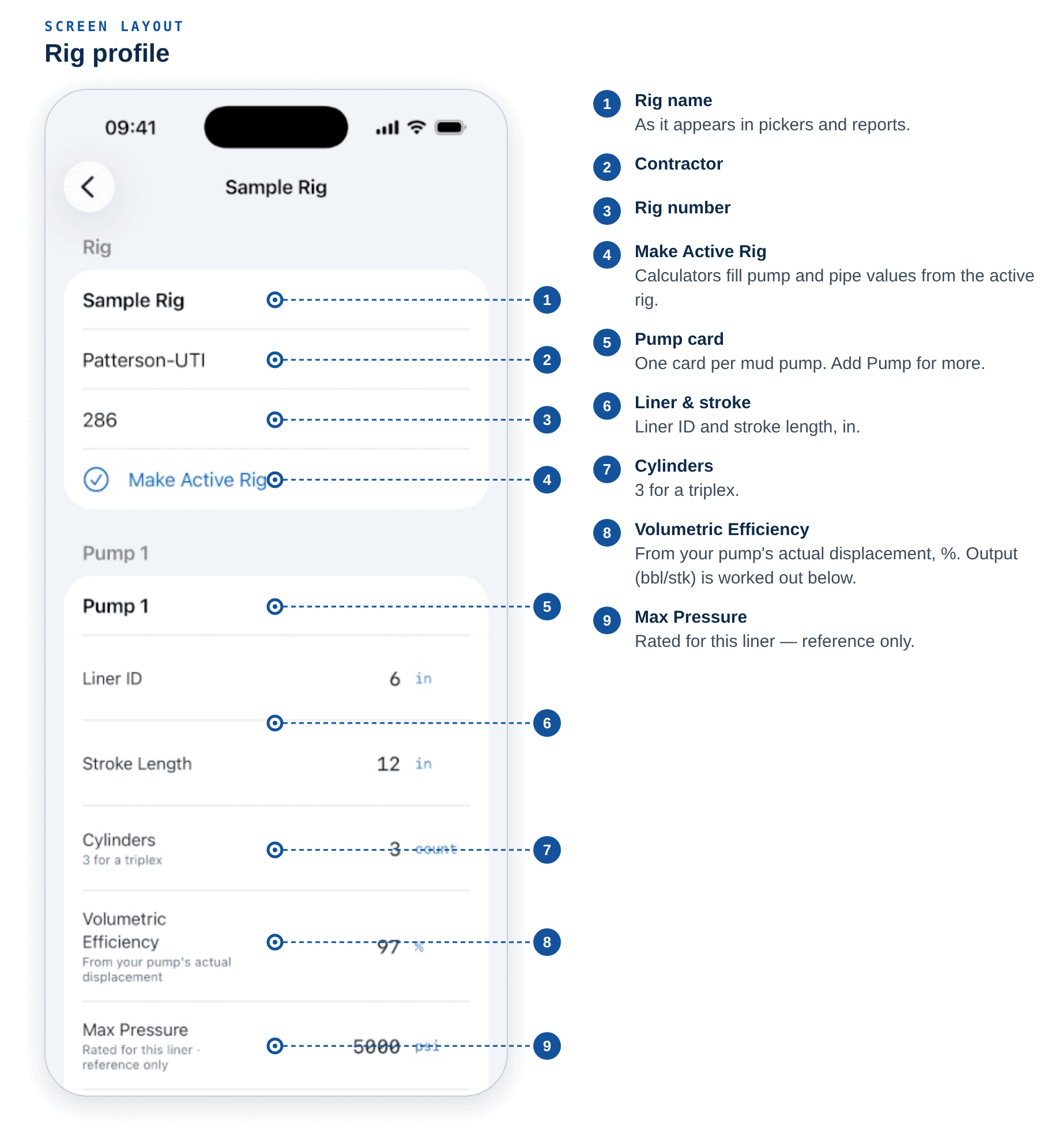
Rig — Rig name, Rig number, Contractor, and Make Active Rig (or Active rig — calculators fill from this one).
Mud pumps — one card per pump; Add Pump for more.
| Field | Unit | Notes |
|---|---|---|
| Pump name | e.g. Pump 1 | |
| Liner ID | in | |
| Stroke Length | in | |
| Cylinders | count | 3 for a triplex |
| Volumetric Efficiency | % | From your pump's actual displacement |
| Output | bbl/stk | Worked out — Enter liner, stroke & efficiency until all are set |
| Max Pressure | psi | Rated for this liner · reference only |
| Max Speed | spm | Reference only |
The output uses the same equation as the verified Pump Output calculator:
Output (bbl/stk) = n × (π ÷ 4) × D² × S ÷ 9702 × (Eff ÷ 100)
   n = cylinders, D = liner ID (in), S = stroke (in), Eff = volumetric efficiency (%)
Drill String — Drill Pipe Preset (fills nominal OD/ID), Drill Pipe OD / ID, HWDP OD / ID, Collar OD / ID (in). The drill pipe ID caption shows its capacity in bbl/ft.
Casing & Hole — Casing Preset, Last Casing OD / ID, Hole Size / Bit (in), each with its capacity in bbl/ft.
Notes — anything worth remembering about the rig.
Presets are nominal API dimensions. Worn or non-standard pipe will differ — confirm against your pipe tally.
Rig values vs well values
When a well is linked to a rig (Well Information → Rig), calculators offer both: the well supplies depth, mud weight, hole size, casing and shoe; the rig supplies pump output and pipe sizes. Each filled box says which one it came from, and you can overwrite any of them.
Using well and rig values in a calculator
On any calculator whose inputs match something on the well or rig:
- Tap Use Well Values (or Use Rig Values) above the inputs.
- Matching boxes fill — depth, TVD, mud weight, hole size, casing ID, shoe depth, pump output, pipe OD/ID — each labelled with its source.
- Anything the well doesn't have stays blank; nothing is guessed.
- If the well's status is older than 12 hours, a warning says so before you rely on it.
- Edit any filled value freely; the well itself is not changed.
Calculation history
Saving a result
After any calculation, tap Save. The Save Calculation sheet shows the inputs and result read-only, so you can see exactly what is being kept, plus:
| Field | Notes |
|---|---|
| Well / Job | Defaults to the active well. Optional — attaches the result so it is found and reported with that job. |
| Notes | What was this for? |
| Favorite | Stars it in History and marks it significant in the End-of-Well report. |
If you reopened a saved calculation and changed it, you choose Update Saved or Save as New Copy.
Finding results
Home → Field Tools → Calculation History. Newest first.
- Search — Calculator, well, notes: matches the calculator name, well, notes and result.
- Favorites filter, Well menu (All wells or one well), Discipline menu (All disciplines or one module). Clear Filters resets them.
- Swipe right → Favorite / Unfavorite. Swipe left → Delete.
- Long-press → Duplicate, Share Result, Favorite, Delete.
A saved calculation
| Section | Contents |
|---|---|
| Result | The headline and secondary results as saved. |
| Inputs Used | Every input with its unit. Blank inputs read Left blank — calculator default used. |
| Formula (as saved) | The equation in force when it was saved. |
| Well & Notes | Editable. |
| Reopen & Edit Inputs | Opens the calculator with these inputs to rework. |
| Toolbar | Share, Duplicate, Favorite, Delete. |
If the calculator has been revised since, a banner says This calculator has been revised since this was saved. Reopen it to recalculate with the current equation. If it has been retired, the saved values are kept as a record.
Well records
Six record types live under the current well. Open them from the Current Well hub.
How every record list works
- + starts a new record, filed under the active well.
- Show switches between Active well and All wells.
- Swipe or long-press for Duplicate and Delete (This can't be undone).
- Each record has a share button that creates its PDF (and CSV where it applies).
Pipe Tally
Joint-by-joint lengths. Tally pipe joint by joint with a running total.
- Choose Mode: Joint mode (one length per joint) or Stand mode (one length per stand).
- Type the length and tap Add — the box clears for the next joint. Add a Note (e.g. pup, damaged box) if needed.
- Undo reverses the last change.
| Shown | Detail |
|---|---|
| Joints | Count. |
| Total length | ft. |
| Average joint | ft. |
| Tally (latest first) | Each joint with its length and cumulative. Tap to Edit Entry or Delete Entry. |
Import reads a CSV of joint lengths from Files. If nothing usable is found: No joint lengths found in that file. Tally totals can fill the drill string — see Use Pipe Tally Lengths below.
Drill String / BHA
Components, weight & volumes. Build the string from the bit up. The list shows it top of hole first.
- Tap Add Component — add the bit first.
- For each component: Type, Dimensions (OD, ID, tool joint OD), Length or joints × Length per joint, and weight per foot.
- For the bit: Bit size, Nozzles in 32nds (e.g. 16, 16, 16) → TFA is worked out.
- Optional From Spec Sheet values (capacity, displacement, adjusted weight, pressure drop at your flow rate) override the calculation — use them for tool joints or tool internals.
- Drill Pipe Presets fill nominal API body dimensions.
- Use Pipe Tally Lengths sets the joint count and length of matching drill pipe, HWDP and collar lines from a tally's totals.
Totals
| Result | How |
|---|---|
| String length | Sum of components. |
| Air weight | Weight/ft × length. |
| Buoyed weight | Needs mud weight on the well. |
| Internal capacity | ID² ÷ 1029.4 per line, or the entered capacity. |
| Steel displacement | (OD² − ID²) ÷ 1029.4, or the entered figure. |
| Closed-end displacement | Steel + internal. |
Volumes & Strokes — from the well's hole sections and this string: Annular volume, Bottoms-up volume, Total circulation (string + annulus, excludes surface volume), Strokes to bit and Bottoms-up strokes (need a rig with a pump linked to the well). With no current MD on the well, only fixed lengths are used.
Mark one string current. The current string feeds calculators (pipe and collar sizes), hydraulics, kick tolerance, the trip sheet and the well schematic.
Tour Handover
Events & shift handover.
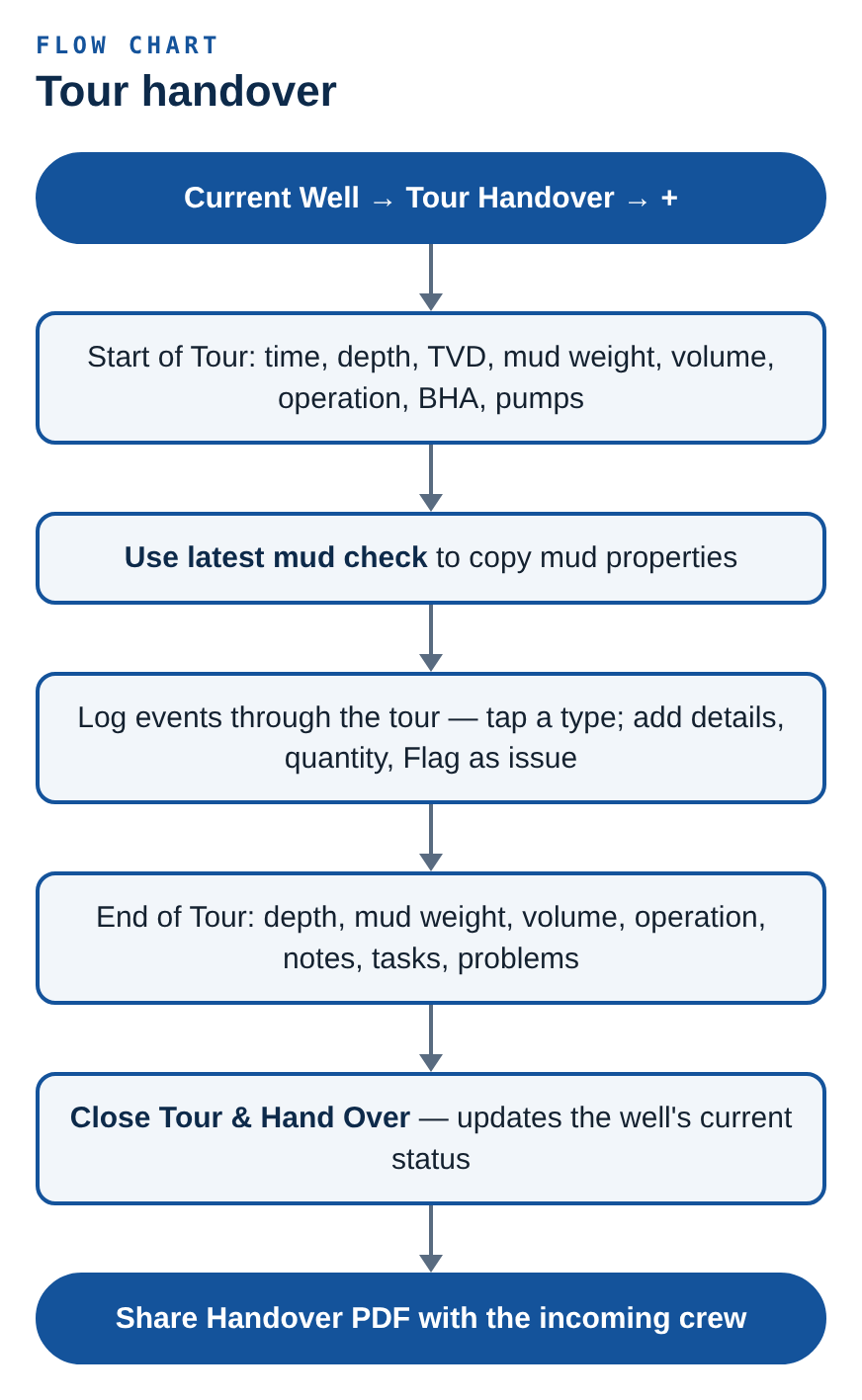
Start of Tour — Tour start time, Depth, TVD, Mud weight, Active volume, Operation, BHA, Pumps (liner, SPM, output) and Mud properties (Use latest mud check copies them in).
Events — tap an event type to log it with the time now. Each event can carry Details, a Quantity, and Flag as issue. Tap an event to edit or Delete Event.
End of Tour — end depth, mud weight, volume and operation; Notes for incoming crew, Outstanding tasks, Problems / issues.
Close Tour & Hand Over stamps the handover time and updates the well's current status with the end-of-tour depth, mud weight, volume and operation you entered. Reopen Tour undoes the close. Share Handover PDF sends it to the incoming crew.
Daily Mud Report
Checks, treatments & stock.
| Section | Contents |
|---|---|
| Report | Report date, Depth, Fluid system (e.g. 9.6 ppg WBM, 80/20 OBM). |
| Properties reported | Choose which properties apply to this fluid system. New reports on the well carry the same set forward. |
| Mud Check | Add Mud Check — Time, Sample point (flowline, pit, suction or other) and the properties chosen above. Worked Out: PV and YP from the 600/300 readings (API RP 13B). |
| Treatments & Chemical Usage | Add Treatment — Product (From inventory or Not in inventory), Quantity, Unit (sacks, gal, bbl), Cost per unit, note (e.g. added to suction pit), Deduct from inventory. |
| Volumes | Active volume, Reserve volume, Dilution, Surface losses, Losses to formation. |
| Operational Notes | Free text. |
Inventory is only touched when you say so. Deduct from inventory books the quantity as Used in Chemical Inventory on the report date. Editing the treatment later posts only the difference, so nothing is ever counted twice. Blank boxes are left blank on the report, never zero.
Trip Sheet
Calculated vs actual fill.
Setup
| Field | Notes |
|---|---|
| Direction | Trip in or out. |
| Trip start, Start depth, Stand length | Stand length is used to suggest the next depth. |
| Pipe capacity, Steel displacement | bbl/ft, or tap Use current drill string. |
| Closed end (wet / float) | Uses closed-end displacement. |
| Highlight difference over | bbl. Leave blank for no highlighting. |
Entries — Add Entry: Stands, Depth (suggested), Trip tank bbl or Actual bbl, Note. Each entry shows Calculated, Actual, Difference, Running diff and Cumulative bbl. The Calculated vs Actual chart plots both series.
Highlighted entries passed the threshold you set. The sheet shows the numbers only — interpreting well conditions is the crew's call.
Directional Surveys
TVD, N/S, E/W, VS & DLS by minimum curvature.
Setup — Azimuth reference (True, Grid or Magnetic — keep one throughout), VS azimuth, and the tie-in: Tie-in TVD, Tie-in N/S, Tie-in E/W (blank = surface).
Stations — Add Station: MD, Inclination, Azimuth, note. Each row works out TVD, N/S, E/W, VS and DLS (°/100 ft).
View — Table, Plan View or Vertical Section.
Import reads a CSV of MD / Inc / Azi rows. Update Well TVD from Last Survey writes the last station's TVD to the well's current status.
Tie-in N/S and E/W accept north and east (positive) values only for now. For a south or west tie-in, start from the surface station instead.
Bits & Records
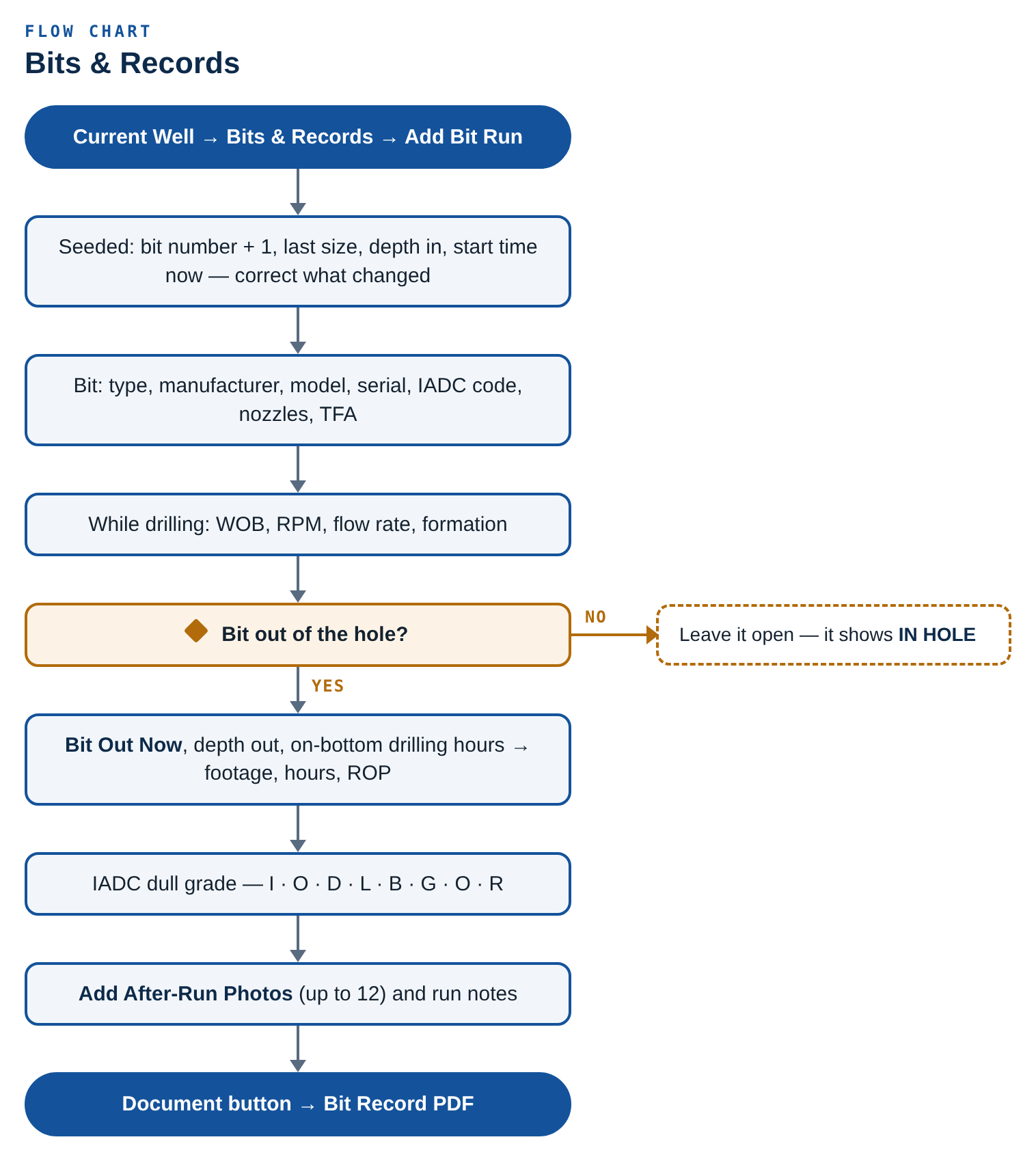
Current Well → Bits & Records — the second item in the Well group, directly under Wells & Hole Sections and above Drill String / BHA — or the Bits & Records row inside a well. One record per bit run, kept with the well.
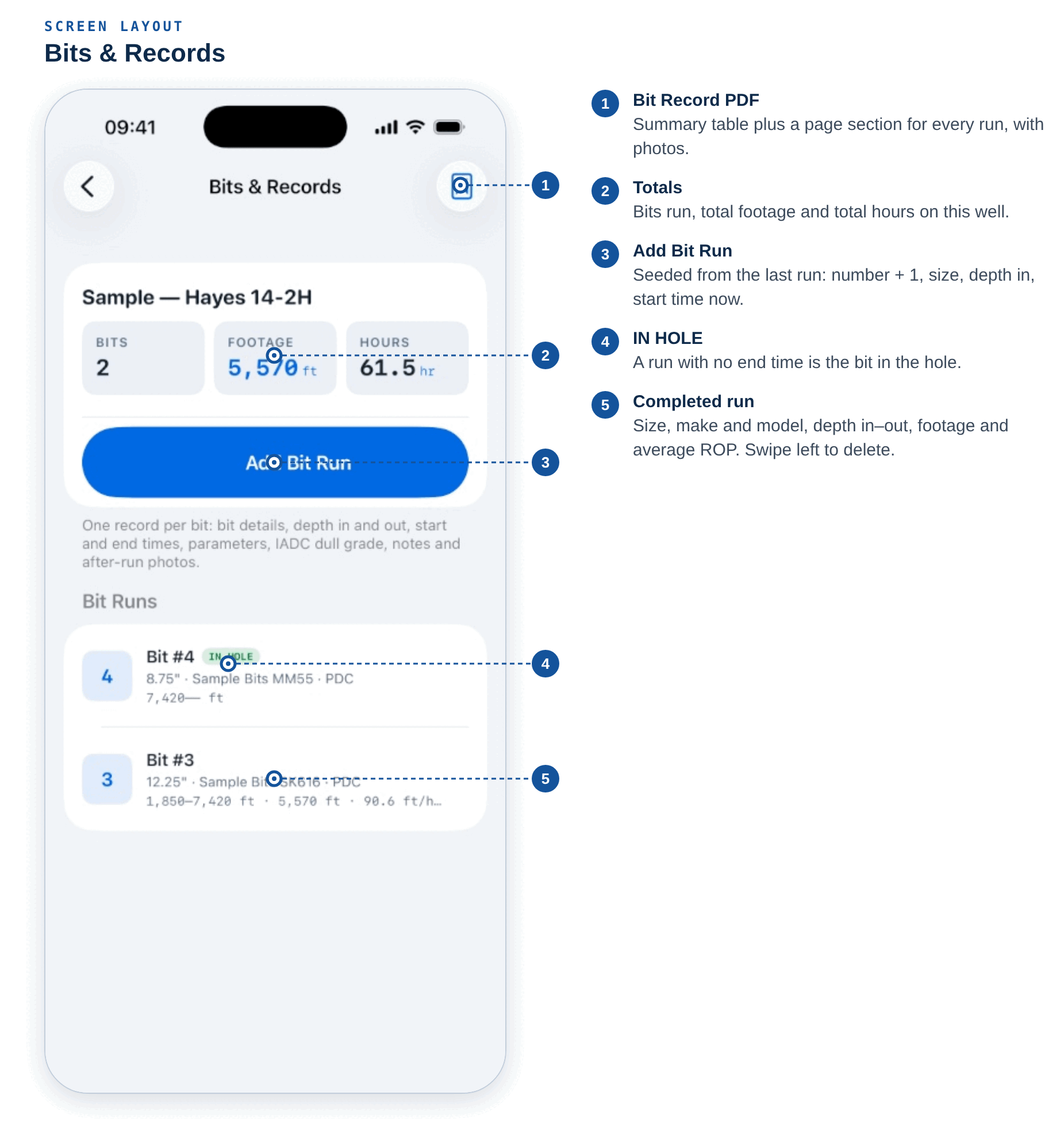
The bit list
- Summary at the top: Bits, total Footage, total Hours.
- Each run shows the bit number and size, make and model, depth in–out, footage, ROP, dull grade and photo count. A run still in the hole carries an IN HOLE badge.
- Add Bit Run at the bottom. Swipe left → Delete (Its notes and photos are deleted with it).
- The document button (top right) creates the Bit Record PDF.
Starting a bit run
Tap Add Bit Run. The new run is seeded from the last one so you only correct what changed:
| Field | Seeded with |
|---|---|
| Bit number | Last bit's number + 1 |
| Size | Last bit's size |
| Depth in | Last bit's depth out, or the well's current MD |
| Start time | Now |
The bit run editor
Everything saves as you go.
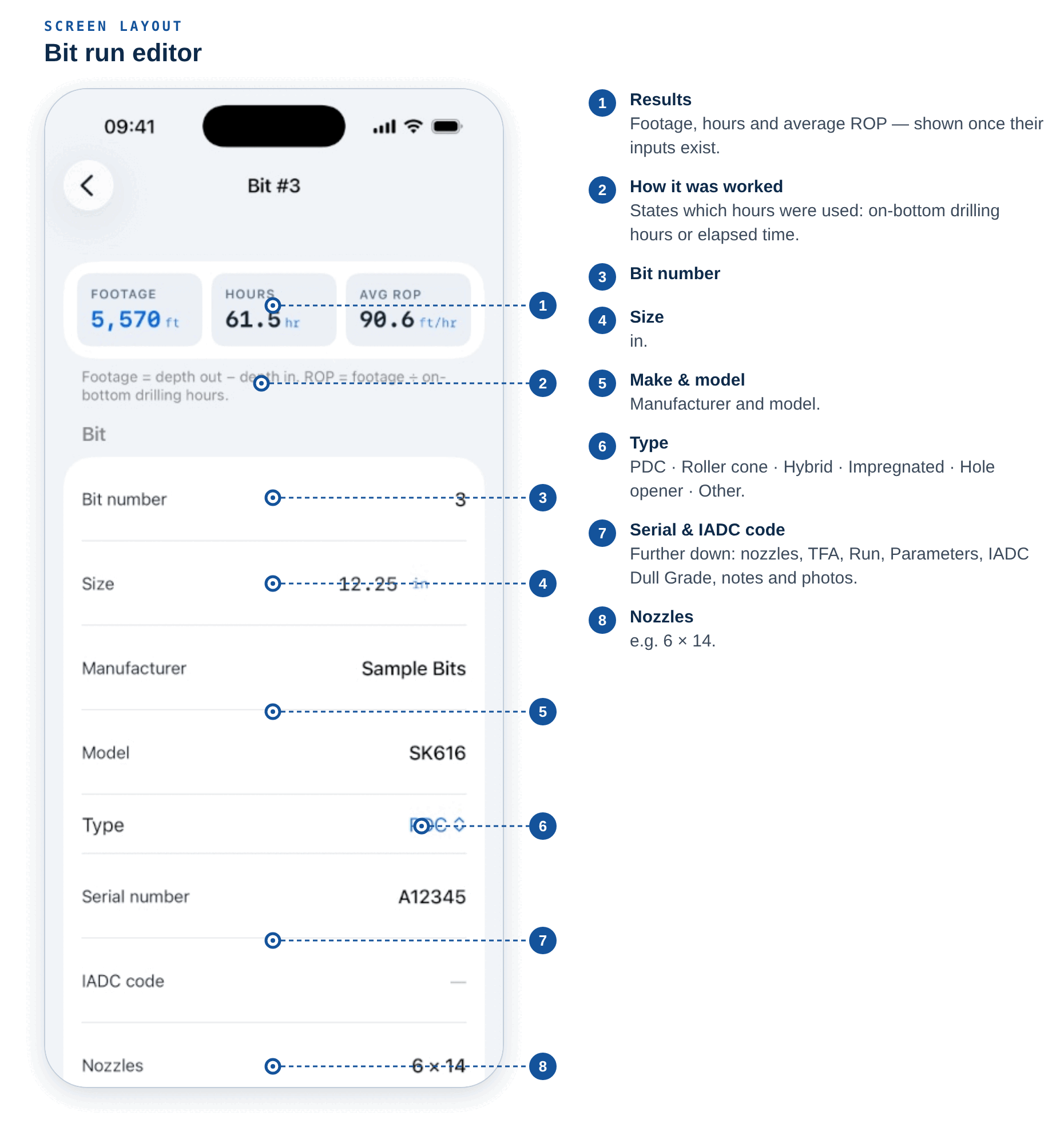
Results (top) — Footage, Hours and Avg ROP, shown once their inputs exist.
| Section | Field | Unit / options |
|---|---|---|
| Bit | Bit number | |
| Size | in | |
| Type | PDC · Roller cone · Hybrid · Impregnated · Hole opener · Other | |
| Manufacturer, Model, Serial number | ||
| IADC code | e.g. 117, M323 | |
| Nozzles | e.g. 6x14 | |
| TFA | in² | |
| Run | Depth in, Depth out | ft |
| Start, End | date and time — Set to now, edit, or clear | |
| Drilling hours | On-bottom time, optional | |
| Formation | ||
| Parameters | WOB min–max | klb |
| RPM min–max | rpm | |
| Flow rate | gpm | |
| IADC Dull Grade | I · O · D · L · B · G · O · R | see below |
| Run Notes | free text | How it drilled, why it was pulled, what to change next run… |
| After-Run Photos | up to 12 at a time |
Bit Out Now stamps the end time when the bit comes out.
Worked figures
Footage = Depth out − Depth in
Hours   = Drilling hours (on-bottom) if entered, otherwise End − Start (elapsed)
Avg ROP = Footage ÷ Hours        (ft/hr)
The footer says which hours were used. Elapsed time includes connections, surveys and anything else that happened during the run — enter on-bottom drilling hours for a true ROP.
Flagged:
- Depth out must be deeper than depth in.
- End time is before the start time.
The IADC dull grade
Eight boxes, entered as the bit came out and shown as one line, e.g. 1-2-WT-A-X-I-NO-TD. The
boxes accept free text so you can use your company's codes; the standard IADC meanings are below
for reference.
| Box | Meaning | Common entries |
|---|---|---|
| I — Inner | Cutting structure wear, inner two-thirds | 0 (no wear) – 8 (fully worn) |
| O — Outer | Cutting structure wear, outer third | 0 – 8 |
| D — Dull characteristic | Main dull feature | WT worn teeth/cutters · BT broken · CT chipped · LT lost teeth/cutters · RO ring out · BU balled up · ER erosion · PN plugged nozzle · LN lost nozzle · JD junk damage · NO no dull |
| L — Location | Where on the bit | N nose · T taper · S shoulder · G gauge · C cone · M middle · H heel · A all |
| B — Bearings / seals | Roller cone only | E effective · F failed · X for fixed cutter |
| G — Gauge | In gauge or under | I in gauge, or 1/16ths under (e.g. 1/16) |
| O — Other | Secondary dull feature | Same codes as D |
| R — Reason pulled | Why it came out | TD total depth · PR penetration rate · BHA change · HP hole problems · DMF motor failure · DTF tool failure · TQ torque · PP pump pressure · FM formation change · CP core point · LOG logging · RIG rig repair · HR hours |
After-run photos
- Take photos of the dull bit — cutters, gauge, nozzles — with the Camera app.
- In the run, tap Add After-Run Photos (or Add More Photos) and pick up to 12.
- They are resized (long edge 2000 px) and stored on the phone with the run.
Tap a photo to view it full screen: pinch or double-tap to zoom, share it, or Delete Photo.
The Bit Record PDF
Summary (well, operator, bits, footage, hours), a bit summary table (bit, size, make/model, in, out, footage, hours, ROP, dull), then a page section per run with every field, the notes and the after-run photos.
Well schematic and schematic sheets
The drawn schematic
Current Well → Well Schematic. Drawn from the well's hole sections and current drill string:
- open hole at each section's diameter;
- casing and liners (solid when run and cemented, dashed when planned), with shoe labels and the LOT/FIT EMW;
- the current string and bit, and the current MD.
Depth is to scale; widths are scaled by diameter. The Casing Program table lists each section. Share well summary creates the Well Summary PDF with the schematic. It redraws whenever the well changes.
Operator schematic sheets (PDF)
Current Well → Schematic Sheets (PDF), or Operator Schematic Sheets (PDF) on the Well Schematic screen. Keep the operator's or company man's wellbore schematic with the well.
- Tap Upload Schematic PDF (or +).
- Pick one or more PDFs from Files, iCloud Drive, or anything saved from Mail or Teams.
- Each sheet is filed under the current well with a first-page thumbnail, page count, file size and upload date.
| Action | How |
|---|---|
| Open | Tap the sheet — full screen, pinch to zoom, share from the top right. |
| Rename | Swipe left → Rename, or long-press. |
| Share | Long-press → Share PDF. |
| Remove | Swipe left → Remove. Removes the app's copy only; the original file is untouched. |
Files that are not PDFs, or password-protected PDFs, are refused by name. If a file won't open, save it to Files first and upload it from there. Sheets open with no signal.
Advanced Hydraulics
NEEDS VERIFICATION. Compare against your service company's hydraulics software before using operationally.
Current Well → Advanced Hydraulics. Pressure losses, ECD, HSI and annular velocity by the API RP 13D power law method, for the well as it stands.
From the Well (read-only, with where each came from): Bit depth & mud weight, MD / TVD, Hole sections, Current drill string and Bit nozzles.
Inputs
| Field | Notes |
|---|---|
| Flow rate | gpm. |
| Rheology (viscometer) | 600 and 300 rpm (600 must be higher than 300), plus lower readings — optional, used for the annulus. Use latest mud check fills them. |
| Surface equipment loss | psi — from the rig's surface-equipment case, or measured. |
Results
| Card | Contents |
|---|---|
| Drill String Losses | Each component: ID, interval, velocity, regime, loss psi. Pipe n / K. |
| Annular Velocity & Losses | Each interval: AV ft/min, critical ft/min, regime, loss psi. Annulus n / K. |
| Bit | Nozzle velocity, Bit HHP, HSI, pressure drop. |
| ECD | ECD at shoe and at bit. |
| Total system | Total standpipe pressure and system hydraulic horsepower. |
| Chart | ECD vs Depth and Annular Loss vs Depth. |
Data gaps are spelled out instead of producing a number: Enter current MD and mud weight on the well. · Add hole sections and casing on the well. · Mark a drill string current on this well. · Enter nozzles on the bit in the drill string. · Enter MD/TVD on the well or add surveys (needed for ECD).
Equations and Assumptions & Limitations are listed on the screen. Share hydraulics report creates the PDF.
Kick Tolerance
SAFETY-CRITICAL · NEEDS VERIFICATION. Verify against your company's well control software and program before relying on this result.
Current Well → Kick Tolerance. Volumetric single-bubble kick tolerance (IADC / IWCF method).
From the Well — Bit MD / TVD, Mud weight, Last casing shoe (Shoe MD / TVD), Shoe test (LOT / FIT) EMW and the Current drill string (for annular volumes around the BHA).
Design Inputs
| Field | Notes |
|---|---|
| Kick intensity | Your design basis. |
| Influx gradient | psi/ft — often 0.1 psi/ft for gas. No gradient is assumed; enter the one in your well program. |
| Pore pressure | Expected at the next section TD, as EMW. Optional. |
| Temperatures | Bottom-hole and shoe temperature — optional, both needed to apply a correction. |
Result — Kick tolerance (bbl), V1 — at the bit, V2 at shoe, V2 at bottom, Max influx height, MAASP, and Governed by (which limit controls).
Data Gaps tell you exactly what is missing, e.g. Enter the LOT/FIT EMW on the casing's hole section. or Mark the casing run-and-cemented with shoe MD and TVD in the hole section. Share kick tolerance report creates the PDF.
Mud Trends
Current Well → Mud Trends. Pick a Property and see it plotted against Depth (ft MD) across every Daily Mud Report on the well, with the Readings listed underneath. Useful for spotting a creeping solids content, a rising YP or a chloride change across a section.
Moving to a new well
Chemical inventory and location volumes are kept per well. The banner at the top of both screens shows which well you are looking at, with an Import button.
Upgrading from 1.x? Inventory and tanks you entered before 2.0 are given to your current well the first time you open each screen, so nothing goes missing. Crew inventory and crew tanks are not split by well — the crew is their scope.
Importing from the last well
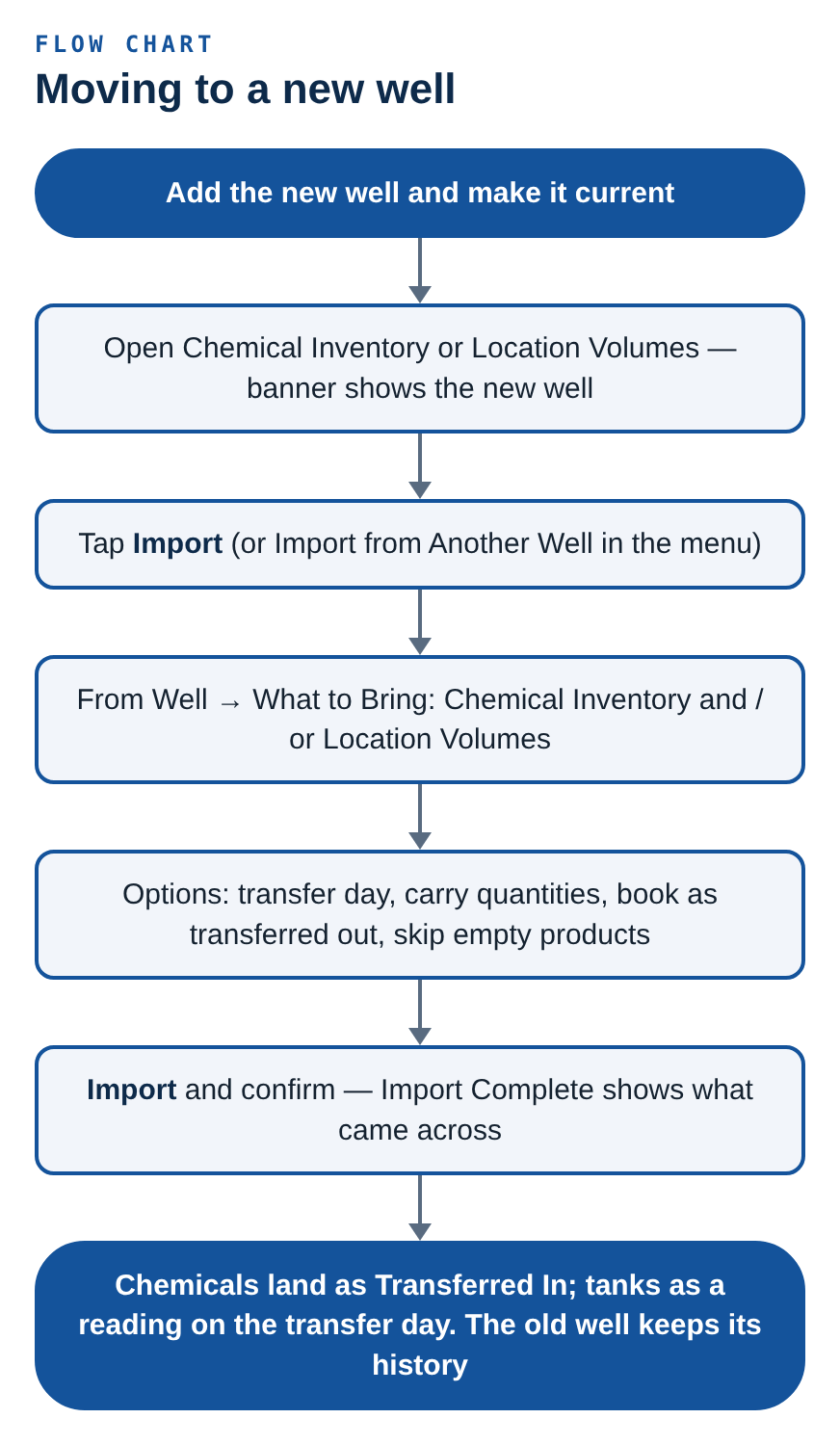
- Add the new well (Home → Switch Well → Add or Manage Wells) and make it current.
- Open Chemical Inventory or Location Volumes. The banner shows the new well.
- Tap Import on the banner (or Import from Another Well in the menu).
- The Import from Another Well sheet opens:
| Section | Field | Effect |
|---|---|---|
| Importing into | The current well. | |
| From Well | picker | The well you came from. |
| What to Bring | Chemical Inventory (N) | Every product with its on-hand quantity. |
| Location Volumes (N) | Every tank (name, type, capacity) with its last gauged volume and mud weight, plus your tank groups. | |
| Options | Transfer day | Quantities are taken as of this day and land on it. |
| Carry quantities & volumes | On: stock and volumes come across. Off: names and setup only — chemicals arrive with zero on hand, tanks arrive empty. | |
| Book as transferred out of old well | Enters the same quantity as Transferred Out on the old well, so both ledgers balance. | |
| Skip products with nothing on hand | Leaves empty products behind. |
- Tap Import and confirm. Import Complete summarises what came across.
How it lands
- Chemicals arrive as Transferred In on the transfer day, noted Transferred in from previous well, so the ledger shows where the stock came from.
- A product already on the new well with the same name and unit is not duplicated — the quantity is added to it.
- Tanks arrive with a gauge reading on the transfer day, which carries forward like any other reading. A tank with the same name is skipped.
- The old well keeps its full history.
Reports and PDFs
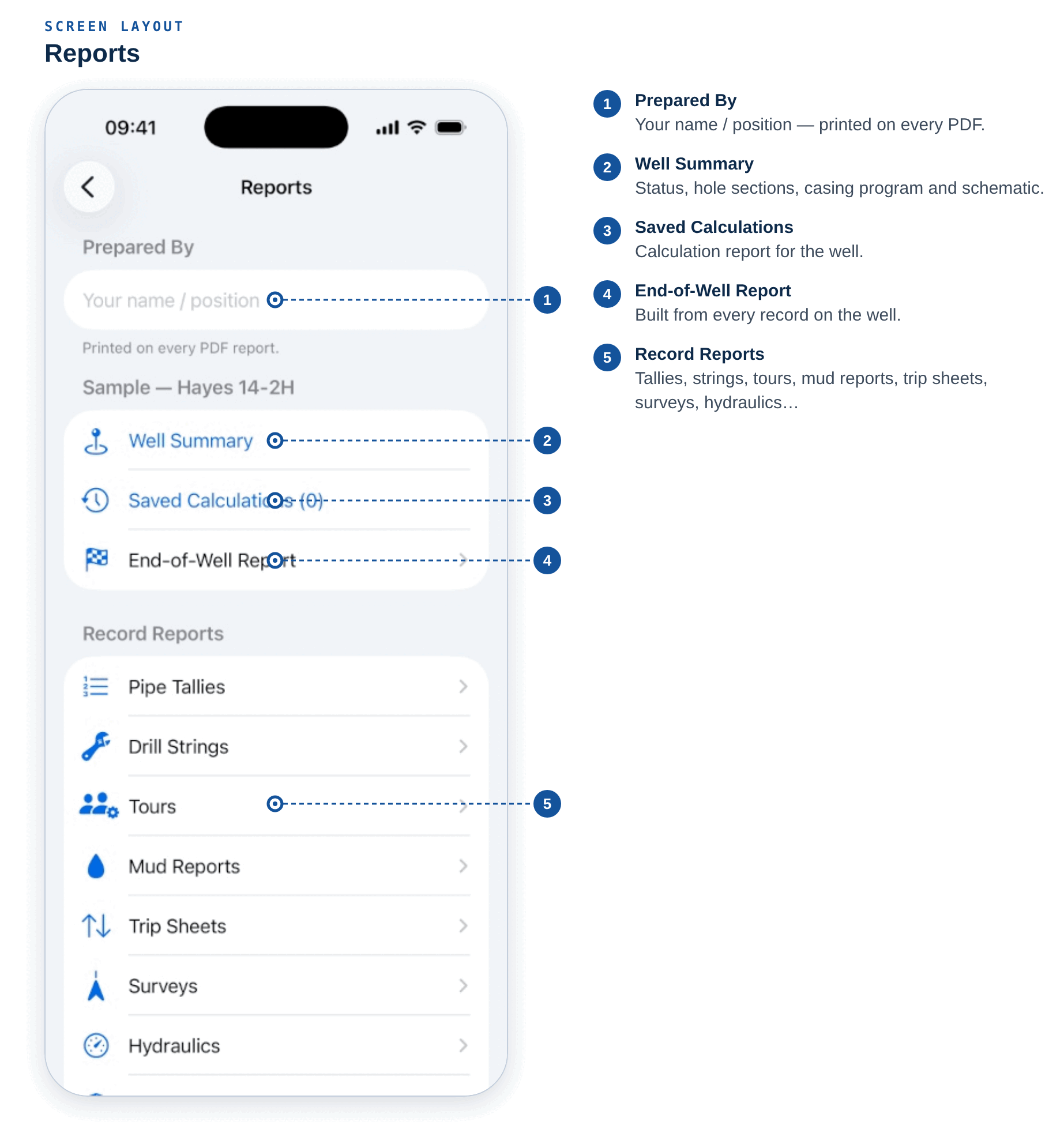
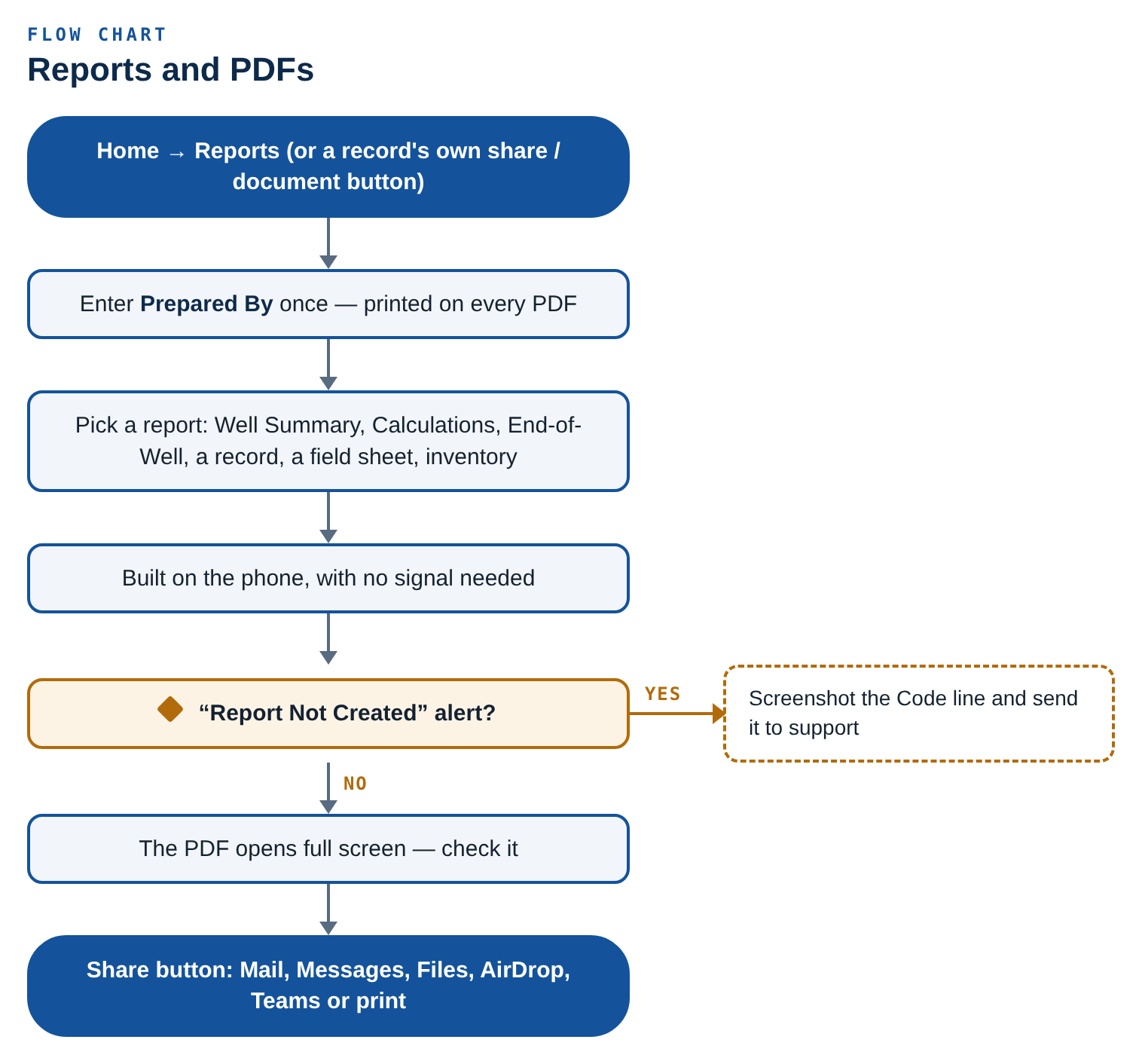
Home → Reports (or Current Well → Reports). Every PDF in one place.
Prepared By — Your name / position. Printed on every PDF report.
| Section | Reports |
|---|---|
| Well | Well Summary (status, hole sections, casing program, schematic) · Calculation Report (saved calculations — favorites listed as significant, otherwise all) · End-of-Well Report |
| Record Reports | Tallies, strings, tours, mud reports, trip sheets, surveys, hydraulics, kick tolerance — open a record and use its share button for its PDF (and CSV where it applies). |
| Field Sheet Reports | Tank Volumes — Today, and pick-a-sheet menus for Cement Jobs, Kill Sheets and LCM Builds. |
| Chemical Inventory | Daily and period reports. |
Every field sheet also has a report button at the top of its own screen: cement job, kill sheet, LCM build, tank volumes (for the day on screen), gain / loss sheet and bit record.
The End-of-Well Report
Built from records already on the well — nothing is re-entered:
- Status — spud, final MD / TVD, final mud weight, operator, rig.
- Hole sections and the casing program.
- String — components of the current string, bit up.
- Surveys — stations, last MD, max inclination, max DLS.
- Mud reports — count, dilution, surface losses, losses to formation.
- Tours — tours logged, gains and losses logged.
- Trip sheets, Saved calculations and chemical On hand.
- Lessons Learned — What would you do differently on the next well? — typed on the Reports screen.
Mud-report and tour volumes are separate records and may overlap; they are listed side by side, not added together.
Viewing and sending
Every PDF is built on the phone with no signal, opens full screen first so you see exactly what will be sent, and is shared from the button at the top right — Mail, Messages, Files, AirDrop, Teams or print.
If a PDF ever can't be built, the alert shows a short Code line. Send a screenshot of it to support so we can see exactly what failed on that phone.
Crew Dashboard
Current Well → Crew Dashboard. One screen that tells you what is shared and what isn't.
| Section | Contents |
|---|---|
| Status | Not signed in — everything stays on this phone and works offline, Signed in, not in a crew, or the crew, your role (You are an admin / Member) and sync state (Syncing…, Waiting for a connection — changes are kept and sent when signal returns). |
| Synced With the Crew | Location Volumes, Gain / Loss, Chemical Inventory, Notes, LCM Build Sheets, Kill Sheets, Cement Jobs, plus Crew wells and My crew profile. |
| On This Phone · Hand Over by PDF | Personal wells & hole sections, rig profiles, tours, mud reports, BHA, tallies, surveys — private from the crew. Share them as PDF reports, or share a well with the crew as a crew well. |
| Recent Activity | The latest crew changes; All activity opens the full list. |
Links: Set up crew sharing / Create or join a crew, and Crew settings & roster.
Offline edits are queued and sent when signal returns. A record edited on this phone is never overwritten by an incoming change until it has been sent.
Translations
Home → Field Tools → Translations. English ⇄ Spanish for the location — northern Mexican field wording.
Type to Translate
- The direction button reads ENGLISH → ESPAÑOL; tap to swap.
- Type anything (Type in English… / Escribe en español…) and tap Translate.
- Under the result: Speak reads it aloud (Stop to cut it off), Show puts it full screen to hold up to a driver, Copy puts it on the clipboard.
It uses Apple's on-device translation. The first time needs a signal to download the Spanish language pack; after that it works offline. If it isn't available: Translation isn't available right now. Connect once to download the Spanish language pack, then it works offline.
Machine translation — double-check numbers, units and safety instructions.
Phrasebook
Ready-made field phrases, searchable in either language (English or español) and filtered by category. Tap a phrase to hear it; tap the expand icon to show it big.
Build a dispatch order
Action · barrels · fluid · tank → Spanish. Builds a full instruction in Spanish from choices:
| Choice | Example |
|---|---|
| Mode | Order or Question |
| Action | Send, transfer, haul… |
| Barrels | 120 |
| Fluid | OBM, brine, fresh water… |
| From / Into | Tank or location (they can't be the same place) |
Say it, Show and Copy work as above.
Announcements
Update notes and offers from Kyanite appear as a banner at the top of Home on every install — no account needed.
- Tap the banner to read the full announcement. A photo icon on the banner means it includes a photo, shown at the top when opened (Photo unavailable offline with no signal).
- Got It dismisses it on this phone.
For the publisher account only — Settings → Publisher → Announcements:
| Field | Notes |
|---|---|
| Type | What's New or Special Offer. |
| Headline, Message | |
| Photo (Optional) | Add Photo from the library, Replace Photo, Remove Photo. Resized and compressed before sending; the upload size is shown. |
| Also Send as Push | A one-shot alert to every device that allowed notifications. |
| Publish / Publish & Push | Goes live on every install. It cannot be unsent — proofread first. |
Last Broadcast shows what is live.
Kyanite Ultra
Kyanite Ultra is the top plan. It includes everything in Kyanite Pro, plus:
| Group | Features |
|---|---|
| AI Engineering Assistants | DrillIQ — AI drilling engineer, on call. MudIQ — AI mud engineer, on call. |
| Your Well, in One Place | Live Rig Dashboard, Well Workspace, Use Well & Rig Values, Rig Profiles, Move to a New Well |
| Every Record, Filed | Well Records, Bits & Records, Well Schematics, Calculation History |
| Engineering | Advanced Hydraulics, Kick Tolerance, Mud Trends |
| Reports, Crew & Support | Reports & End of Well, Crew Dashboard, Translations, Priority Tech Support |
Discover Kyanite Ultra
Settings → Discover Kyanite Ultra (or the Ultra card on Home, or any locked Ultra tile) opens a screen that lists every Ultra feature, grouped as above. Tap a feature for a full explanation. Locked Ultra screens stay visible with a lock and the same explanation, so you always know what is there.
Plans and prices
Ultra is offered monthly and yearly. The paywall shows the price in your local currency, the saving on the yearly plan (SAVE x%) and any free trial you are eligible for. Payment is charged to your Apple Account; the subscription renews automatically unless cancelled at least 24 hours before the end of the period.
Ultra replaces your Pro plan. You never pay for both. Apple starts Ultra straight away and refunds the unused part of your Pro subscription pro rata. Everything in Pro stays unlocked.
- Restore Purchases brings back Kyanite Ultra or Pro on this phone if you bought it with this Apple Account.
- Manage Subscription opens Apple's subscription settings to change or cancel.
- Subscribing needs a connection. Once you're subscribed, Ultra works offline.
Your data is safe if a plan ends. Every well, record and report stays on the phone. Ultra features lock until it is renewed, and then open exactly as you left them.
Ultra on the web
If you are signed in (chapter 43), your Ultra plan also unlocks DrillIQ, MudIQ and Live Rig in the web console. There is no checkout on the web — subscribe and buy question packs here on the phone.
DrillIQ and MudIQ
Two AI engineers, one for drilling and one for fluids. Both are on Home, each on its own card.
| Assistant | What it does |
|---|---|
| DrillIQ — Your intelligent drilling assistant | Well design, API RP 13D hydraulics, torque and drag, kill sheets and MASP, stuck pipe and losses, and DDR / sensor-log analysis — reading your well and live rig data, with every formula shown. |
| MudIQ — Your intelligent mud engineering assistant | WBM, OBM and SBM: mud weight and solids analysis, rheology models, contamination treatments, downhole problems and daily mud report summaries — from your latest mud checks, with the math shown. |
Before your first question
The first time you open an assistant, Before you ask explains:
- What's sent — your questions and, while Use Well & Live Data is on, your current well's details, latest mud report, string, sections and live rig readings.
- Who processes it — Kyanite sends it through the Rork AI gateway to a third-party AI model provider (Anthropic, with OpenAI or Google as backup) solely to generate the answer. Your name and Apple ID are not sent.
- What's kept — conversations are saved on this phone only, and you can delete them at any time.
Tap Agree & Continue to go on, or Not Now.
Quick actions
| DrillIQ | MudIQ |
|---|---|
| Today's Summary — drilling activity overview | Analyze Mud Properties — review current mud |
| Generate Report — daily or shift report | Treatment Recommendation — get specific treatments |
| Analyze Performance — ROP, MSE & KPIs | Troubleshoot Problems — find and fix issues |
| Ask a Question — engineering guidance | Generate Mud Report — daily mud summary |
Below them, TRY ASKING offers example questions — for example Check my kill sheet: 12.4 ppg, SIDPP 450 psi, TVD 9,850 ft or Weight up 800 bbl from 10.2 to 11.0 ppg with barite.
In a conversation
- Use Well & Live Data — on by default when a current well is set. The header shows what is shared: the well, and Live Data Connected or Simulated Data from Live Rig. Turn it off and answers use only what you type (General engineering questions).
- Answers are formatted with headings, tables and the working shown step by step.
- Generate PDF / Share Conversation PDF turns the conversation into a PDF to send or file.
- RECENT CONVERSATIONS on the assistant's home screen lists past chats. Touch and hold one to Delete Conversation.
Engineering aid. Answers can be wrong. Verify calculations against the well program and operator procedures before acting.
Questions and packs
- Ultra includes 100 questions a month, shared by DrillIQ and MudIQ. One question = one answer.
- The allowance refills on the 1st of each month. Unused monthly questions do not carry over.
- Get More Questions sells one-time question packs: Starter Pack (50), Value Pack (100, Most Popular) and Professional Pack (300, Best Value). Not a subscription.
- Pack questions never expire, are used only after the monthly allowance, and follow you to your other devices through iCloud Keychain — and to the web console when you are signed in.
- The remaining balance shows at the top of each assistant. When it runs out you see You're out of questions, with when your Ultra questions refill and a Get More button.
Live Rig Dashboard
Home → Live Rig Dashboard (Ultra). Hookload, WOB, ROP, gamma, torque, pressures, pit volumes and toolface live from an authorised feed, with time and depth graphs you arrange yourself.
Connecting a data source
Tap Set up on the Home card, or the status header on the dashboard, to open Data Source:
| Source | What it is |
|---|---|
| Simulated | A drilling simulation that runs on this phone, for exploring the dashboard. Always labelled SIMULATED. |
| WITSML | Any WITSML 1.4.1 store — rig contractor, operator or data aggregator — that you have read access to. |
| Pason DataLink | Pason's official data delivery service. Choose WITSML Delivery (works now) or DataLink API (switches on once Pason approves the integration for your account). Every value is labelled as Pason DataLink. |
For WITSML and Pason, ask your Pason representative or the operator's data team for:
- Server address, Username and Password (kept in the iPhone Keychain)
- Well UID, Wellbore UID and Time Log UID — use the time-indexed log; depth graphs are drawn from its bit and hole depth curves
- Optional Display Name (e.g. Rig 42 · Smith 3H)
Timing sets Poll Every and Stale Warning After. Channel Mapping matches curves to channels by their usual mnemonics (HKLD, WOB, ROP, GR, SPP, TPO…); type an exact mnemonic to force a match, or Clear All Overrides. Test Connection checks it before you Connect.
Official access only. Kyanite connects only to feeds you are authorised to use, through the published WITSML standard or a Pason-approved DataLink delivery. It never signs in to, scrapes or reads Pason Live or any other web portal.
Reading the dashboard
- Status header — LAST DATA, SAMPLES and the connection state: CONNECTING, SIMULATED, STALE (No new data for…), FEED LOST (with Reconnect), OFFLINE or NOT CONNECTED.
- Readouts — big tiles with the current value. Tap one to Replace With another channel, change its Trace Colour or Hide This Readout.
- Graphs — tracks of traces, indexed by Time or Depth, over the Time Range or Depth Range you choose.
Customising
Customize dashboard sets Show Readouts and Visible Channels (readouts appear in the order you turn them on), the Arrangement of graphs, Tracks (Add Track, add a trace to a track, swipe to delete), Trace Colours and Trace Scale. Reset Dashboard Layout returns to the standard 15 channels and 7 tracks.
Display aid only. Always confirm against the rig's EDR and alarms before acting. Live data is held in memory only (up to 12 hours) and is never saved or shared.
Your account, cloud sync and Kyanite on the web
Signing in is optional. Without it, everything stays on this phone and works exactly as before. Signing in adds three things:
- Your wells and saved calculations sync to your Kyanite account.
- They open in the Kyanite web console on any computer.
- Your Ultra plan and question balance work on the web too.
Signing in
Settings → Group Access → Sign in with Apple or Sign in with Google. It is the same sign-in as Crews — you do not need to join a crew to sync.
Pick one and stick with it. Sign in with Apple and Sign in with Google are separate Kyanite accounts. Use the same one on every phone and on the web.
What syncs
| Record | Syncs? |
|---|---|
| Wells — status, details, hole sections, casing | Yes, both ways |
| Saved calculations | Yes, both ways |
| Crew-shared records | Yes, with the crew (chapter 19) |
| Tours, mud reports, trip sheets, surveys, tallies, strings, bit runs, rig profiles, schematic PDFs, private sheets, inventory and tanks | No — they stay on this phone |
| Settings, hitch, favorites | No |
- The first time you sign in, the wells and saved calculations already on the phone are uploaded, so nothing has to be re-entered.
- When it syncs — when you save, and about every 15 seconds while the app is open. With no signal, changes wait and go up when you are back in coverage.
- When two devices edit the same record, the newest edit wins. A phone that was offline cannot overwrite a newer edit made on the web.
- Deleting a well on one side deletes it on the other.
Settings → Kyanite on the Web shows the state: Sign in to sync, Syncing…, or Synced with the time.
Kyanite on the web
Open app.kyanitepro.com on any computer and sign in with the same Apple or Google account. You get all 133 calculators, your wells and saved calculations, every crew screen, reports and PDFs, and — with Ultra — DrillIQ, MudIQ and Live Rig, on a big screen with a keyboard. The separate Web User Manual covers it.
Signing out
Settings → Group Access → Sign Out. It only affects sync and crew features. Everything stored on the phone stays exactly where it is.
Deleting your account
Settings → Group Access → Delete Account permanently deletes your account from our servers: your profile, your place on every crew, your synced wells and saved calculations, and your question balance. It cannot be undone.
- If you are the only admin of a crew, that crew and everything it shares is deleted for everyone on it. The app lists those crews and asks you to confirm.
- The calculators, sheets and records kept on this phone are not affected.
Crew wells and crew profiles
Crew wells
Current Well → Crew Dashboard → Crew wells. Crew wells are the status your whole crew works from. Your own wells stay under Wells.
- On Location lists the crew's active wells; Archived (rig moved off) keeps the old ones.
- An admin taps + to Add crew well — Well name, Operator, API / UWI, Field, County / region and Notes — and keeps the Current status up to date: MD (ft), TVD (ft), Mud weight (ppg), Active system (bbl) and Current operation.
- Share one of my wells offers your personal wells. It shares a copy: your own well stays on the phone for calculators, and later edits to either one do not change the other.
- Members read crew wells. They show on the web console under Crew Wells.
Your crew profile
Crew Dashboard → My crew profile, or tap yourself on the roster and Edit my profile.
| Field | Notes |
|---|---|
| Name on the roster | How the crew sees you. |
| Position | Pick a common position — Company Man, Toolpusher, Driller, Derrickhand, Floorhand, Motorman, Mud Engineer, Directional Driller, Drilling Engineer, Completions Engineer, Cementer, Solids Control — or type your own. |
| Company | |
| Hitch | e.g. 14/14. |
| Years in the field | |
| Phone | Lets the crew call you from the roster. |
| Certifications | WellSharp, H2S, SafeLand… |
| About | Basins worked, specialties… |
Only people on a crew with you can see your profile — on iPhone and the web. One profile follows you to every crew you are on. Deleting your account deletes it.
Tap anyone on the roster to see their profile — position, company, hitch, years In the field, certifications and On the crew since — with their role and What They Can Change. Admins can change their role or Remove from Crew.
Troubleshooting and FAQ
A calculator didn't fill from the well. The well has nothing in that field (blank is never used), the field doesn't match a well value, or the well you expected isn't the active one. Check the Home card, then the well's Current Status and the section marked current.
Shoe depth or LOT didn't fill. Only casing marked Run and cemented, with a shoe MD and TVD, counts as the shoe. Planned pipe is ignored on purpose.
The status says it's stale. It hasn't been touched for 12 hours. Update MD, mud weight or any status field, or close a Tour Handover.
My inventory or tanks disappeared after switching wells. They didn't — they belong to the other well. Switch back on Home, or use Import to bring them across.
Strokes to bit / bottoms-up strokes show —. Link a rig with a complete pump (liner, stroke, cylinders, efficiency) to the well under Well Information → Rig, and enter the current MD.
Buoyed weight shows —. Enter the mud weight on the well.
ROP looks low on a bit run. With no Drilling hours, ROP uses elapsed start-to-end time, which includes connections. Enter on-bottom hours.
Translation says it isn't available. Connect to a signal once so iOS can download the Spanish language pack.
A PDF won't open or share. Try again; if it fails, screenshot the alert including its Code line and send it to support.
I deleted the app — can I get my data back? Wells and saved calculations, if you were signed in: yes — sign in again with the same account and they sync back. Crew-shared records are still on the crew. Everything else was held only on the phone. Share important records out as PDFs.
My wells don't show up on the web console. Sign in on both with the same account — Sign in with Apple and Sign in with Google are separate accounts. Check Settings → Kyanite on the Web says Synced, and keep the app open for about 15 seconds.
DrillIQ says I'm out of questions. Ultra's 100 monthly questions refill on the 1st. Buy a question pack under Get More Questions; pack questions never expire.
Live Rig shows SIMULATED. You are on the preview feed. Connect a data source under Data Source (chapter 42).
I subscribed to Ultra but the web console is still locked. Sign in on the phone under Settings → Group Access first, so the purchase is linked to your account, then sign in on the web with the same account and reload the page.
Where's the latest manual? Settings → User Manual opens it online; this PDF can be downloaded from the support site.
Glossary
| Term | Meaning |
|---|---|
| Active system | Mud in the active pits plus the hole, bbl. |
| Active well | The well every tool currently works from. |
| API / UWI | The well's regulatory identifier. |
| AV | Annular velocity, ft/min. |
| BHA | Bottom-hole assembly. |
| Bottoms up | Volume / strokes to circulate from the bit to surface. |
| DLS | Dogleg severity, °/100 ft. |
| ECD | Equivalent circulating density, ppg. |
| EMW | Equivalent mud weight, ppg. |
| FIT / LOT | Formation integrity test / leak-off test at the shoe. |
| HSI | Hydraulic horsepower per square inch of bit area. |
| HWDP | Heavy-weight drill pipe. |
| IADC dull grade | The eight-box standard for describing a pulled bit. |
| MAASP | Maximum allowable annular surface pressure. |
| MD / TVD | Measured depth / true vertical depth, ft. |
| PVT | Pit volume totaliser. |
| RKB | Rotary kelly bushing — the usual depth reference. |
| ROP | Rate of penetration, ft/hr. |
| TFA | Total flow area of the bit nozzles, in². |
| VS | Vertical section, ft along the VS azimuth. |
Appendix A — Calculator index
All 131 calculators, in the order they appear in the app, with the unit of the headline result and the verification status. Calculators marked FREE work without a subscription.
Drilling Engineering
25 calculatorsCapacities, volumes, displacement, circulation and pressure calculations.
Capacity
- Annular Capacitybbl/ftFree
Capacity per foot of the annular space between the hole (or casing ID) and the pipe OD.
- Pipe Capacitybbl/ftFree
Internal capacity per foot of drill pipe, tubing or casing.
- Hole Capacitybbl/ft
Open hole capacity per foot for a given bit or hole diameter.
Volume
- Annular Volumebbl
Total annular volume over a measured length of hole.
- Pipe Volumebbl
Internal volume of a length of pipe, tubing or casing.
- Hole Volumebbl
Total open hole volume over a measured interval.
- Total Well Volumebbl
String volume plus annular volume — the full circulating path in the well.
Displacement
- Drill Pipe Displacementbbl
Steel displacement of drill pipe (mud displaced running pipe in the hole).
- Drill Collar Displacementbbl
Steel displacement of drill collars or HWDP.
- Total String Displacementbbl
Combined steel displacement of drill pipe and BHA sections.
Circulation
- Pump Outputbbl/stkFree
Output per stroke and flow rate of a single-acting reciprocating mud pump.
- Pump Strokesstrokes
Strokes required to pump a given volume, and the time at the current rate.
- Bottoms-Up Timemin
Time and strokes to circulate the annulus once, bottom to surface.
- Surface-to-Bit Timemin
Time and strokes for fluid to travel down the string to the bit.
- Bit-to-Surface Timemin
Time and strokes for fluid or cuttings at the bit to reach surface.
- Total Circulation Timemin
One complete circulation: down the string and back up the annulus.
- Lag Timemin
Lag between cuttings leaving the bit and arriving at the shakers.
- ROP Calculationsft/hr
Rate of penetration from footage and rotating hours, plus drilling time per foot.
Pressure
- Hydrostatic PressurepsiFree
Pressure exerted by a static column of drilling fluid at TVD.
- Pressure Gradientpsi/ft
Pressure gradient of a fluid column from its density.
- Equivalent Mud Weightppg
Mud weight that would produce a given pressure at TVD.
- Equivalent Circulating Densityppg
Effective density seen by the formation while circulating, including annular friction.
- Kill Mud Weightppg
Mud weight to balance formation pressure from SIDPP.
- MAASPpsi
Maximum allowable annular surface pressure based on casing shoe strength.
- Trip MarginppgNeeds verification
Additional mud weight commonly used to offset pressure losses while tripping.
Drilling Fluids
33 calculatorsMud properties, weighting, treatment, chemistry and slug calculations.
Density & Mixing
- Mud Weightpsi/ftFree
Converts a mud weight between every field unit: ppg, psi/ft, lb/ft³, SG and kg/m³.
- Oil/Water Ratio% oil
O/W ratio of an invert emulsion from retort oil and water volumes.
- Raise Oil/Water Ratiobbl oil
Base oil needed to raise the O/W ratio to a target.
- Lower Oil/Water Ratiobbl water
Water or brine needed to lower the O/W ratio to a target.
- Weighted Fluid Mixingppg
Resulting density when two fluids of different weights are blended.
- Water Additionbbl
Water required to reduce mud weight to a target density.
- Diesel Additionbbl
Diesel or base oil required to reduce mud weight to a target density.
Weighting
- Barite AdditionsacksFree
Sacks of barite to weight up a system, plus the resulting volume increase.
- Hematite Additionsacks
Sacks of hematite to weight up a mud system.
- Volume Increasebbl
Volume gained when weighting up with a solid weighting material.
- DilutionbblNeeds verification
Dilution fluid required to bring a solids concentration to a target.
Rheology
- Plastic ViscositycPFree
PV from 600 and 300 rpm viscometer dial readings.
- Yield Pointlb/100ft²
Bingham yield point from 600 and 300 rpm readings.
- Apparent ViscositycP
Apparent viscosity at any viscometer speed.
- Gel Strengthlb/100ft²
10-second and 10-minute gels with the development between them.
- Fluid LossmL/30min
API 30-minute filtrate equivalent from a shorter filter press test.
Treatment & Chemistry
- Product Treatmentlb
Total product needed to treat a system at a target concentration.
- Pounds Per Barrellb/bbl
Concentration from weight of product added to a known volume.
- Chemical Concentrationlb
Product required to move from current concentration to target.
- Retort Calculations% solids
Oil, water and solids percentages from a retort test.
- Solids%Free
Total solids content from retort oil and water percentages.
- Low Gravity Solids%Needs verification
LGS (drilled solids) content from mud weight and retort data.
- High Gravity Solids%Needs verification
Weighting-material solids content from mud weight and retort data.
- Chloridesmg/L
Chloride concentration of the filtrate from a silver nitrate titration.
- Calciummg/L
Calcium concentration of the filtrate from an EDTA titration.
- Alkalinitymg/LNeeds verification
Hydroxyl, carbonate and bicarbonate estimates from Pf and Mf.
- Lime Concentrationlb/bblNeeds verification
Excess lime from Pm, Pf and water fraction.
System Volumes
- Active System Volumebbl
Total active circulating volume: surface pits plus the hole.
- Tank Volumebbl
Volume in a rectangular pit or tank, plus barrels per inch of height.
- Slug Volumebbl
Slug volume for a desired length of dry pipe when tripping.
- Slug Weightppg
Slug weight for a desired dry pipe length with a fixed slug volume.
- Spacer Volumebbl
Spacer or pill volume needed to cover a required length of annulus.
Flow Checks
- Vis Cup Flow Rategal/min
Flow rate from the seconds it takes to fill a known container — a mixing line or a trickle of returns, with no flow meter.
Solids Control
10 calculatorsSolids balance, dilution, discard, screens and equipment performance.
Solids Balance
- Solids Percentage%Free
Total solids in the mud from retort oil and water readings.
- Low Gravity Solids%FreeNeeds verification
Drilled (low gravity) solids content — the number solids control equipment is judged on.
- High Gravity Solids%Needs verification
Weighting material (HGS) content of the mud.
Dilution & Discard
- Dilution VolumebblNeeds verification
Dilution fluid to reduce LGS to a target level.
- Discard VolumebblNeeds verification
Whole mud to discard, and replacement volume, at constant system volume.
- Flow RategpmFree
Circulating rate through the solids control equipment from pump output and speed.
Equipment
- Screen Mesh / Micronµm
Opening size of a square-mesh screen from mesh count and wire diameter.
- Centrifuge CalculationsgpmEquipment specific
Mass and volume balance across a decanting centrifuge from measured stream data.
- Hydrocyclone CalculationsgpmEquipment specific
Total processing capacity of a desander or desilter bank from rated capacity per cone.
- Equipment Efficiency%Needs verification
Solids removal efficiency from feed and discharge solids content.
Cementing
19 calculatorsSlurry design, annular volumes, balanced plugs, displacement and differential pressure.
Slurry Design
- Slurry Yield & Densityft³/skFree
Builds the slurry from absolute volumes: yield per sack and the density that comes with it.
- Slurry Density from Yieldppg
Density when yield is already known from the lab or service company design.
- Mix Water for Target Densitygal/sk
How much water each sack needs to land on the program density.
- Additive by % BWOClb
Turns a percent by weight of cement into pounds per sack, total pounds and sacks.
- Total Mix Water with Additive DemandbblEquipment specific
Total water on location once every additive's own water demand is added in.
Volumes
- Sacks RequiredskFree
Sacks and mix water for a slurry volume you have already worked out.
- Slurry Volume from Sacksft³
What a given number of sacks actually makes, in ft³, bbl and gal.
- Annular Cement Volumebbl
Volume to fill the annulus over a length of hole, with hole excess applied.
- Casing & Shoe Track VolumebblFree
Inside volume of a casing string or of the shoe track.
- Casing Steel Displacementbbl
Mud displaced by the steel as casing goes in the hole.
- Cement Column Height & Top of Cementft
How far up the annulus a slurry volume reaches, and the resulting top of cement.
- Average Hole Diameterin
Back-calculates the effective hole size, and the real excess, from a measured volume.
- Spacer Volume for Coveragebbl
Spacer or wash volume to keep a chosen length of annulus covered ahead of the cement.
Balanced Plug
- Balanced Cement Plugft
Plug length, top of plug, displacement volume and spacer needed behind the cement.
- Slurry for a Plug Lengthbbl
Volume and sacks to give a target plug length in open hole or casing.
Displacement
- Displacement Volume & Strokesbbl
Volume, strokes and time to displace the plug to the float collar.
- Annular Contact Timemin
How long cement or spacer is in contact with a zone at a given pump rate.
Pressure
- Hydrostatic of a Cement Columnpsi
Hydrostatic of a mud, spacer and cement column and the equivalent mud weight.
- Differential Pressure at the Shoepsi
How hard the cement pushes back on the float once displacement is finished.
Directional & MWD
21 calculatorsSurvey calculation, well plan geometry, steering and MWD sensor equations.
Survey
- Minimum Curvature SurveyftFree
The standard survey calculation: TVD, north, east and dogleg between two stations.
- Dogleg Severity°/100ftFree
Total angle change between two stations, normalised to degrees per 100 ft.
- Interpolate a Survey Station°
Inclination, azimuth and TVD at any depth between two stations.
- Closure & Vertical Sectionft
Closure distance and direction from N/E coordinates, plus vertical section along the proposal line.
Well Plan
- Build Section GeometryftFree
Radius, course length, TVD gain and displacement for a build or drop at constant rate.
- Tangent (Hold) Sectionft
TVD and displacement over a straight hold, or footage needed to make a displacement.
- Build Rate Required°/100ft
Rate needed to get to a target angle in the footage available.
- Project Aheadft
Where the bit ends up after drilling ahead at a given build and turn rate.
Steering
- Slide Footage RequiredftEquipment specific
How much of an interval must be slid for the course change you need.
- Motor Yield from Survey°/100ft
Back-calculates what the BHA actually delivered from the last slide.
- Bit Walk Rate°/100ft
How fast azimuth drifts while rotating — the walk tendency of this BHA.
- Toolface for a Correction°Needs verification
Approximate toolface setting to build and turn at the same time.
- Slide / Rotate Blended ROPft/hr
Average ROP and time for an interval that is part slide, part rotate.
MWD Sensors
- Inclination from Accelerometers°
Inclination and gravity total-field check from the three accelerometer readings.
- Azimuth from Magnetometers°
Magnetic azimuth from the magnetometer and accelerometer triads.
- Magnetic Dip Angle°
Dip angle from the sensor triads — the second half of magnetic survey QC.
- Magnetic Total Field QCnT
Compares measured total field against the geomagnetic reference for the location.
- Toolface from Sensors°Equipment specific
Gravity and magnetic toolface from raw sensor readings.
- True & Grid Azimuth°
Corrects a magnetic azimuth to true north and then to grid north.
- Telemetry Transmission Times
How long a survey or toolface update takes to reach surface at a given data rate.
- MWD Battery LifehrEquipment specific
Hours available from a battery pack and what is left after hours already run.
Well Control
23 calculatorsKill weight, circulating pressures, shoe limits, kick analysis and the vertical kill sheet.
Pressure & Gradient
- Hydrostatic PressurepsiFree
Hydrostatic pressure of a fluid column and its gradient.
- Formation Pressure from SIDPPpsi
Formation pressure and equivalent mud weight from a stabilised SIDPP.
- Equivalent Mud Weightppg
What a pressure is worth at depth, and the EMW a surface pressure adds.
- Equivalent Circulating Densityppg
Density the formation sees while circulating, from annular pressure loss.
Kill Sheet
- Kill Mud WeightppgFree
The mud weight that balances the formation, from SIDPP. Always rounded up.
- Initial Circulating Pressurepsi
Drill pipe pressure to hold when the kill starts, before kill mud reaches the bit.
- Final Circulating Pressurepsi
Drill pipe pressure to hold once kill mud is at the bit and for the rest of the circulation.
- Pressure Step-Down Schedulepsi/100 stk
How fast drill pipe pressure comes down from ICP to FCP while kill mud is pumped to the bit.
- New Pump Pressure with New SPMpsi
Approximate pump pressure after changing pump speed.
- New Pump Pressure with New Mud Weightpsi
Approximate pump pressure after a mud weight change at the same rate.
Casing Shoe Limits
- Maximum Allowable Mud Weightppg
Fracture mud weight at the shoe from a leak-off test. Always rounded down.
- MAASPpsiFree
The casing pressure that breaks down the shoe.
- MAASP After Killpsi
What is left at the shoe once the hole is full of kill mud.
- Riser Marginppg
Extra mud weight to keep the well balanced if the riser is lost, for floating operations.
Kick Analysis
- Influx Heightft
How far up the annulus the influx stands, from the pit gain.
- Influx Gradient & Densitypsi/ft
Gradient of what came in, from the SICP minus SIDPP difference.
- Gas Expansion (Boyle's Law)bbl
How a gas bubble expands as it is brought up and pressure falls.
Circulation
- Strokes & Timestk
Strokes and pumping time for a volume at a given pump output and speed.
- Kill Circulation Strokesstk
Surface to bit, bit to surface and the total for a full kill circulation.
- Capacity & Fluid Heightbbl/ft
Tubular and annular capacity, and how tall a volume stands in them.
Gas Migration
- Gas Migration Rateft/hr
How fast gas is rising in a shut-in well, from the pressure climb.
- Volume to Bleed (Volumetric)bbl
Mud to bleed off for each pressure step of a volumetric control.
- Slug: Level Drop & Returnsft
How far the pipe drops dry after a slug, and how much mud comes back.
Appendix B — Privacy Policy
Reproduced in full below, and published separately at kyanite /privacy. Effective 14 October 2026.
Summary
There is no analytics, no advertising and no tracking. Every calculator, chart and sheet works with no account and no signal, and what you enter is held in local storage on your own device.
A few things are different, and all of them are your choice. Subscriptions contact our subscription provider. If you sign in with Google or Apple, your own wells and saved calculations sync to your account so they open in the Kyanite web console, and records you share with a Crew are stored on our servers so your crew can see them. DrillIQ and MudIQ send your question to an AI provider to answer it. If you never sign in, nothing you enter leaves the device except a question you choose to ask DrillIQ or MudIQ.
Who we are
Kyanite Pro is developed and published by Kyanite Holdings (“we”, “us”). This policy covers the Kyanite Pro iOS application, the Kyanite web console, the kyanitepro.com website and this support website. An Android app is in development; when it ships, this policy will cover it too. If you have any question about it, write to us at admin@kyaniteinc.com.
Using the app without an account
The app has no sign-up wall. Calculators, reference charts, kill sheets, cement jobs, LCM build sheets, inventory, location volumes and notes all work with no account and no login. If you work alone, you will never be asked who you are, and this section is the only one about accounts that applies to you.
Signing in is only needed for Crews, for using your records in the web console, and for using an Ultra plan on the web. It is entirely optional and you can use every other part of the app indefinitely without it.
Information you enter, and where it lives
The app is designed for you to put real work into it. That includes:
- Wells — names, operator, API number, depths, mud weight and hole sections
- Saved calculations and gain/loss data sheets
- Location volumes — tanks, daily gauge readings and tank groups
- Chemical inventory products, daily ledger entries and inventory history
- LCM build sheets and cement job sheets
- Kill sheets, including pre-recorded well data
- Field notes, and the rig or well you tag them with
- Your hitch rotation, favorites, shaker screen records and app settings
By default all of this is stored only on your device, in the app’s private local storage. It is never transmitted to us, and we have no technical means of accessing it.
There are two exceptions. If you sign in, your own wells and saved calculations are copied to your account so they open in the web console; only you can read them, and edits made on either side sync to the other. And records you explicitly share with a crew are described in the next section. Inside the app these two sets are kept visibly separate: each shared screen has a Mine / crew switch, and anything under “Mine” stays on the device.
If your device is backed up to iCloud or to a computer, that local storage may be included in your own backup. That backup belongs to you and is governed by Apple’s privacy policy, not ours.
Crews: signing in and sharing records
Crews let the hands on one location keep the same figures in front of them. It is opt-in and it requires an account, because there is no way to show a record to your crew and nobody else without knowing who is who.
When you sign in, you authenticate with Google or Apple. We never see or store your password. We receive and store a user identifier, your email address and your display name, and we use them for one purpose: showing your crewmates who is on the roster and who last changed a record.
When you share records with a crew, copies of those records are stored on our backend so the other members can read them. Depending on what you share, that can include:
- Crew wells — name, operator, API number, current depth, mud weight and status
- Gain/loss data sheets and their hourly readings
- Tanks, gauge readings and tank groups
- Inventory products and daily ledger entries
- LCM build sheets, kill sheets and cement job sheets
- Field notes and the rig or well you tag them with
Crew profile. You may fill in an optional work profile — position, company, phone number, hitch pattern, years in the field, certifications and a short bio. It is shown only to people who are on a crew with you, never publicly, and every field is optional. You can change or clear it at any time.
Each shared record also carries who last changed it and when, so a crew can trace a figure back to a person. Please keep in mind that a shared note or sheet is visible to everyone on that crew — treat it as a crew record, not a private one, and do not put personal information into it.
Invites are sent by email. When you invite someone, we store the email address you entered and an invite code so the invitation can be redeemed. Invites expire.
Access control. Only members of a crew can read that crew’s records. This is enforced on the server, not just in the app.
Crew notifications. If you turn notifications on, we store a push token issued by Apple for that device, alongside your account, so an alert can reach the right phone. It is not your Apple ID and it cannot be used to identify you outside this app. The token is deleted when you sign out, and when Apple tells us it is no longer valid. Alerts say only who changed what area, for example “Mike updated 3 tank gauge readings” — never a calculated figure. We also record a short crew activity entry (who, which area, how many records and when) so the same updates can be read in the app. You may turn notifications off, or mute a whole crew or individual areas, at any time in Group Access > Notifications.
Leaving and deleting. Removing a shared record marks it as deleted for the whole crew. You can delete your account at any time in the app under Settings › Group Access › Account. That immediately erases your account, crew memberships, crew profile, synced wells and calculations, question balance, push tokens and linked subscription status from our servers; crews where you were the only admin are deleted with it. Records you contributed to a crew that continues may remain visible to that crew as part of their operational history, in the same way a figure you wrote on a paper sheet stays on the sheet. You can also write to admin@kyaniteinc.com and we will action it.
The web console
The Kyanite web console runs in your browser. Calculators work there with no account. When you sign in with the same Google or Apple account you use on iPhone, it reads and writes the same records described above — your own wells and saved calculations, and your crews’ shared records — under the same access rules. Your sign-in session, settings and DrillIQ / MudIQ chat history are kept in your browser’s local storage on that computer; signing out clears the session. Printing or saving a report as PDF happens entirely in your browser.
DrillIQ and MudIQ (Ultra)
When you ask an Ultra assistant a question, your question, the conversation so far and — if “Use well data” is on — a summary of your active well are sent through Rork’s AI gateway to the model provider that produces the answer. They are used only to answer you, not for advertising. Do not include personal information in a question. Your monthly question allowance and any question packs are recorded against your account so the same balance works on iPhone and the web.
Who processes your data
We keep the list of third parties as short as we can. They act as our processors and are not permitted to use your data for their own purposes:
- RevenueCat, Inc. — subscription status. Receives purchase history for this app and an anonymous installation identifier randomly generated by RevenueCat. It is not your Apple ID and not your advertising identifier. When you are signed in, your purchases are linked to your Kyanite account id so an Ultra plan also works in the web console.
- Supabase, Inc. — hosts the database that stores accounts, crew membership, crew profiles, shared crew records, your synced wells and calculations, and messages sent through the kyanitepro.com contact form. Only holds account data if you sign in.
- Rork, Inc. — hosts the web console and websites, provides sign-in and routes DrillIQ / MudIQ questions through its AI gateway to the model provider that answers them.
- Google or Apple — whichever you choose to sign in with, acting as your identity provider.
- Apple Push Notification service — delivers crew notifications to your device. Only used if you sign in, join a crew and turn notifications on.
We do not use analytics, crash reporting, advertising networks or attribution tools, and we do not sell or share personal information.
Network access
The app makes network requests for these reasons, and no others:
- To start, restore or verify a Kyanite Pro subscription
- To sign you in, if you choose to
- To sync shared crew records, if you are in a crew
- To sync your own wells and saved calculations, if you are signed in
- To answer a DrillIQ or MudIQ question you ask
- To register your device for crew notifications, if you turn them on
No calculation, chart or sheet requires a connection. Once your subscription has been confirmed, the result is cached on the device and the app keeps working with no signal for up to 30 days before it needs to check in again. Crew records you change with no signal are held on the device and go up the next time you have coverage. This is a deliberate design decision for work on location, where a rig may have no coverage for an entire hitch.
Sharing outside the app
Where the app offers a share option, the content is handed to the standard iOS share sheet and what happens next is entirely your choice — you may mail it, save it to Files, AirDrop it or print it. The app itself does not send anything anywhere, and we receive no copy.
Contacting us
The suggestion form in Settings, and the contact buttons on this website, compose a message and hand it to your own email app. Nothing is transmitted by the application itself. If you choose to send that email, we will of course receive your email address and whatever you wrote.
The contact form on kyanitepro.com stores your name, email address, the optional company and role you enter, the topic and your message in our database so we can reply.
Either way, we use what you send for one purpose only: replying to you and acting on your feedback. We do not add you to a mailing list, and we do not pass your message to anybody else.
Permissions
The app requests one permission, and only if you ask for it: notifications. You are asked in Group Access > Notifications, after you tap to turn them on — never when you open the app, and never anywhere in the offline calculator side. If you never open Group Access you are never asked, and declining leaves everything working; the same updates appear in the in-app activity list.
Nothing else is requested. The app does not use the camera, the microphone, location services, contacts, the photo library, Bluetooth or health data. “Location Volumes” refers to the tanks on your location — it does not use your device’s location.
Children
The app is a professional tool intended for people working in the oil and gas industry. It is rated 4+ because it contains no objectionable content, but it is not directed at children and we do not knowingly collect information from them.
Your rights
Data protection laws such as the GDPR and the CCPA give you rights to access, correct, export and erase personal data held about you. If you have never signed in, we hold nothing that identifies you and there is nothing for us to disclose or delete. If you have signed in, write to admin@kyaniteinc.com and we will provide a copy of the personal data associated with your account, correct it, or delete your account, within the timeframes the law requires. You can also delete your account yourself in the app at any time.
The information inside the app is under your direct control at all times: you can edit or delete any record from within the app, and removing the app removes the local copy from your device.
We do not sell or share personal information.
Retention
Local records stay on your device until you delete them or delete the app. Synced personal records, your crew profile and account details are kept until you delete them or your account. Crew records are kept for as long as the crew is in use. Contact-form messages are kept only as long as needed to handle your request. Subscription records are retained by our subscription provider for as long as needed to honour your entitlement.
Purchases and subscriptions
Kyanite Pro and Ultra are auto-renewing subscriptions, and DrillIQ / MudIQ question packs are one-time purchases, all sold through the Apple App Store. Nothing is sold on the web. Payment is handled entirely by Apple. We never see your payment details, your card number or your billing address, and Apple’s handling of your purchase is covered by Apple’s own privacy policy.
You can cancel at any time in Settings › Apple Account › Subscriptions; the subscription renews unless cancelled at least 24 hours before the end of the current period.
These websites
This support site and kyanitepro.com are static pages apart from the contact form above. It sets no advertising or tracking cookies and runs no analytics. Our hosting provider may keep standard server logs, such as IP addresses and requested pages, for security and reliability purposes; we do not use those logs to build any profile of you.
Changes to this policy
If this policy changes, the revised version will be published on this page with a new effective date. Where a change materially affects what leaves your device, we will describe it here plainly.
Contact
Questions about this policy can be sent to admin@kyaniteinc.com. See also our Terms of Use.
Appendix C — Terms of Use
Reproduced in full below, and published separately at kyanite /terms. Effective 14 October 2026.
Engineering disclaimer
Kyanite Pro is a calculation and reference aid. It is not a well control program and it is not a substitute for engineering judgement, training, competency or your employer's procedures. All results must be independently verified by qualified personnel before any operational decision is made.
Agreement
These Terms of Use form an agreement between you and Kyanite Holdings covering your use of the Kyanite Pro application and this website. By downloading, purchasing or using the app you accept these terms. If you do not accept them, do not use the app.
Your purchase is also subject to Apple's App Store terms, including the Licensed Application End User License Agreement. Where those terms grant you rights that these terms do not, Apple's terms apply.
Licence
We grant you a personal, non-exclusive, non-transferable licence to install and use the app on devices you own or control, in line with the App Store terms and the rules of your Apple Account.
The app is free to install. Kyanite Pro, an auto-renewing subscription, unlocks the full calculator library, kill sheets, cement jobs, LCM build sheets and inventory reports. It is offered to new subscribers at $9.99 per month or $50 per year, with a 7-day free trial. Kyanite Ultra, which adds the DrillIQ and MudIQ assistants, is offered at $20 per month or $119.99 per year. Existing subscribers keep the price they subscribed at. Prices in other territories are set by Apple’s equivalent price points and may differ. The same subscriptions can also be bought on the web at app.kyanitepro.com, where they are charged to your card by our payment processor and can be managed or cancelled from the Subscription page; one subscription unlocks both the iPhone app and the web console for the same account.
Payment is charged to your Apple Account at confirmation of purchase. The subscription renews automatically unless it is cancelled at least 24 hours before the end of the current period, and your account is charged for renewal within 24 hours of the end of that period. Any unused portion of a free trial is forfeited when you buy a subscription. You can manage or cancel your subscription in Settings › Apple Account › Subscriptions. Refunds are handled by Apple, not by us.
You may not:
- copy, redistribute, resell, rent or sub-licence the app;
- reverse engineer, decompile or disassemble it, except to the extent that applicable law expressly permits it;
- remove or obscure any notice of ownership within the app; or
- extract the calculation library, reference charts or other content for use in a competing product.
Professional use, and the limits of this tool
This section is the most important part of these terms.
The app is a professional aid intended for trained oil and gas personnel. It performs arithmetic and presents reference data. It has no knowledge of your well, your equipment, your formation, your regulatory regime or the conditions on your location, and it cannot exercise judgement.
It is not a well control program, a safety system, a certification tool or an engineering authority. The well control calculators and the kill sheet exist to check your arithmetic and to keep your pre-recorded data current. They do not make decisions. All well control decisions must follow the operator's and the drilling contractor's well control program and the direction of the person in charge on location.
Every calculator in the app displays its equation, its units, its assumptions and a verification status of VERIFIED, NEEDS VERIFICATION or EQUIPMENT SPECIFIC. You are responsible for reading that status and for confirming that the equation, the assumptions and the units are appropriate to your situation before you act on a result.
You remain solely responsible for verifying every result against your own company's standards, published equipment data and applicable regulations, and for all decisions taken on the basis of them. Nothing in the app creates an engineering, advisory or professional relationship between you and Kyanite Holdings.
Your data and your records
Records you create in the app are stored on your device by default. Deleting the app, losing the device or resetting it will destroy those records permanently, and we cannot recover them because we never hold a copy. You are responsible for keeping your own copies of anything you need to retain.
If you use Crews, records you share are also stored on our servers so the rest of your crew can read them. Sharing is a deliberate act: each shared screen has a Mine / crew switch, and nothing moves to a crew until you choose it. Treat a shared record as a crew record — everyone on that crew can see it, and it may remain part of that crew's operational history after you leave. Do not put personal information into shared records, and do not share records you are not entitled to share under your employer's or the operator's confidentiality rules. See our Privacy Policy for the full detail.
Accounts and crews
An account is required only for Crews. You sign in with Google or Apple, and you are responsible for keeping access to that account secure and for the activity that takes place under it.
A crew admin can add and remove members and change their roles. Every member of a crew needs their own active Kyanite Pro subscription. We may suspend or remove an account that is used to abuse the service or another user.
No warranty
The app is provided “as is” and “as available”, without warranty of any kind, whether express or implied, including any implied warranty of merchantability, fitness for a particular purpose, accuracy or non-infringement.
We have tested the calculation engine extensively and it is covered by an automated test suite worked against known values. Even so, we do not warrant that the app is free of errors, that any result is accurate or suitable for your particular application, or that it will operate without interruption.
Limitation of liability
To the fullest extent permitted by law, Kyanite Holdings shall not be liable for any indirect, incidental, special, consequential, punitive or exemplary damages, nor for any loss of profit, revenue, production, data, wellbore, equipment or business opportunity, arising out of or in connection with your use of, or inability to use, the app — whether based in contract, tort, negligence, strict liability or otherwise, and even if we have been advised of the possibility of such damages.
To the fullest extent permitted by law, our total aggregate liability arising out of or in connection with the app shall not exceed the amount you actually paid for it.
Some jurisdictions do not allow the exclusion of certain warranties or the limitation of liability for certain damages. Where that is the case, the exclusions and limitations above apply to you only to the extent permitted in your jurisdiction, and nothing in these terms limits liability for death or personal injury caused by negligence, or for fraud.
Indemnity
You agree to indemnify and hold harmless Kyanite Holdings against any claim, loss or expense arising from your use of the app in breach of these terms, or from any operational decision you take on the basis of a result the app produced.
Purchases and refunds
The app is sold through the Apple App Store. All payments, receipts and refunds are handled by Apple under Apple's terms — we cannot process a refund ourselves. If you believe you are entitled to one, request it through Apple's “Report a Problem” process. If something in the app is not working as described, please contact us first at admin@kyaniteinc.com; we would far rather fix it for you.
Updates and availability
We may release updates that change, add or remove features. We may also stop distributing or supporting the app. We will not remotely disable a copy you have already purchased and installed, and because the calculators and sheets run entirely on the device they will continue to function as long as your device supports them. Crew sharing depends on our servers and, like any online service, is not guaranteed to be available without interruption.
Intellectual property
The app, its interface, its calculation library, its reference charts and its report layouts remain the property of Kyanite Holdings and are protected by copyright. The underlying engineering formulae are, of course, industry standards in the public domain and belong to nobody — but their particular selection, arrangement, presentation and implementation here do not.
The records you create in the app are yours. We claim no ownership over your inventory, your job sheets or your notes.
Changes to these terms
We may revise these terms from time to time. The current version is always published on this page with its effective date. Continuing to use the app after a revision means you accept the revised terms.
Contact
Questions about these terms can be sent to admin@kyaniteinc.com.
Something in this manual out of date, or a screen not covered? Write to admin@kyaniteinc.com and it will be corrected.